Upload CSV files as a data source
You can upload one or more CSV files containing source data to a data set. The uploaded CSV files are converted into corresponding data tables.
The limit for a CSV file upload is 3 GB per file. The limit for uploading multiple CSV files is 15 GB.
By default, the created data tables are of Table type. However, you can change the table type to Incremental table if required. The table type is relevant if you want to update the uploaded source data.
Click Source tables in the Data set panel. The Source tables section opens.
Click Upload file. The Add data table wizard opens and displays the Upload CSV file page. The wizard uploads your data to the data set and parses the data into a table.
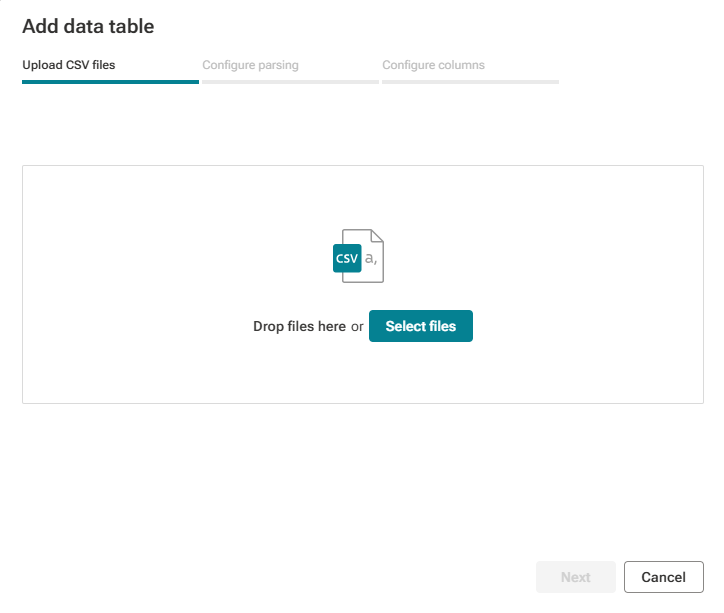
To add data to the data set, drag CSV files into the highlighted area, or click Select files, and select one or more CSV files. The wizard uploads the selected files to the data set.
Example
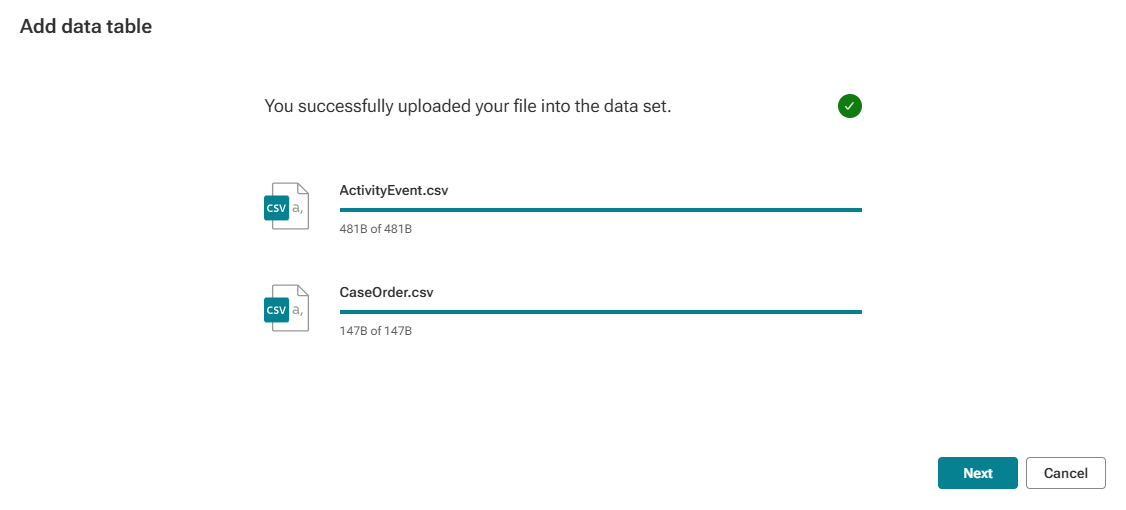
The data of two selected files is uploaded.
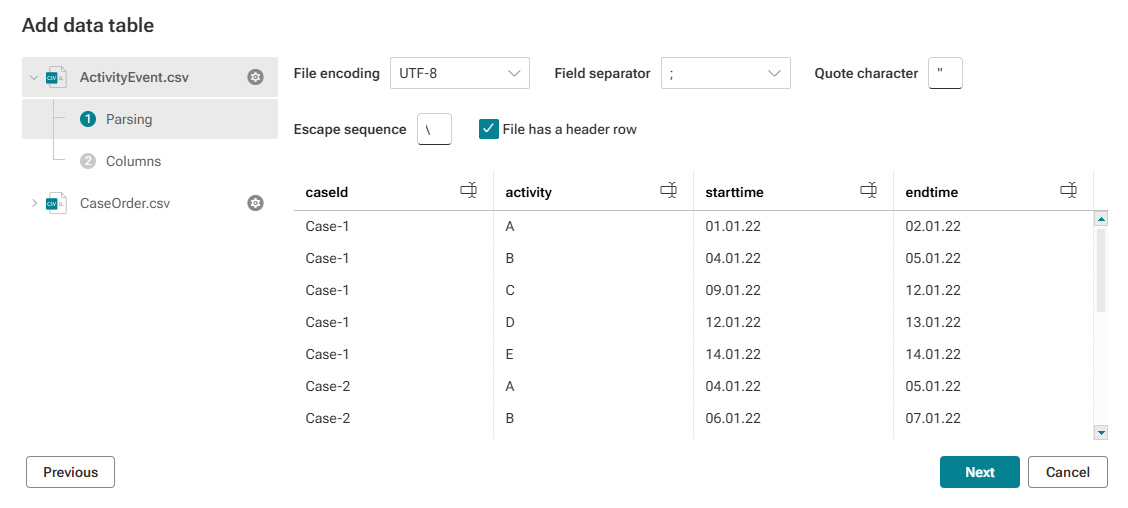
After the data is uploaded, click Next. If you selected multiple files, the files are displayed in the left panel of the wizard. If you selected only one file to upload, the panel with the selected file is not displayed in the wizard. The wizard opens with the page for parsing the first selected file and displays the data read-out and configuration. Here you can configure the data parsing.
If you uploaded multiple files, you can switch between them using the panel, or use the Previous and Next buttons to switch between pages.
Example
The example shows the Parsing page of the first of two uploaded CSV files.
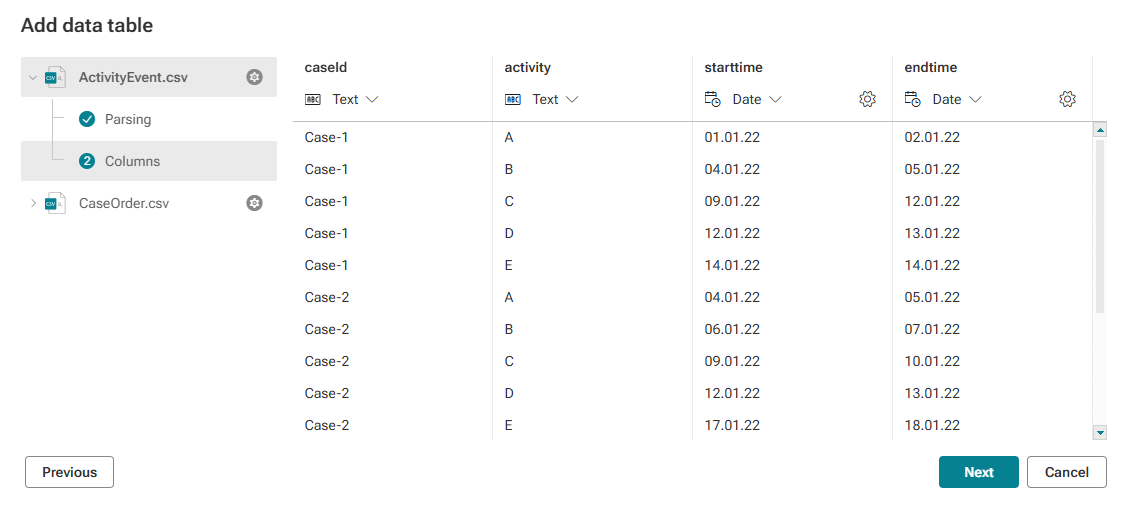
Click Next. The page to configure the columns opens. You can configure the data type of the individual data columns.
Example
The example shows the Columns page of the first of two uploaded table.
If you uploaded multiple files, click Next to configure the parsing and column settings for the next table.
If you configured all tables uploaded, click Add table respecticely Add all tables.
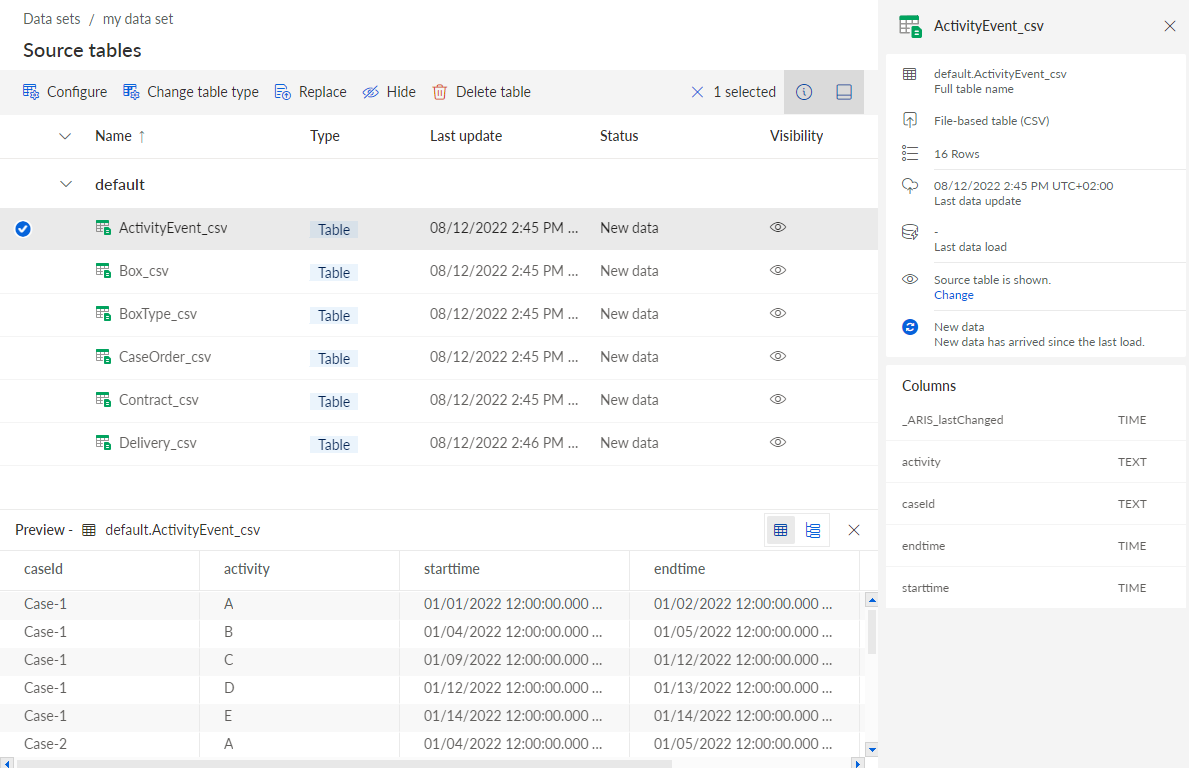
The selected data source files are parsed as tables and uploaded into the data set. The uploaded data source files are listed as tables on the Source tables page.
You can now upload the next CSV files into the data set. After you have uploaded all source data and configured the source tables, you can configure the data model that is required to load the data into the process storage.
To see more information and a preview of the uploaded data, select a source table and click Preview.
The data set contains multiple source tables based on the uploaded sample CSV files. The preview shows the uploaded source data.