Define the insight trigger condition
You can define a condition rule for an insight trigger. A condition rule defines when activities or cases satisfy a certain aspect in your processes, for example, when a case exceeds a specific duration.
You can use the visual editor or the code editor to define a condition rule. For details on using the different editors, see the chapters Use the visual editor and Use the code editor.
Please note that the result returned by the condition rule you create must be of the Boolean type (true or false). Dynamic operators, such as now(), are not supported.
Click Condition. On the Condition page, you can manage the trigger conditions.
Click Create condition. The condition editor opens.
Select the editor with which you want to define the condition rule. The corresponding editor opens.
Define a condition rule for the insight trigger. The editor provides all operators and operands required to define a calculation rule.
Example
The following example shows how to create a condition rule in the visual editor.
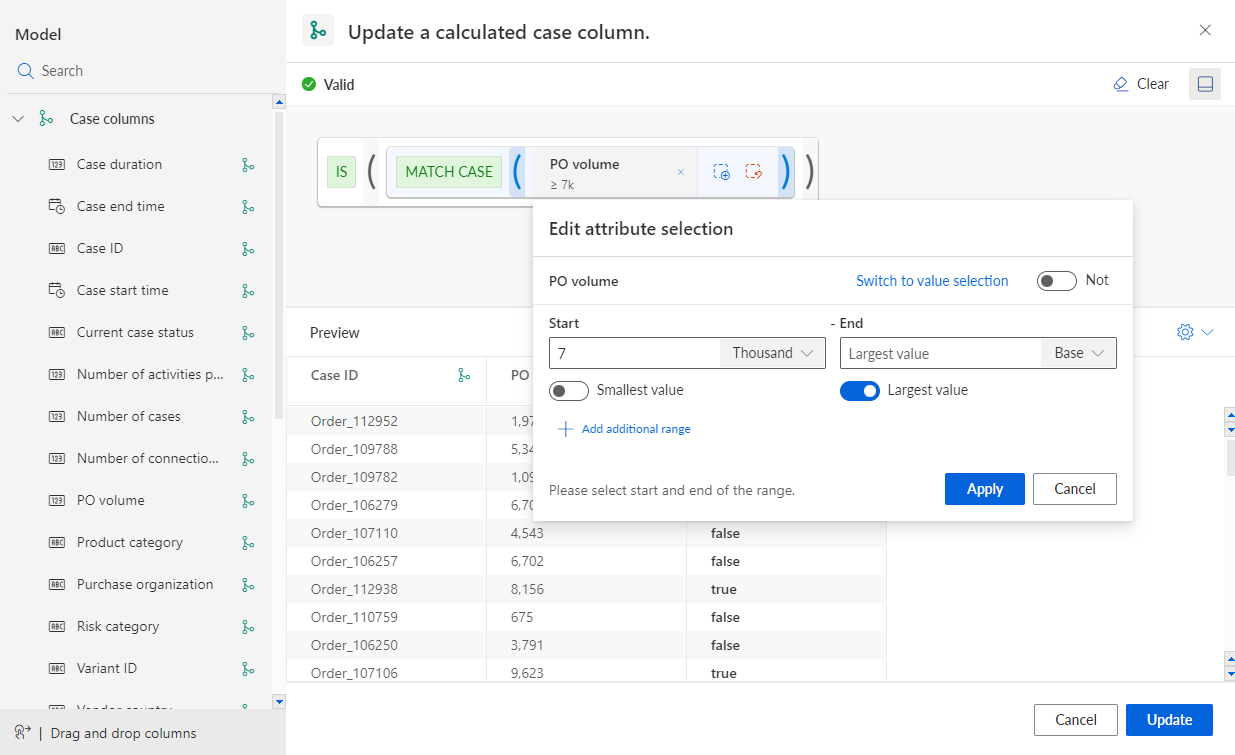
You can reset your calculation definition if required. If you click Clear, your settings are completely reset and cannot be restored.
Click Update.
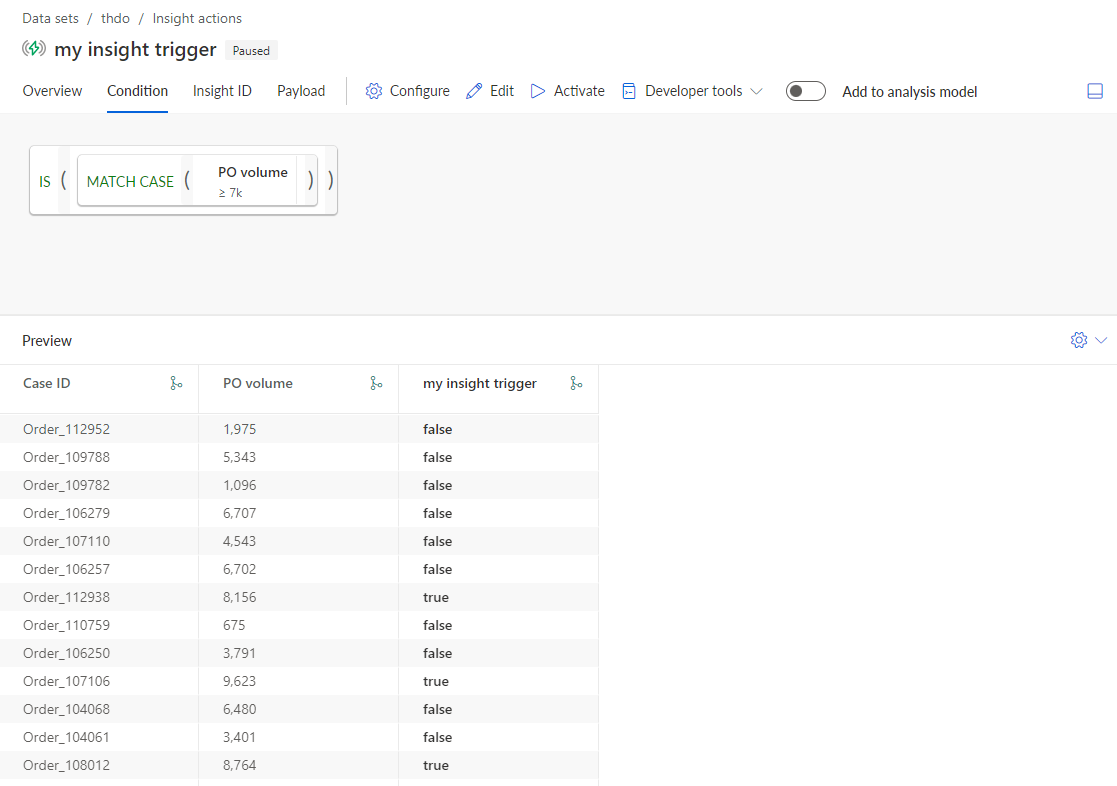
You have defined a condition rule for an insight trigger. The condition is displayed on the Condition page.
Click  Preview to display a preview of the calculated values of the insight condition.
The following example shows a condition rule created in the visual editor. The condition rule checks if the order volume of the cases are greater than or equal to 7000 and returns the values true or false.