Use the code editor
The code editor provides you the ARIS process language to create simple operations, such as reading values from a particular field, or any complex arithmetic operations.
For a list of provided operators and operands, see the Scripting operators and operands chapter. To display all supported operators and operands in the editor, click the first line of the editor and press Ctrl + Space. A box with the supported elements opens.
Tip
You can insert a comment line in the code by using the # character. Everything between # and end of line is a comment, for example,
...
# this is a comment.
...
The following example illustrates the basic procedure for creating a calculated field using the code editor.
This example shows how to create a field that contains the values of the time span between the Create Purchase Requisition and Create Purchase Order activities of a case. The example is the same as described for the visual editor.
The examples are based on the demo data provided by ARIS Process Mining. You can use the demo data to follow the examples.
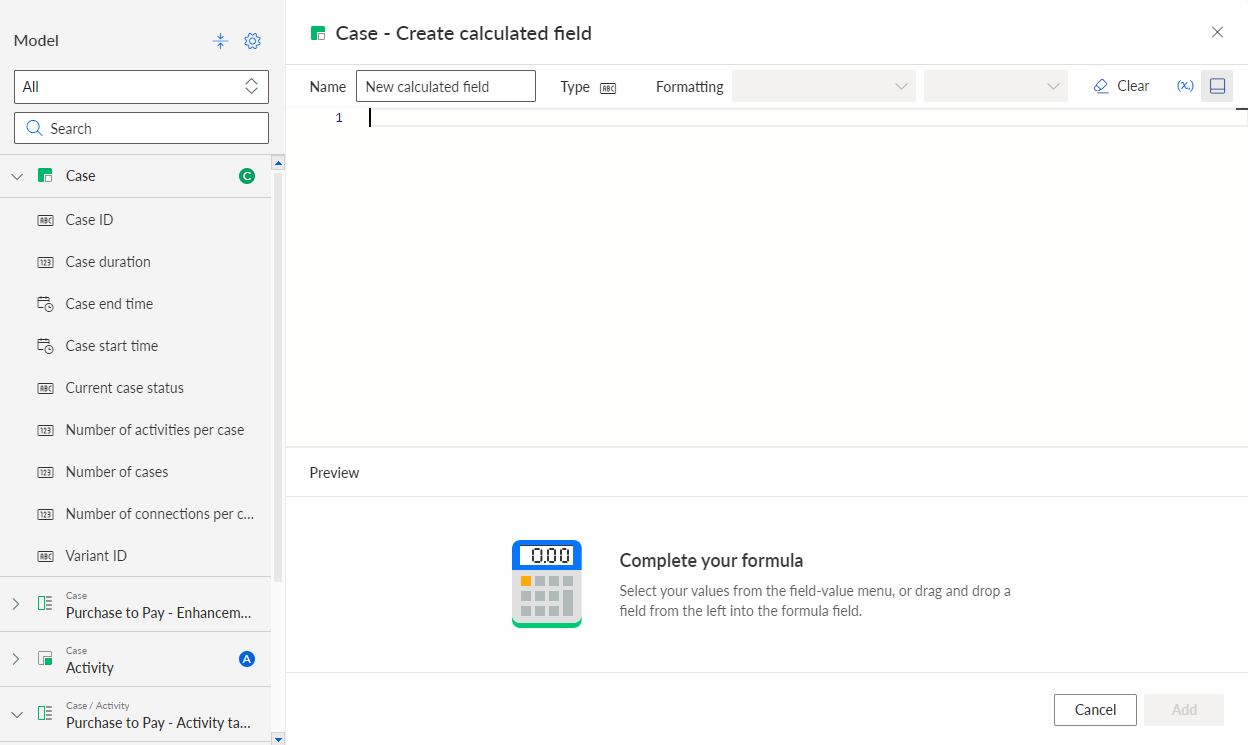
Click the first line of the code editor.
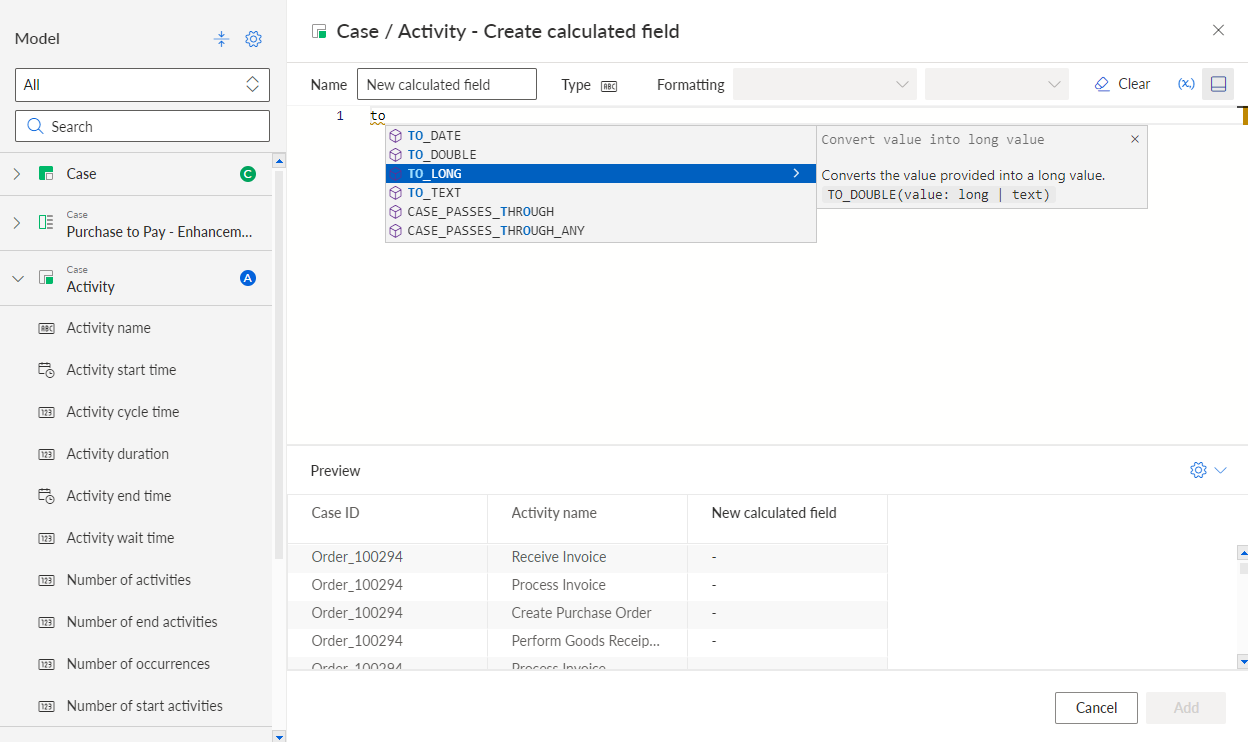
Add the TO_LONG convert operator to the calculation rule. Given that the time span cannot be calculated with values of the date type, the date must first be converted into a number.
Enter the name of the operator in the editor. A panel opens containing a list of operators corresponding to your input.
Use the arrow keys to navigate through the list.
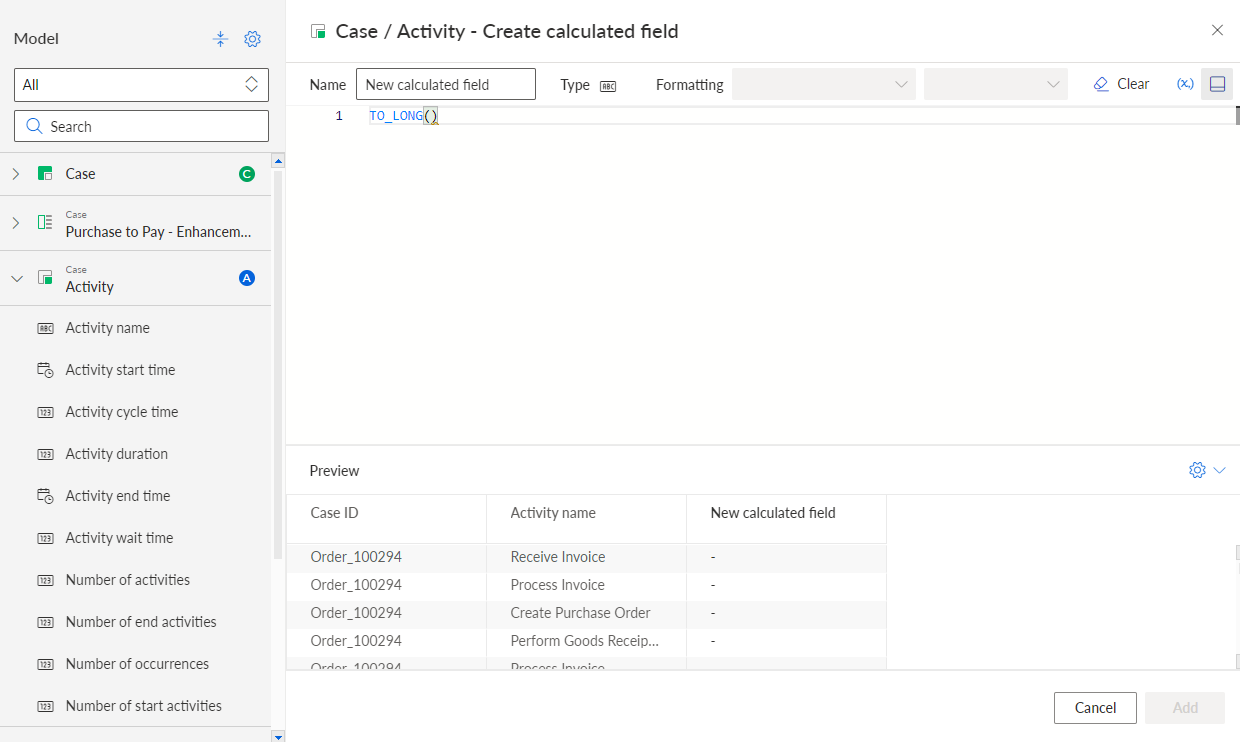
Select the TO_LONG () operator. The TO_LONG() operator is added in the first line of the code editor and a preview of the corresponding data is displayed.
Add the ACTIVITY_PU_FIRST operator that reads the activity fields.
Place the cursor between the parentheses of the TO_LONG() operator.
Add the ACTIVITY_PU_FIRST operator. The operator pulls up the value of the first matching field. It has the following syntax: ACTIVITY_PU_FIRST(field: Field, filter?: Boolean).
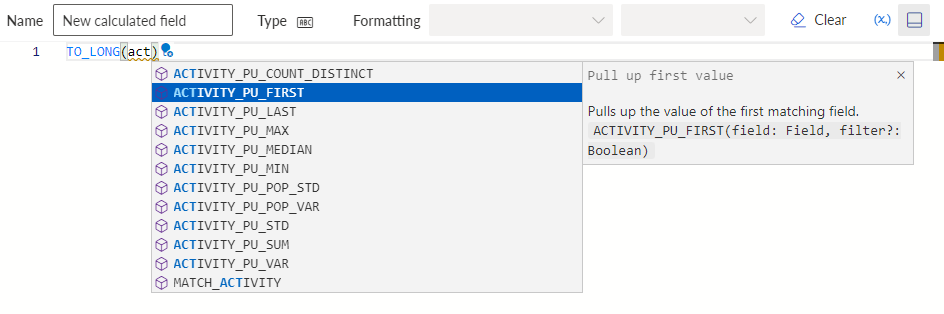
Specify the activity field to be read by the operator. Replace the field operand by the Activity start time field. The Activity start time is a standard field automatically created for the analysis model. Standard fields have the _ARIS. prefix.
Select the field operand of the ACTIVITY_PU_FIRST operator and enter "_". A list with all standard fields starting with "_" is provided. Select the _ARIS.Activity.Activity start time field.
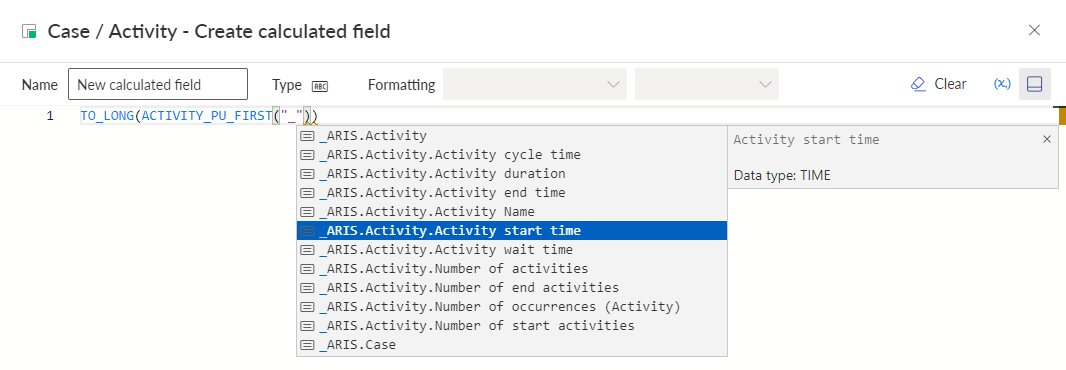
The selected field replaces the field operand.

Add the Create Purchase Requisition activity as filter value to specify the activity whose start time is to be read.
Add the name of the activity as the second field. Multiple operands are separated by a comma (,).
Enter " to add a field as operand. A second " is added automatically. Fields and objects are enclosed in quotation marks.
Place the cursor between the two quotation marks "".
Enter "_". A list with all standard fields starting with "_" is provided.
Select _ARIS.Activity.Activity name as second field.

Add the Create Purchase Requisition activity as filter value as follows: "_ARIS.Activity"."Activity Name" = 'Create Purchase Requisition'
Values are enclosed in single quotation marks.

Press Enter. A second line is added.
Enter - (minus).
Press Enter. A third line is added.
Define the operation to calculate the start time of the Create Purchase Requisition activity. The procedure is the same as shown above.
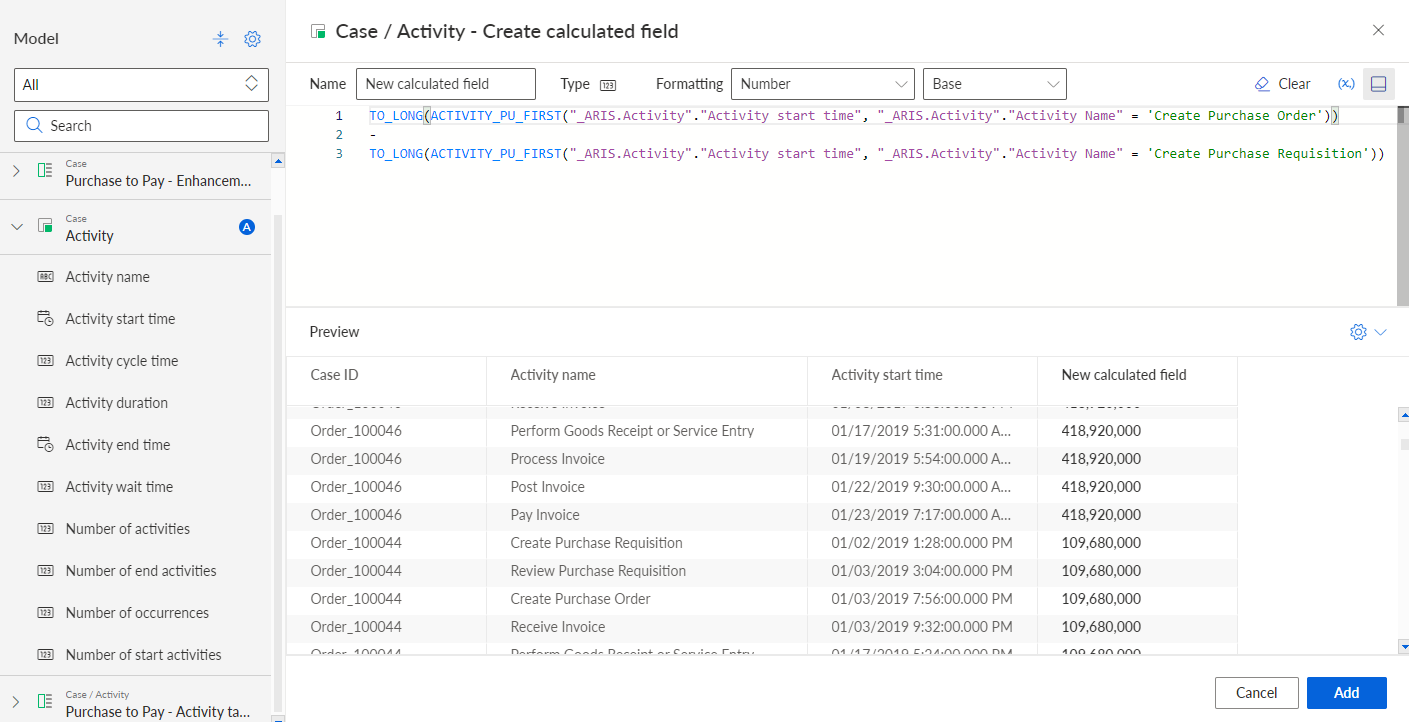
Click Add.
You created an operation for a new calculated field. The field is added to the selected object in the Model panel.
You can create parameters for use in your calculation rule.
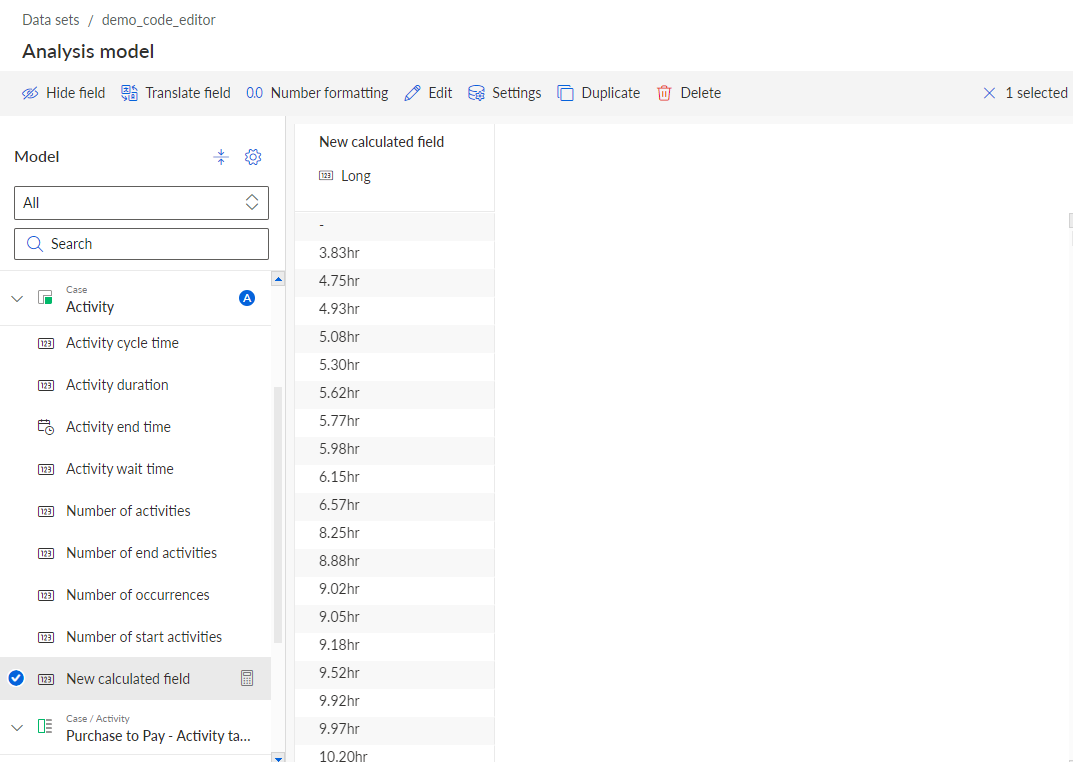
The new calculated field is added to the Activity object.