Use the visual editor
The visual editor provides you with a method to create operations in a simple, graphical way. These can be simple operations, such as reading values from a particular field, or complex arithmetic operations.
The operations are organized in graphical units called blocks. Each operation can consist of one or more operators and values. An operation returns a unique result with data of a specific data type.
Note that you can save only valid and fully configured operation definitions.
The operation definition starts with a single block that you can use to select the first value of the operation. Click the
 Add value icon in the block to start.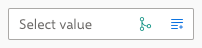
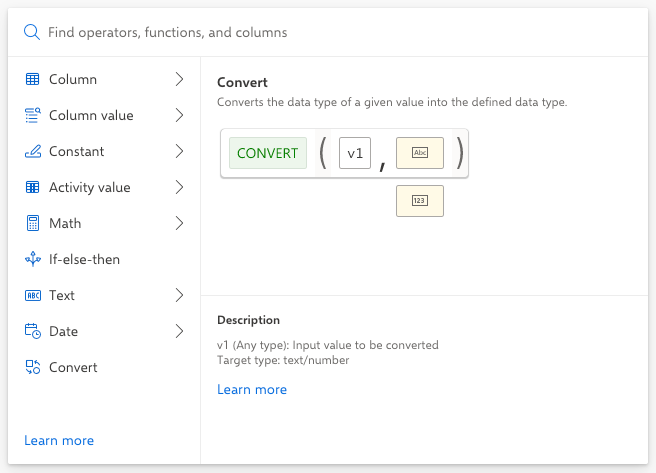
A corresponding context menu provides the operators and values that are relevant to the selected block.
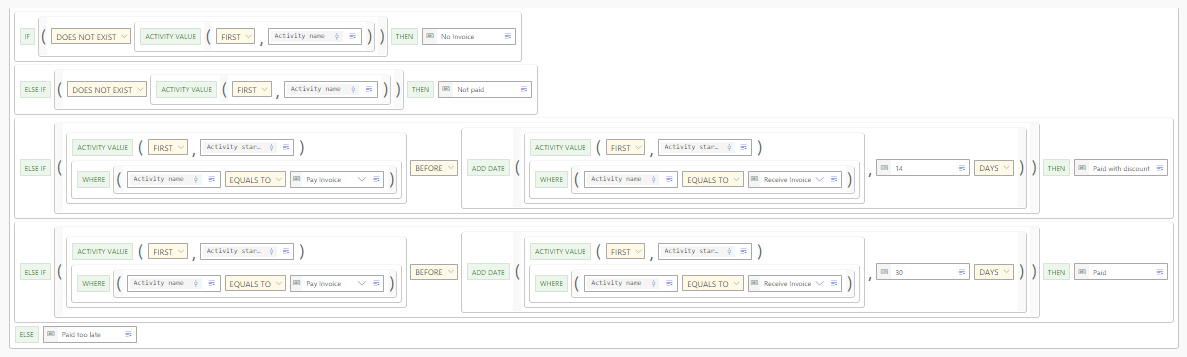
You can nest or combine multiple blocks to define more complex operations, as shown in the following example.

A block provides several actions that you can perform. Click a block to display a context menu.
Note that the options that are provided depend on the block type you select. There are two types of options: default options and options that depend on the context.
The following example shows some default options.

 Add block: Adds a parent block to define a superordinate operation. The currently selected block is embedded (child block) as a part of the added block (parent block).
The Convert block in the following example is the superordinate operation (parent block) of the ACTIVITY VALUE operation (child block).
 Add condition: Adds a child block to define a subordinate operation. The added condition is embedded in the selected block.
The Where block in the following example is the embedded condition in the ACTIVITY VALUE operation.

 Reset block: Resets all settings of the selected block to the default. Embedded blocks are also discarded.
 Copy block: Copies the selected block including all nested subblocks to the clipboard.
 Paste block: Pastes a copied block.
 Delete block: Deletes the selected block.
 Collapse block: Shows the block in compact mode.
 Expand block: Shows the block in full mode.
The following examples show you how to create calculated fields using the visual editor. The examples help you to get familiar with the basic actions for defining operations.
You can use the demo data provided by ARIS Process Mining to follow the examples.
Example: Calculate time span
Operation to calculate a time span between two activities of a case.

Example: Terms of payment
Operation to determine the extent to which orders are paid on time or late.