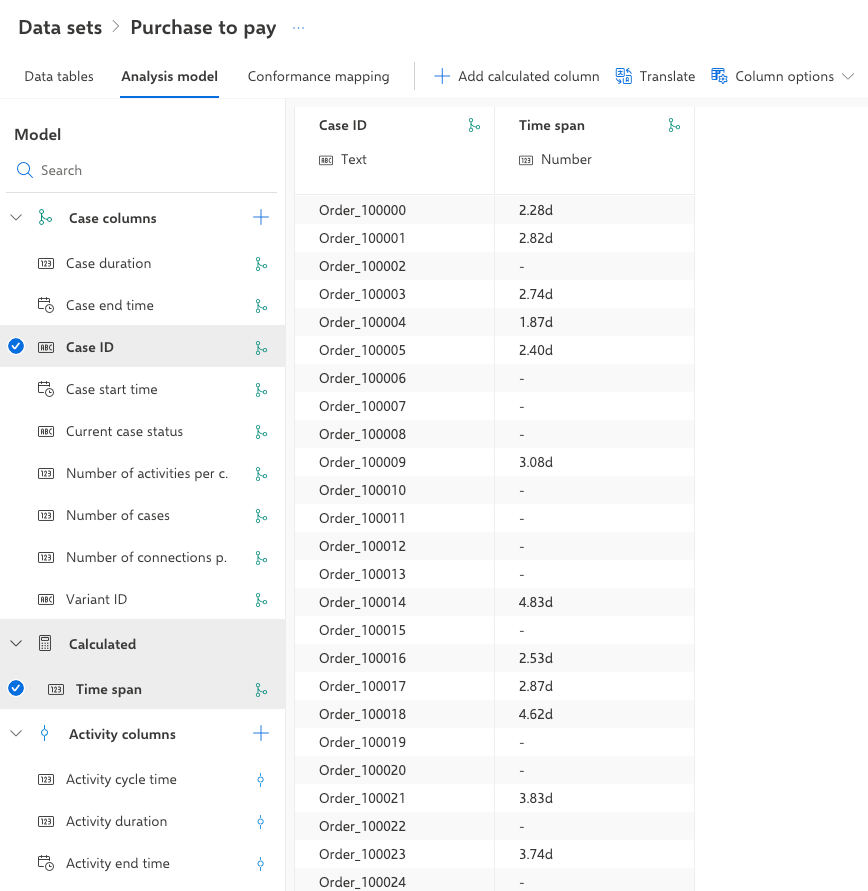
Calculate time span
This example shows how to create a field that contains the values of the time span between the Create Purchase Requisition and Create Purchase Order activities of a case.
The examples are based on the demo data provided by ARIS Process Mining. You can use the demo data to follow the examples.
The following activity diagram, which is based on the demo data as well, contains the Create Purchase Requisition and Create Purchase Order activities.
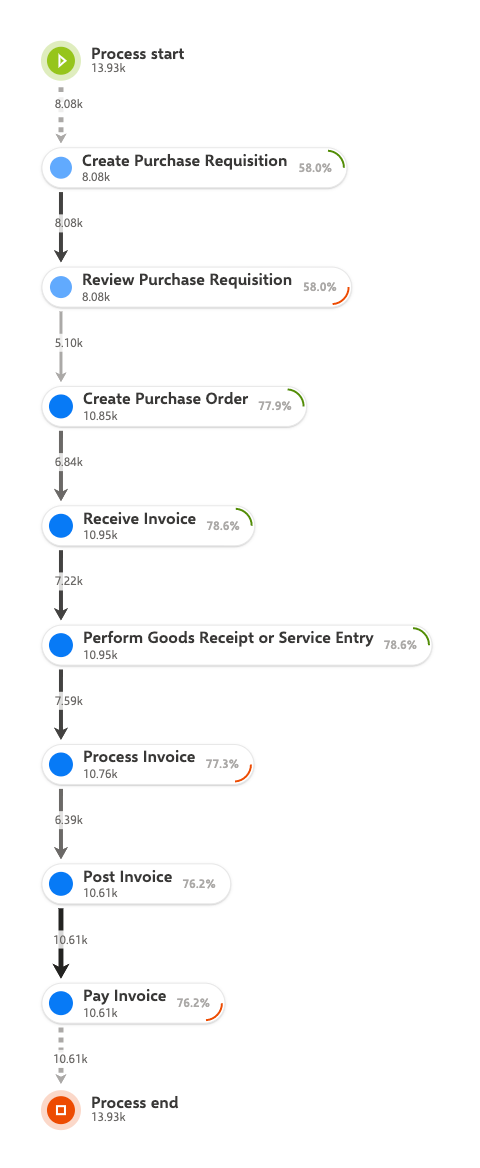
You need to define an operation that calculates the difference between the start time of the subsequent activity (Create Purchase Order) and the end time of the previous activity (Create Purchase Requisition).
You must perform the following steps:
Create a calculated case field.
Define the value of the Create Purchase Order activity.
Define the Subtraction operator.
Define the value of the Create Purchase Requisition activity.
Specify the appropriate data type.
Specify a name for the new calculated field, for example, Time span.
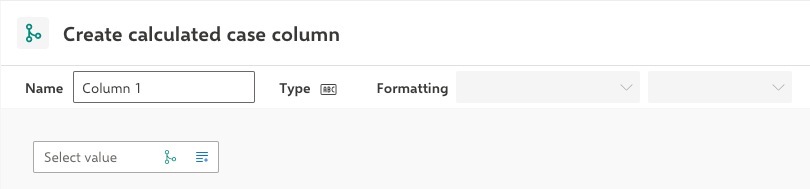
Click the
 Add value icon in the Select value block to specify the first value of the operation definition.
Select Activity start time under Fields in the list. Alternatively, you can enter the field name Activity start time in the search field.
Since you have selected an activity as a value, the ACTIVITY VALUE block replaces the Select value block. The Activity start time field and the preselected FIRST operator are part of the ACTIVITY VALUE block. This operation selects the start time of the first activity from all activities in a case and returns it as a result.

However, since you are interested in the start time of a particular activity, you can define a corresponding condition for the ACTIVITY VALUE block.
Click the ACTIVITY VALUE block >
 Add condition.
The ACTIVITY VALUE block is extended so that you can define any condition. The condition is nested and can consist of further blocks. By default, the nested condition is a block using the EQUALS TO comparison operator.
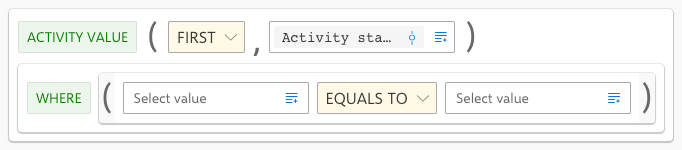
Customize the condition as follows to select a specific activity value.
Click the left Select value block. Alternatively, you can click the
Add value icon in the Select value block.Select Activity name under Fields in the list.
The selected Activity name field is displayed in the left Select value block.
Click the right Select value block.
Select Activity name under Field value in the list.
Now, all available values for this field are displayed.
Select Create Purchase Order.
The selected field value is displayed in the right Select value block.
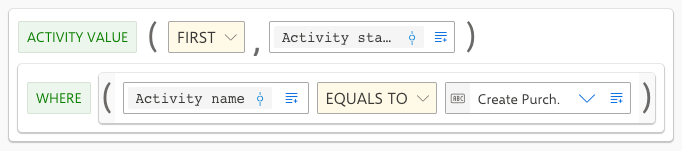
The corresponding start time of the Create Purchase Order activity is displayed in the preview table.
Convert the data type of the field. Given that the time span cannot be calculated with values of the date type, the date must first be converted into a number.
Click the ACTIVITY VALUE block.
Click the
 Add block icon.
Select Convert.
The already defined operation is now nested in the new Convert block.
In the new Convert block, click the block that specifies the target data type and ensure that the
 Number (DOUBLE) data type is selected.
You have now defined the operation to convert the first activity value.

Define the second activity value and calculate the time span between both activities. To calculate a difference between two values, you can use the mathematical Subtraction operator. The second activity value is the Activity end time of the Create Purchase Requisition activity.
Click the parent block, in this case the CONVERT block.
Click the
Add block icon.Select Subtraction under Math in the list.
The Subtraction operator is added, with the second value still to be defined. Since the definition of the second value is largely the same as the definition of the first and it is filtered only by a different activity, you can copy the entire left part and adjust it accordingly.

Click the left CONVERT block >
 Copy block icon. The block is copied to the clipboard.
Click the new Select value block >
 Paste block.
The copied CONVERT block replaces the selected Select value block.

In the right CONVERT block, click the
Add value icon in the Activity start time block and select the Activity end time field in the list.In the right CONVERT block, click the
 icon in the Create Purchase Order block and select Create Purchase Requisition from the list of activity names.
Finally, change the field type from Number to Time span to use the adequate format of the values. To do this, click the Formatting selection box and select Time span.

Click Add.
You have defined the operation to calculate the time span between two specific activities of a case. The new Time span field is available in the field list of the analysis model.
The values for the new field must be calculated before they can be analyzed. To do this, click Load data in the menu bar.