Terms of payment
This example shows how you can create a calculated field to determine to what extent orders are paid on time or late. For this purpose, the following payment terms are defined:
(1) Payment within 14 days -> Result: "Paid with discount"
(2) Payment within 30 days -> Result: "Paid"
(3) Payment after 30 days -> Result: "Paid too late"
Additionally, you want to check the following facts:
(4) The invoice was paid (Pay Invoice activity exists)
(5) An invoice was received (Receive Invoice activity exists)
You need to define what the results are when certain cases are fulfilled or not fulfilled. For this, you can use the IF-ELSE-THEN operator.
Define that case (3) occurs when neither case (1) nor case (2) are fulfilled.
Configure the condition for discount payments (1)
Configure the condition for payments in time (2)
Check whether the Receive Invoice activity exists.
Check whether the Pay Invoice activity exists.
Specify a name for the new calculated field, for example, Terms of payment.
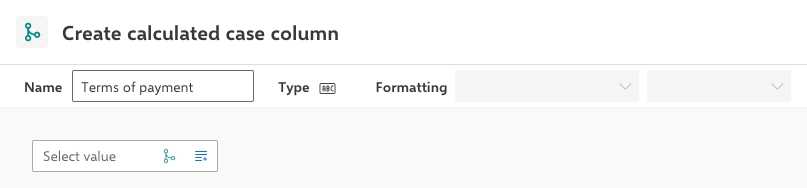
Click the
 Add value icon in the Select value block to specify the first value of the operation definition.
Select the IF-THEN-ELSE operator.
The operator returns a corresponding value (number or text) depending on certain conditions. By default, the block consists of a condition block, which, in turn, contains a comparison block.

Define that case (3) occurs when neither case (1) nor case (2) are fulfilled. To do this, specify the value of the ELSE operator. In this case, the text "Paid too late" is delivered.
Click the Add value
icon in the Select value block next to the ELSE operator and select TEXT under Constant in the list. A text block that delivers a constant value replaces the Select value block.Enter the result value Paid too late in the text field.

Configure the conditions for case (1) Payment within 14 days.
Specify the start date of the Pay Invoice activity for the IF-THEN condition block.
Click the
Add value icon in the left Select value block of the If operator.Select Activity start time under Fields.
Click the ACTIVITY VALUE block ->
 Add condition.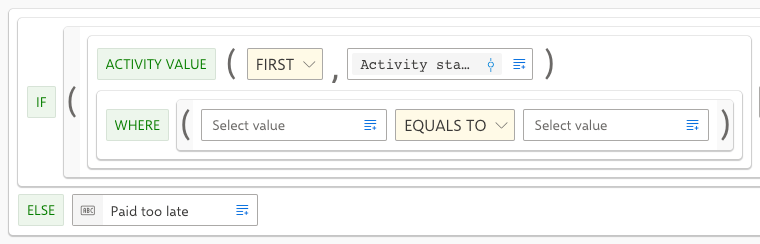
The ACTIVITY VALUE block is extended to specify the condition.
Click the left Select value block -> Fields -> Activity name.
The selected Activity name field is displayed in the left Select value block.
Click the right Select value block -> Field value -> Activity name -> Pay Invoice.
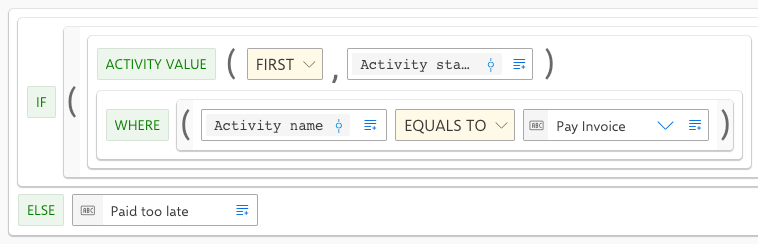
The selected field value is displayed in the right Select value block.
Define the COMPARISON operator of the IF operator. Click the EQUALS TO operator and change it to BEFORE. This operation checks whether the Pay Invoice activity starts before another activity.
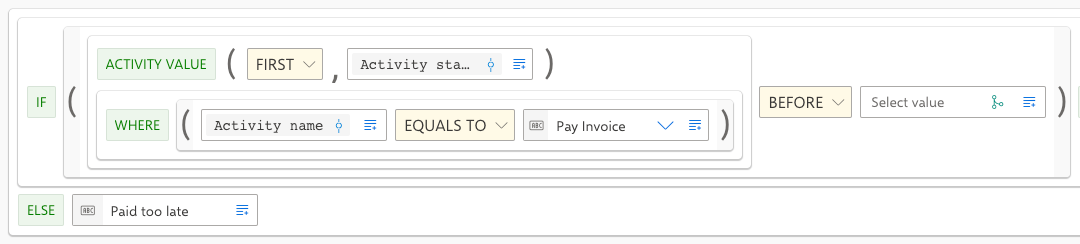
Specify the Receive Invoice activity as the second condition for the IF operation. This operation compares the date of the Pay Invoice activity with the Receive Invoice activity. To do this, copy the first condition and adjust it accordingly.
Click the left ACTIVITY VALUE block ->
 Copy block icon. The block is copied to the clipboard.
Click the Select value block next the BEFORE operator ->
 Paste block. The copied ACTIVITY VALUE block replaces the selected Select value block.
Change the Pay Invoice activity to Receive Invoice.
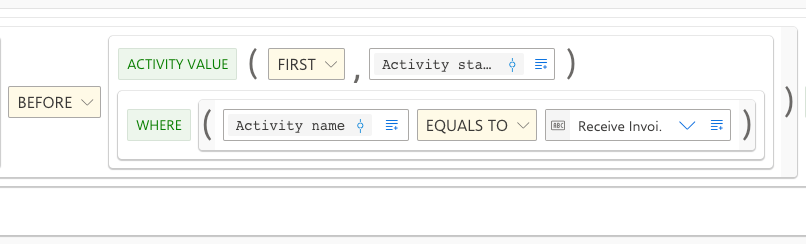
Specify an offset of 14 days for the Receive Invoice activity. The invoice must be paid by the customer within 14 days after the receipt of the invoice in order for the customer to receive the discount.
Click the left ACTIVITY VALUE block ->
 Add block -> Date -> Add date.
Enter 14 in the ADD DATE input box. The unit of the date is DAYS by default.

Specify the value that is returned if the condition is fully met.
Click the Add value
icon in the Select value block next to the THEN operator -> Constant -> Text.Enter Paid with discount in the Text block.
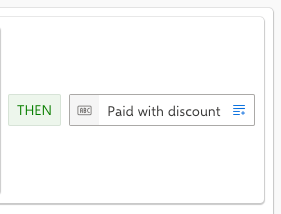
Configure the conditions for case (2) Payment within 30 days. To do this, you must add an ELSE-IF-THEN condition and copy and adjust the values of the IF-THEN condition. The operation returns the value Paid if the invoice is paid within a period of 14 to 30 days after the receipt of the invoice.
Click the parent If-THEN-ELSE block ->
 Add condition. The ELSE-IF-THEN block is added as a condition.
Copy the left and right blocks of the IF condition one after the other and paste them at the corresponding position in the new ELSE IF condition block.
Click the EQUALS TO operator and change it to BEFORE.
Click the Add value
icon in the Select value block next to the THEN operator -> Constant -> Text.Change the offset of 14 days to 30 days.
Enter Paid in the Text block.
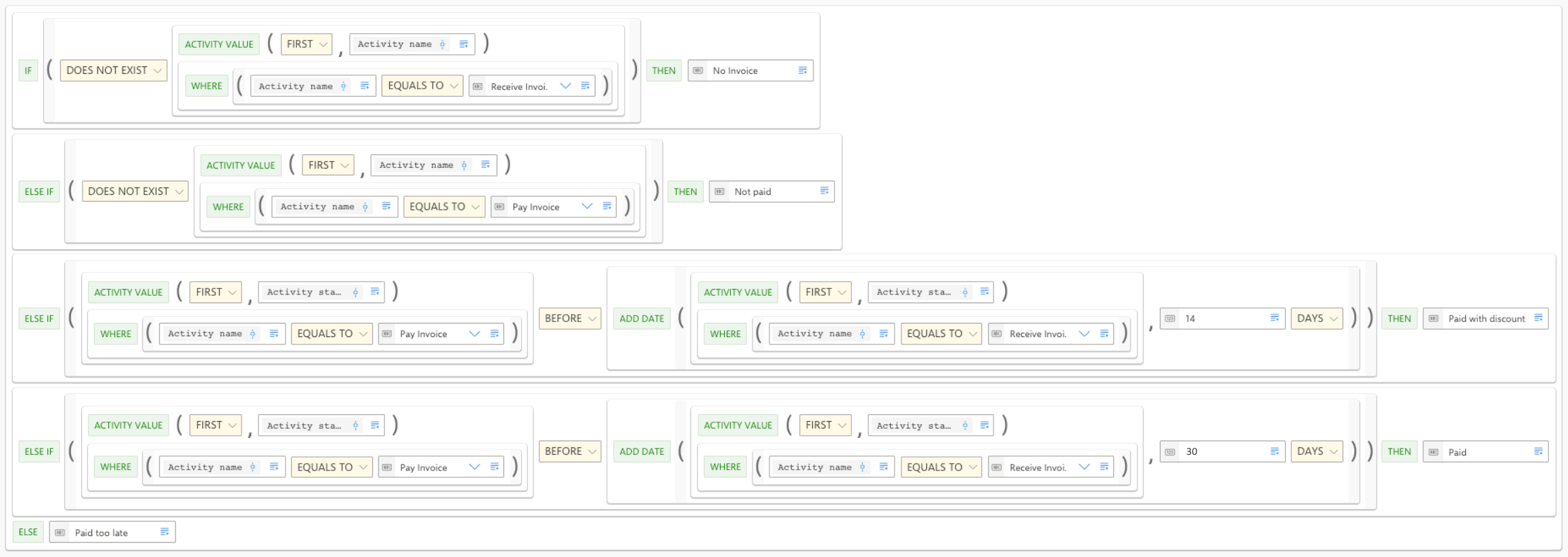
The complete operation definition now looks like this.
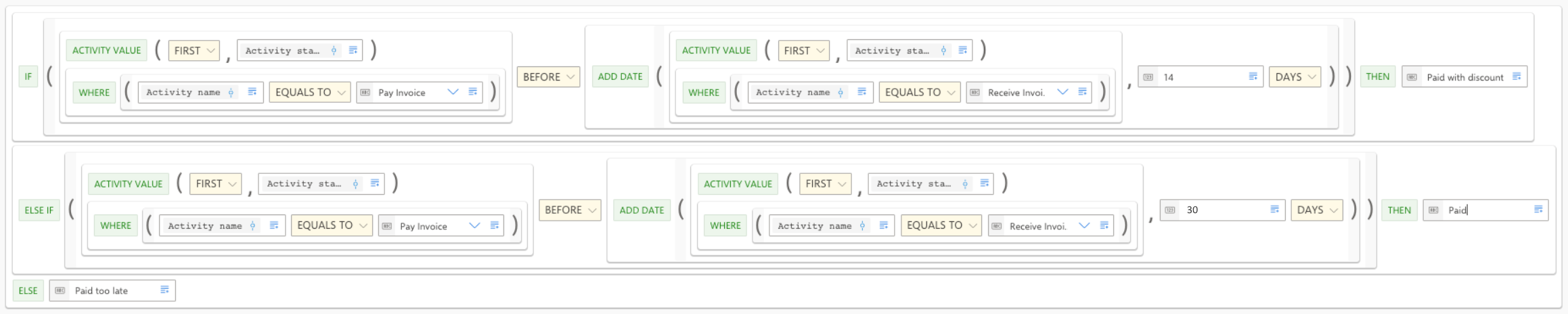
Add an operation that checks whether or not an invoice does exist and that returns the value No Invoice if no invoice is found. This operation should be performed first, before all others. To do this, you must add a new condition and move it to the beginning of the current operation definition.
Click the parent IF-THEN-ELSE operation ->
Add condition. A new ELSE IF operator is added.Click the new ELSE IF operator ->
 Move up. The operation definition is adjusted accordingly. The new ELSE IF operator becomes an IF THEN operator and the operator following it becomes an ELSE IF operator.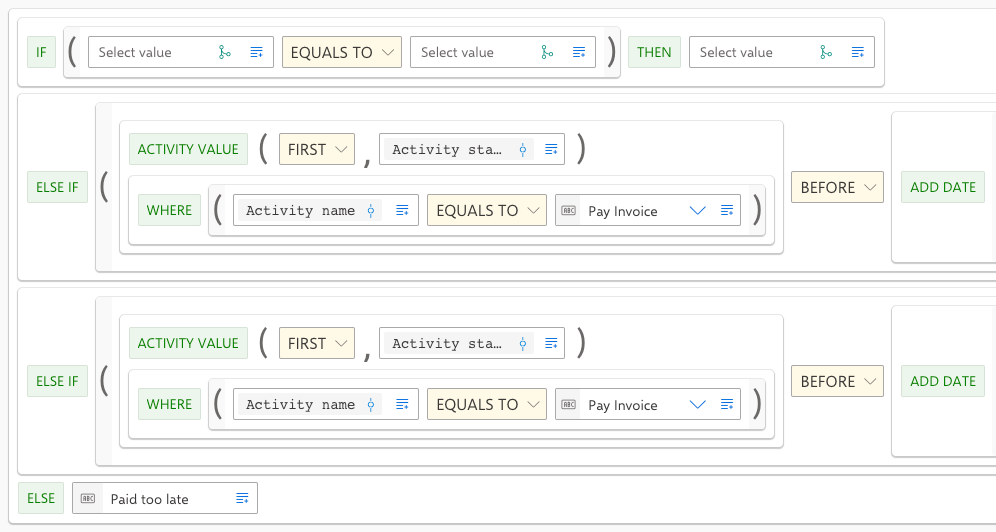
Click the
Add value icon of the first Select value block -> Field -> Activity name.Click the
Add value icon of the second Select value block -> Field value -> Activity name -> Receive invoice.Set the EQUALS TO operator to DOES NOT EXIST.
Click the
Add value icon of the third Select value block -> Constant -> Text.Enter No Invoice in the input box.

Add an operation that checks whether or not an invoice has not been paid and that returns the value Not paid for invoices that have not been paid yet. This operation should be executed as the second one. To do this, you must add a new condition and place it after the first IF THEN operation. Repeat step 8 with the following exceptions:
Select Pay Invoice instead of Receive Invoice as the field value.
Enter Not paid instead of No Invoice as the return value.

Click Add.
You have defined the operation of calculating the terms of payment.
The values for the new field must be calculated before they can be analyzed. To do this, click Load data in the menu bar.
The values are calculated and the new Terms of payment field is available in the field list of the analysis model.
The complete operation definition is as follows.