Use Companion to generate field calculations
The code editor supports you in generating field calculations with the help of artificial intelligence (AI). You can formulate your query tasks in natural language and then script the corresponding code using AI.
Note
The code generation should be considered a tool. It often generates code that is ready-to-use, but sometimes the result should be considered just as a starting point and might need some manual adjustments. Of course, this also depends on the clarity of the task description and the naming and description of your measures. In any case, we recommend that you check the generated code carefully before using it in your queries.
Credits to use Companion
To use Companion, you need a sufficient number of credits. When you use Companion, you consume credits. The number of credits you can use depends on your ARIS AI Companion license and how many credits you have available for the AI functions. Credits are refilled once a month. If your credits are used up, you can purchase and update a new license that holds more credits. You can view the current status of available credits in the Overview section of the ARIS Process Mining administration. To view the credit usage, you need the Companion admin privilege.
Prerequisite
You have the ARIS AI Companion license.
You have enough credit left to use Companion.
You have the Companion user function privilege.
You have at least the ARIS Process Mining Analyst user role.
Add a calculated field using the code editor.
Click the
 icon in the first line of the editor or press Ctrl+. (Period). The Generate field calculation dialog opens.
Enter your task to create the code in the input box. You can write the task in natural language.
Example
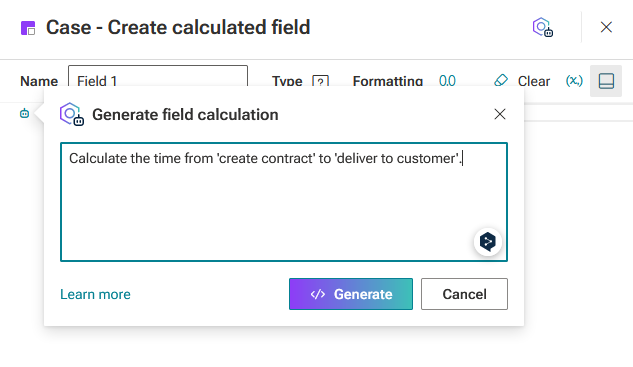
Click Generate. The dialog closes and the code is generated. Your task description is included as a comment.
You created a field calculation using AI.
If the generated code does not meet your requirements, you can edit the generated code or change the task you entered accordingly. Click the icon, edit the task, and click Generate again. The newly generated code is placed in the editor, above the code you generated before. Delete or comment (Ctrl+/) previously generated code (if any) so that the expression can be correctly parsed as a whole.
The generated code for the task "Calculate the time from 'create contract' to 'deliver to customer'." can look like this:
# Calculate the time from 'create contract' to 'deliver to customer'.
TO_LONG(ACTIVITY_PU_LAST("_ARIS.Activity"."Activity start time", "_ARIS.Activity"."Activity Name" = 'Deliver to Customer')) - TO_LONG(ACTIVITY_PU_FIRST("_ARIS.Activity"."Activity end time", "_ARIS.Activity"."Activity Name" = 'Create Contract'))