Add filters to an app component
You can add one or more ad-hoc filters to an app component to select the cases you want to examine in the component.
If you created project filters, analysis filters, app filters, or ad-hoc filters, these filters are automatically applied to the app component and displayed in the Filters panel of the component depending on the filter settings.
Add an app to an analysis or open an app of an analysis in the Project panel.
Click a component in the app to open the corresponding Configuration panel. The panel opens with the Setup options by default.
Select Filters in the drop-down menu. The Filters options are displayed.
Example
Filters options of the selected app component.
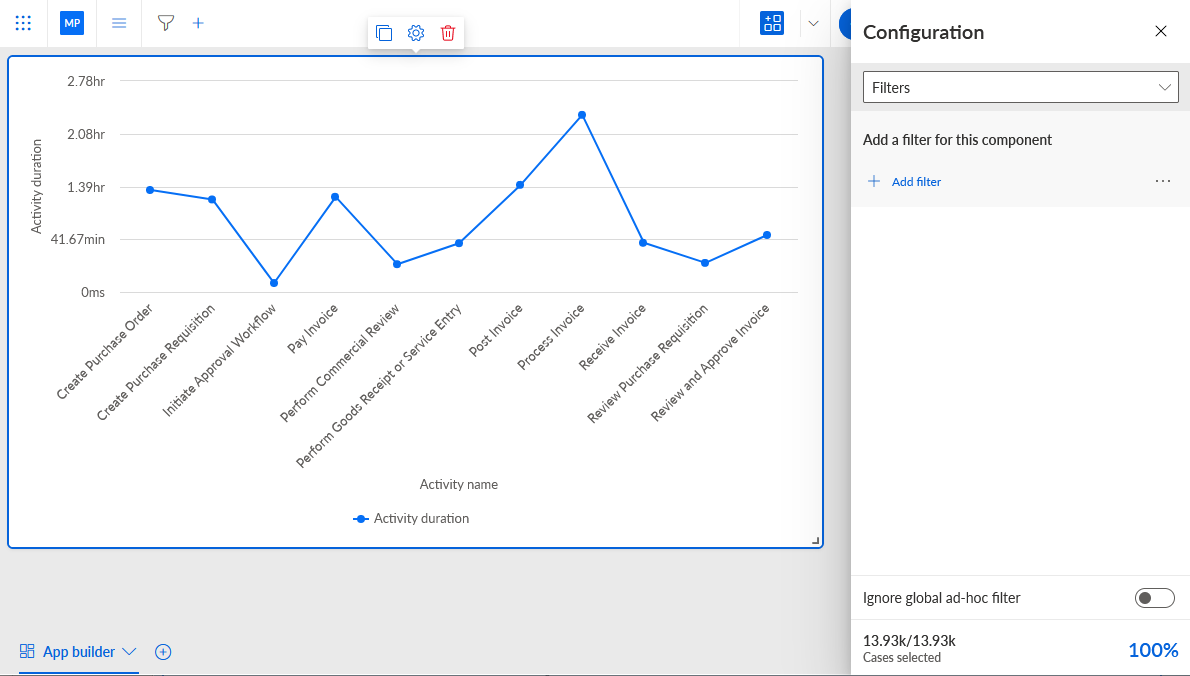
Click + Add filter. The corresponding dialog opens.
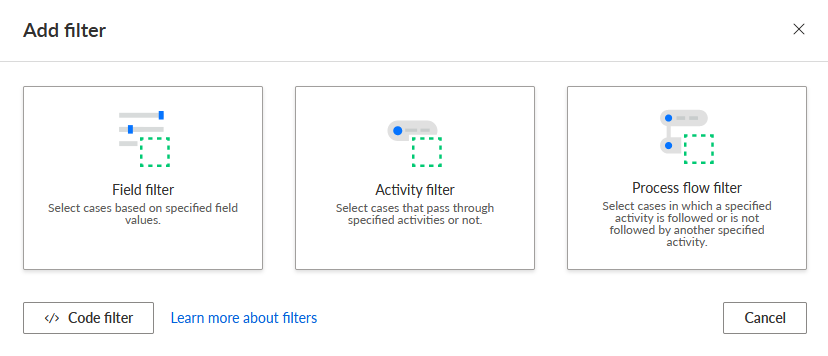
Select the filter method to specify a filter. A corresponding editor opens.
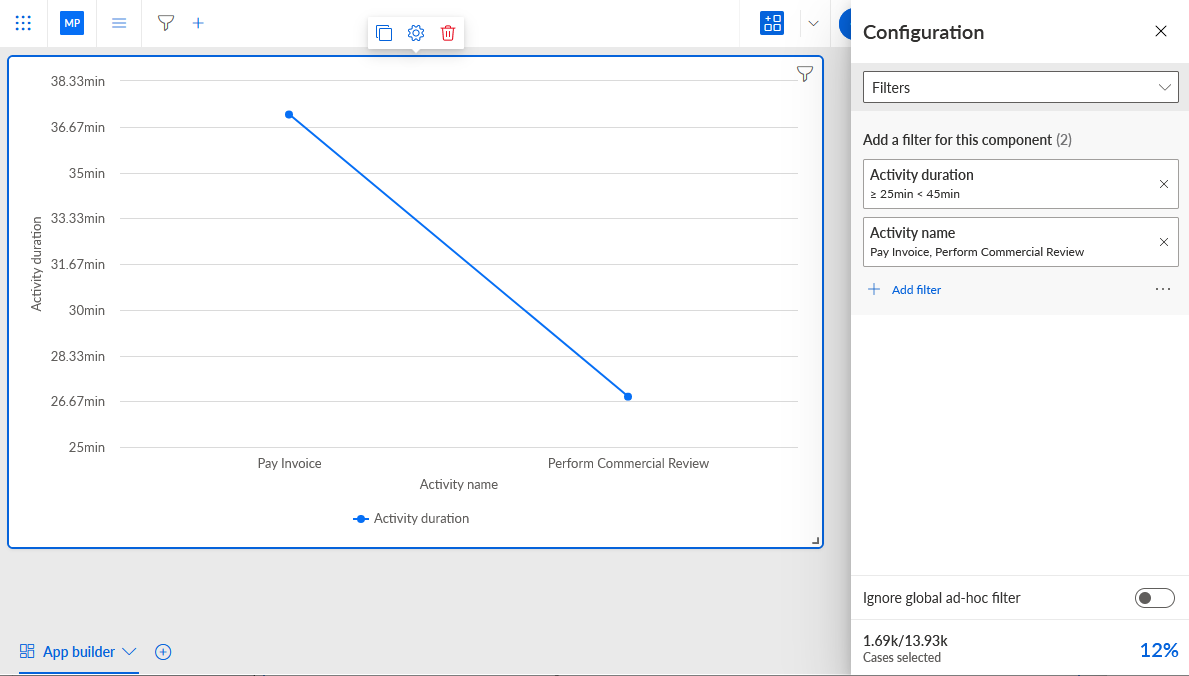
You created a component filter. The filter is added to the Filters options.
Example
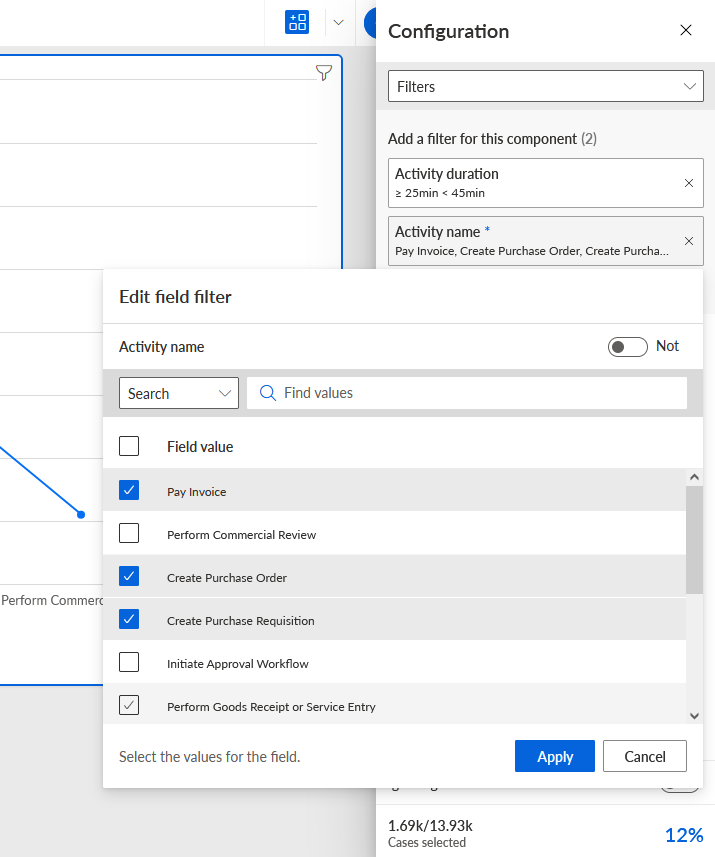
The Activity duration and Activity name filters are added to the Line chart component.
To edit the filter settings, click a filter in the Filters options and specify the filter settings.
Example
Filter settings of the Activity name filter.
If you do not want a level filter to be applied to the selected app component, click the
 Detach filters icon of a level filter listed in the Filters options. The icon changes to
  (detached). By default, level filters, such as project filters, analysis filters, or app filters, are automatically applied to app components as well. Enabling the Detach filters option, you can disable level filters for the selected app component and apply only component filters. This can be useful if you want to apply a different filter to the selected component than, for example, the filter of the parent project.
Example
The analysis contains two line charts with the same analysis criteria and filter settings, but in the right line chart, the project filter is detached (
). That means the project filter is not applied to the right line chart.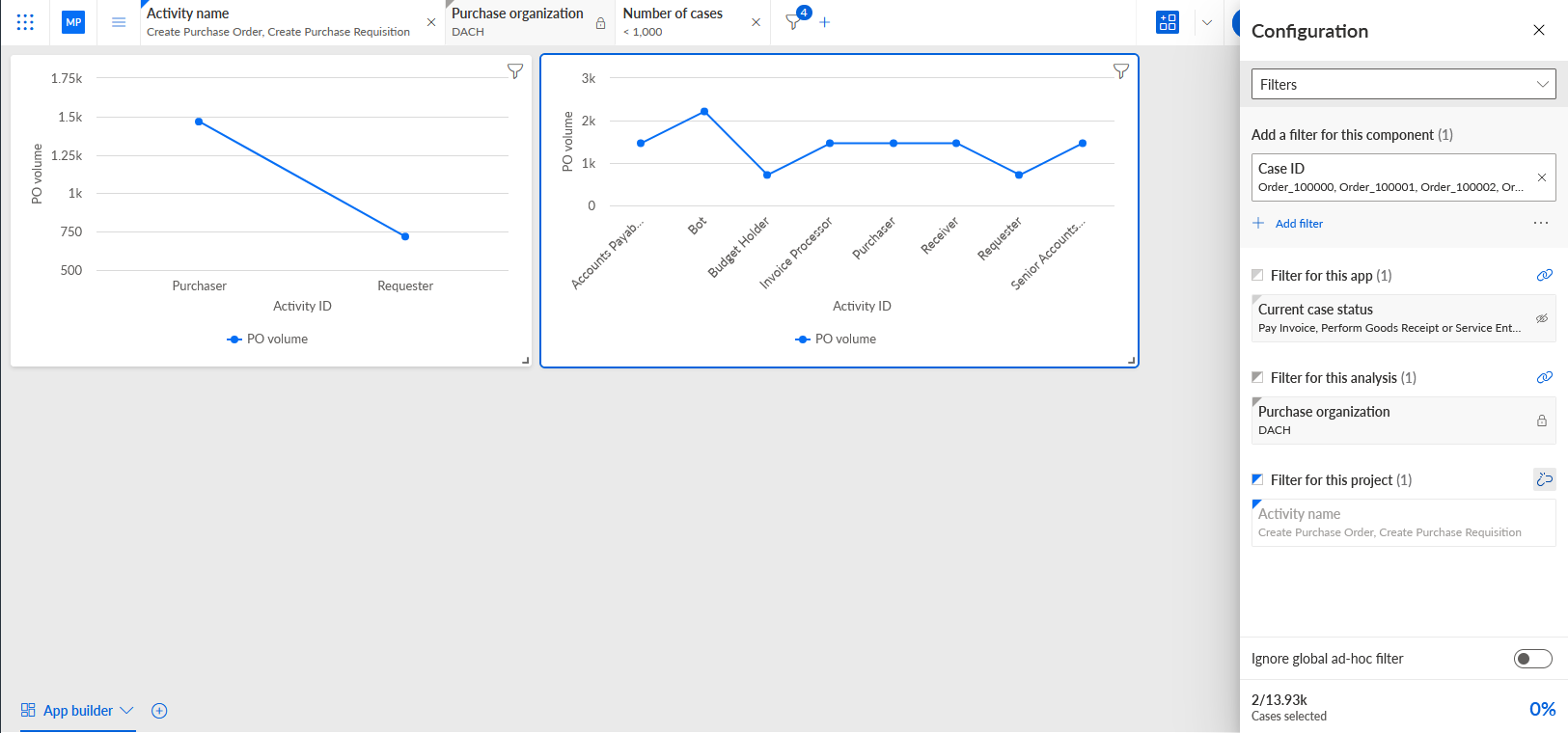
If you do not want ad-hoc filters to be applied to the selected app component, enable the Ignore global ad-hoc filter option. By default, ad-hoc filters created for the entire analysis are automatically applied to app components as well.
You added filters to an app component.
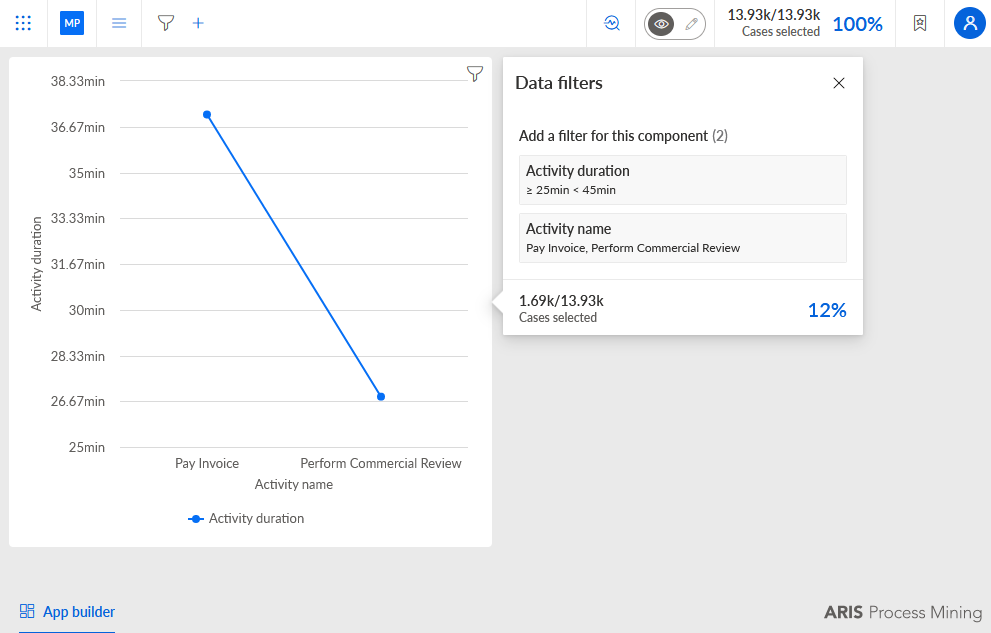
You can display the filters for an app component by clicking the  Open the filter panel icon in the upper right corner of the component. The icon is displayed if a filter is created for the component, one or more level filters are detached, or the ad-hoc filter must be ignored.
The Filters panel displays the filters specified for the component.