Add ad-hoc filters to an analysis
You can add one or more ad-hoc filters to an analysis to select the cases you want to examine in the analysis. An ad-hoc filter is a temporary global filter that is applied to all apps in the analysis. The ad-hoc filter is automatically removed when you close the analysis or when you reload the browser. You can create ad-hoc filters by defining a filter condition or by selecting data directly in an analysis component.
Example
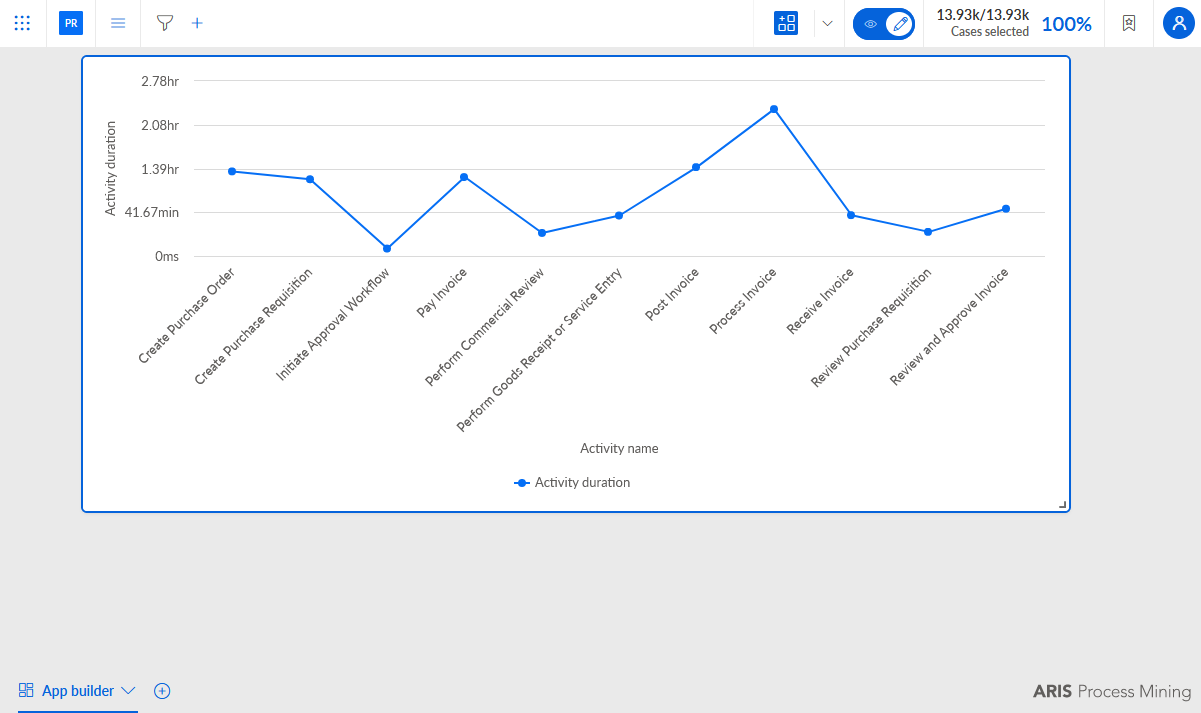
The analysis includes a Line chart component, but no filters are created for the analysis yet.
You can add an ad-hoc filter by defining a filter condition. A dialog opens where you can select a method to define the filter.
Click + Add new filter in the analysis header.
Alternatively, you can click the
 Open filter panel icon in the analysis header -> + Add filter, or you can click the
  Open app menu icon in the analysis header -> Add filter.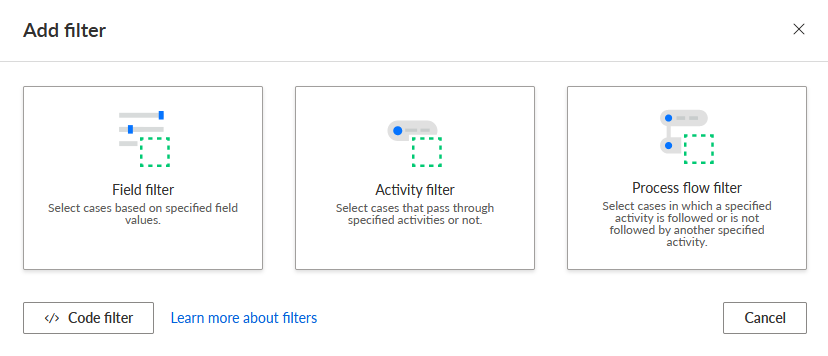
Select the filter method to specify a filter. A corresponding editor opens.
You created an ad-hoc filter. The filter is added to the analysis and displayed in the analysis header. The number on the filter icon indicates the number of filters applied to the analysis.
Example
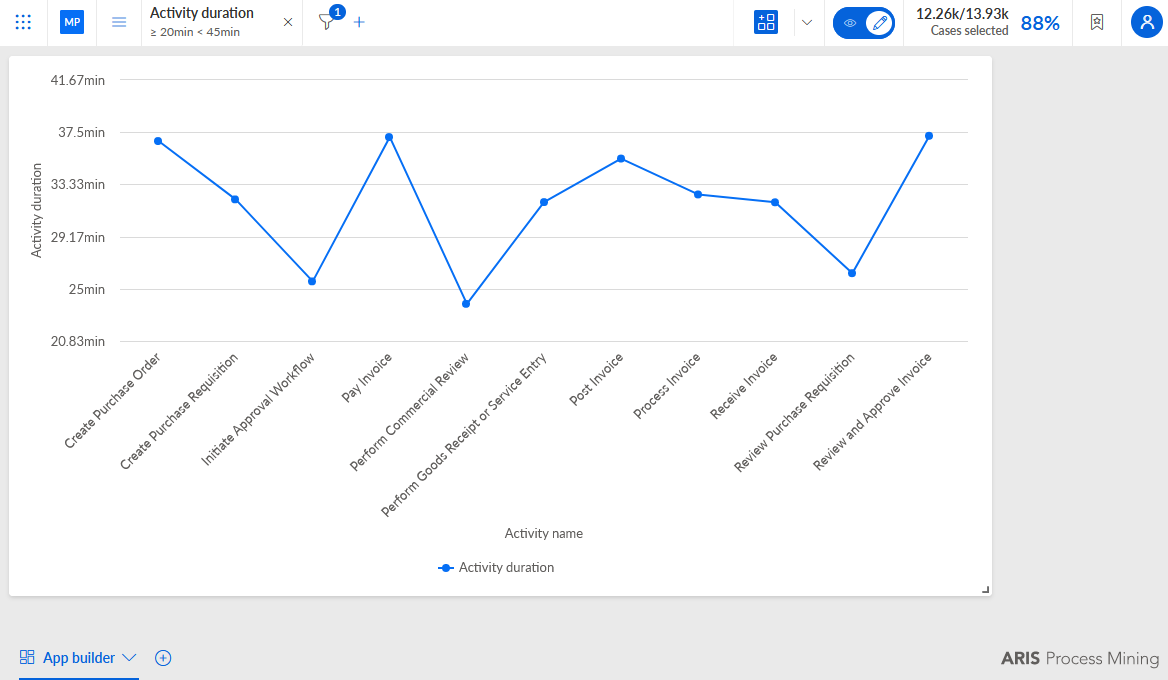
You can add an ad-hoc filter by selecting data directly in an analysis component.
Select the data to be filtered, for example, multiple activities in the line chart. The selection is displayed in the analysis header.
Example
Ad-hoc filter with two selected activities in the line chart. The selection is displayed as Activity name in the analysis header.
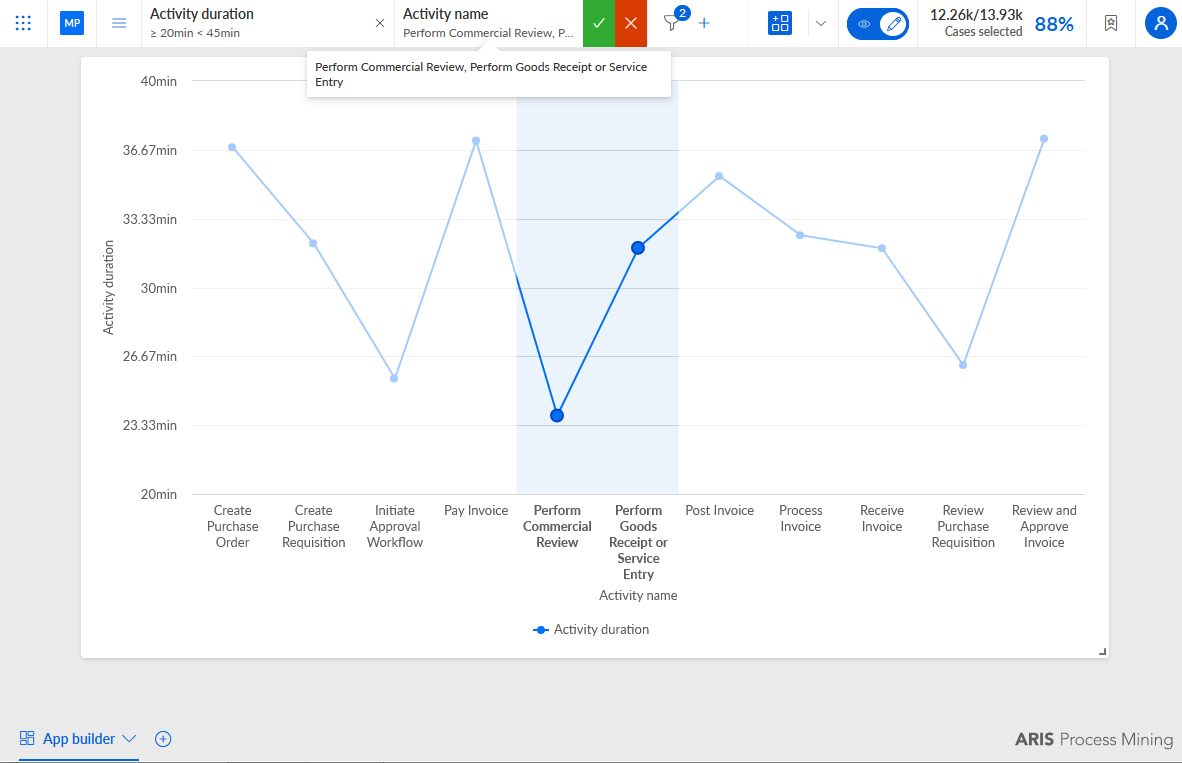
Click the green box next to the filter name to confirm the selection. The filter is applied to the analysis.
Example
The Activity duration and Activity name ad-hoc filters are applied to the analysis.
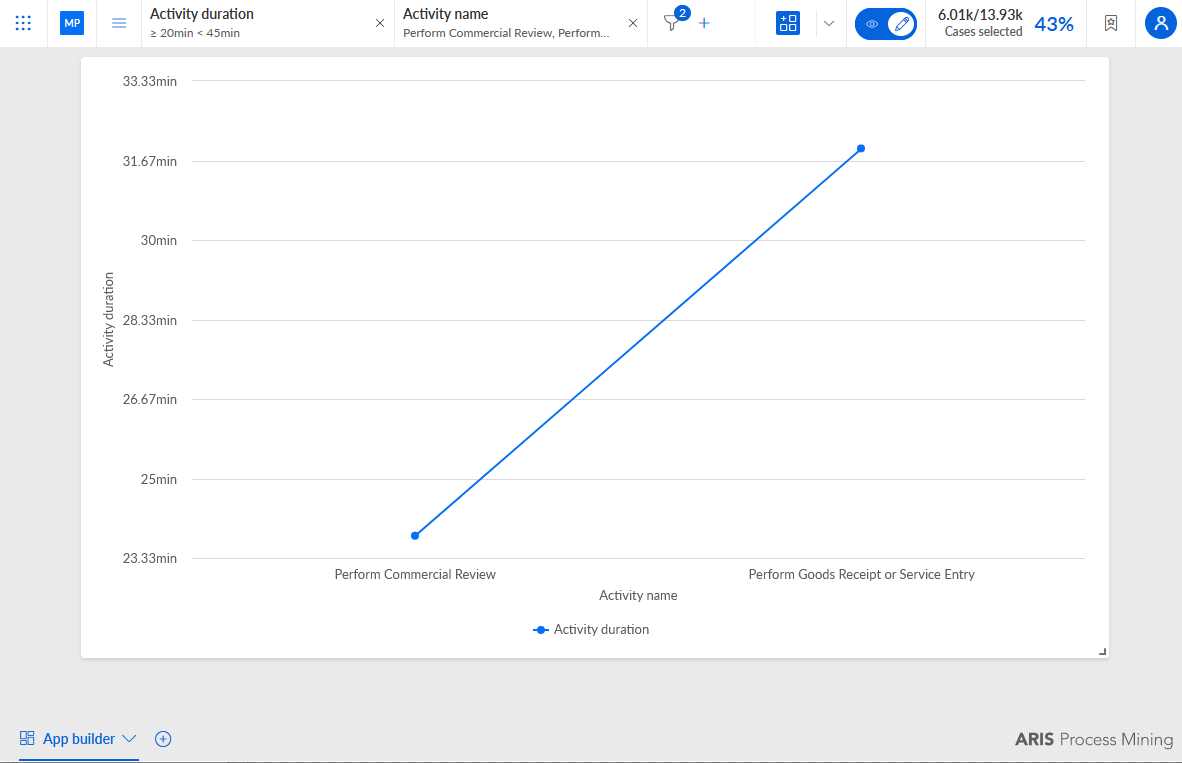
To edit the filter values, click a filter in the analysis header, specify the values to filter, and click Apply. Alternatively, click the
Open filter panel icon in the analysis header, click a filter in the panel and specify the values to filter.Example
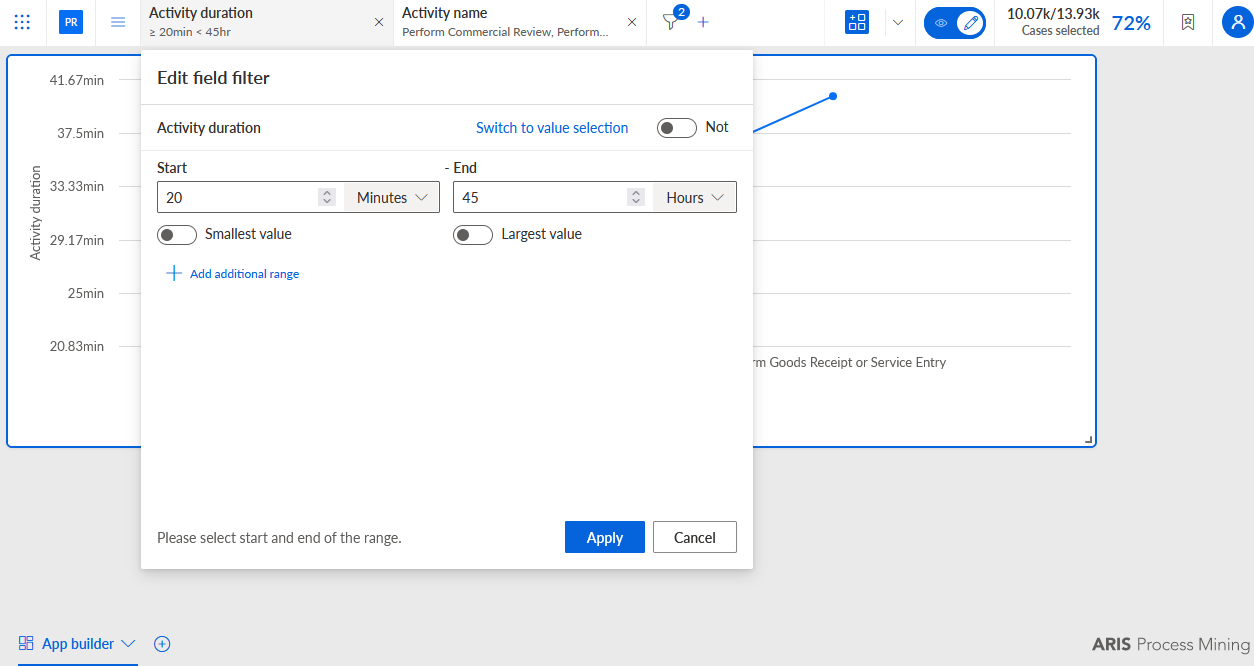
You added temporary ad-hoc filters to the analysis.