Automated data extraction based on 'long' data type
To create a continuous and automated data extraction based on a Long data type, the maximum last extracted value of the Long data type must be determined.
The maximum value is used in the filter condition of the extraction. The maximum value for the last extraction is stored dynamically into a parameter at the end of extraction task.
Create a dynamic parameter of Long data type for the corresponding extraction. This parameter will be used as the start value to read out the data. For more details on how to create dynamic extraction parameters, see the Create extraction parameters chapter.
Open the Extractions section of the data set.
Open an extraction.
Click Parameters to manage the parameters of the selected extraction.
Click Add parameters.
Enable the Calculate value dynamically option. The corresponding dialog opens.
Assign the default value as the lower value of the value range that is used for the first extraction job.
Assign a table field of data type LONG to the dynamic parameter. The maximum value in the extracted table field will be stored in the parameter and then applied as filter condition in the next extraction run.
Example
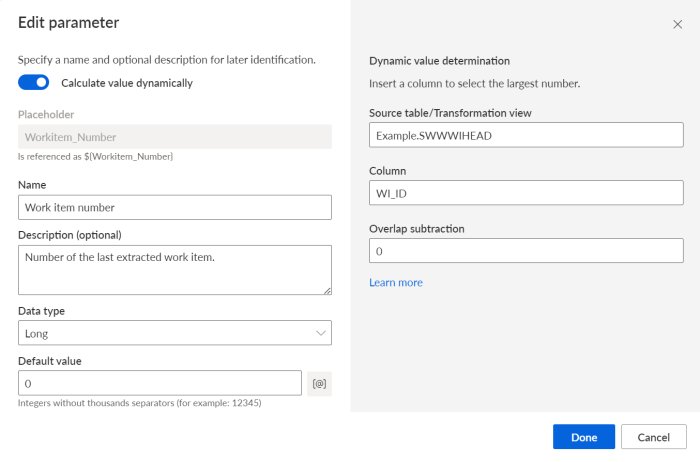
Configure the extraction and use the local dynamic parameter in the filter condition of the data extraction to extract the data larger than the maximum value already extracted. For this, you must specify the start value in the filters. For more details on how to define a filter condition, see the Define filter using SQL statements chapter.
Open the Extractions section of the data set.
Open the extraction.
Click ... Show details on the table you want to configure.
Click Edit. The corresponding dialog opens.
Enter an SQL statement in the Filter statement box to define a filter condition.
Example
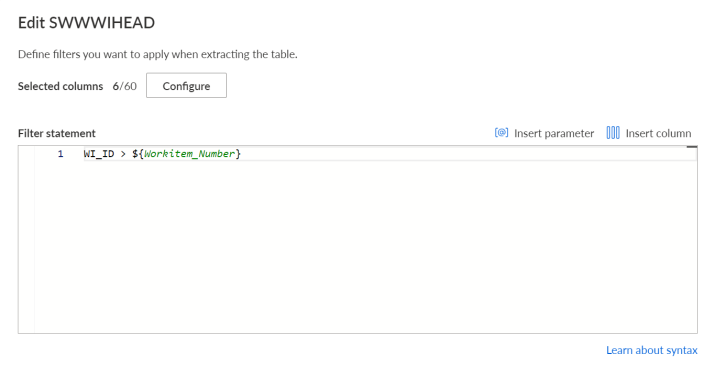
You have created a regular automatically executed data extraction.