Create extraction parameters
You can create extraction (local) parameter configurations. They can contain dynamic parameters, for example, the usage of the last extraction time with overlap. Extraction parameters have a higher priority and override specified global parameters. Extraction parameter configurations are assigned to individual extractions.
You can manage extraction parameters in the Extractions section of a data set.
In addition to local parameters, you can also create global parameters. They contain all parameters that can be used for any parameterization in filter definitions or transformation rules. Global parameters are assigned to a data set.
Open the Extractions section of a data set.
Open an extraction from the extractions list.
Click Parameters to open the corresponding page of the selected extraction.
Click Add parameter. The dialog to configure a parameter opens.
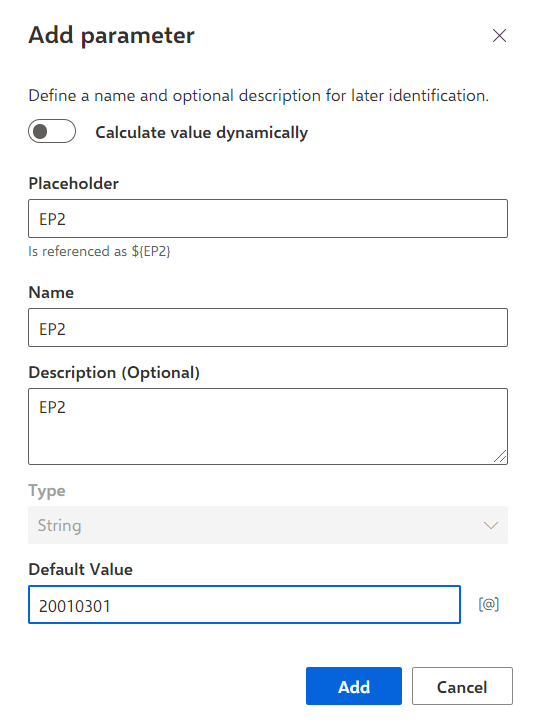
Enter a placeholder. You can use the parameter placeholder, for example, in SQL filter definitions.
Enter a name that is used as display name.
You can enter an optional description.
Enter a default value, for example, 20210301 for March 01, 2021. The default value is used on the first run if no parameter value exists.
If you want to use the value of a global parameter as the default value, click the [@] icon and select a global parameter in the Default value drop-down menu.
The Default value of a Long data type must not exceed 19 digits.
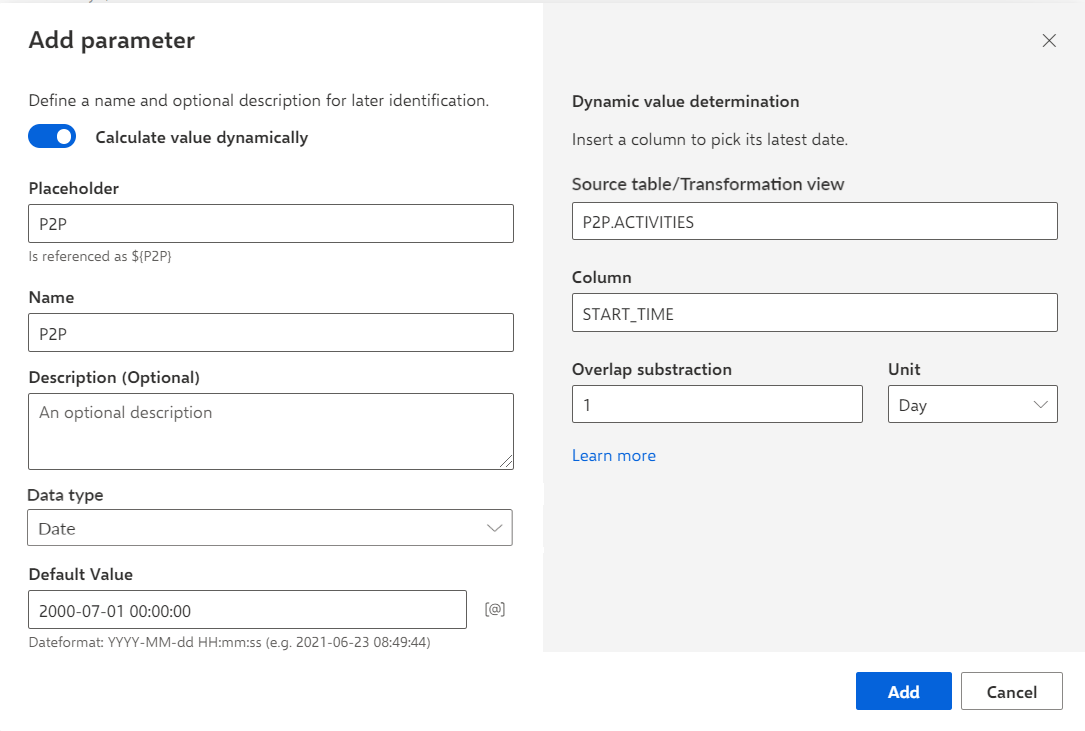
You can extend the parameter with dynamically calculated values. The values of the parameter are calculated based on the values of a given column minus an offset to be specified. If you use dynamic parameter values, you can select the parameter data type and specify a default value.
Note that the dynamic value must be part of the selected source table/transformation view.
Enable the Calculate value dynamically option.
Select the data type in the corresponding drop-down box. By default the Date data type is preset.
Specify a default value that corresponds to the selected data type. If no dynamic parameter value exists, the default value is used on the first run.
The Date data type must be in the YYYY-MM-dd HH:mm:ss format, for example, 2000-07-01 00:00:00.
When using dynamic parameters or other parameters of the Date data type, such as "Task start time", you can convert these parameters into any format using the format SQL function. For details on how to use the format function, see the Supported SQL functions chapter.
The Long data type must be in the integer format (whole number without thousands separator), for example, 1234567.
Specify the source table or transformation view name that includes the column, for example, the P2P.ACTIVITIES table.
Specify the column name that includes the source data, for example, the START_TIME column.
Specify the offset in the Overlap subtraction input box, for example, 1.
The Overlap value of a Long data type must not exceed one billion (1,000,000,000).
For values of Date type, specify the unit, for example, Day.
Click Done.
You created an extraction parameter. The parameter is listed on the Parameters page of the selected extraction.