Automated data extraction based on timestamps
To create a continuous and automated data extraction based on a Date data type, the interval between the last extraction and the actual start of the current extraction must be determined.
Both timestamps of the interval are used in the filter condition of the extraction. The value for the last extraction date is stored dynamically into a parameter at the end of extraction task.
A global parameter with the start time of the extraction task is used as the upper limit in the extraction filter. The extraction task stores the last timestamp of the extracted data in the task parameter. This task parameter is used as the lower limit in the filter.
With these two parameters a dynamic extraction interval is defined that is updated after each extraction run automatically.
Note that the dynamic parameters of DATE type are in UTC time zone. Process Extractor for ARIS Process Mining tries to read the JDBC types DATE, TIME and TIMESTAMP in time zone UTC from the database. Thus, depending on the JDBC driver and database, it may be necessary to specify a time zone in the Filter statement and/or use a transformation to convert the timestamp into a timestamp in the UTC time zone.
Create the global parameter Task start time, which will be automatically assigned the timestamp when an extraction or data load is started. This parameter holds the end time of the time interval for which data will be extracted. For more details on how to create global parameters, see the Create global parameters chapter.
Open the Parameters section of a data set.
Click the
 icon > Task start time (system parameter). The corresponding parameter is created.
Example

Create a dynamic parameter of Date type for the corresponding extraction. This parameter will be used as the start time of the time interval for which data is read out. For more details on how to create dynamic extraction parameters, see the Create extraction parameters chapter.
Open the Extractions section of the data set.
Open an extraction.
Click Parameters to manage the parameters of the selected extraction.
Click Add parameters.
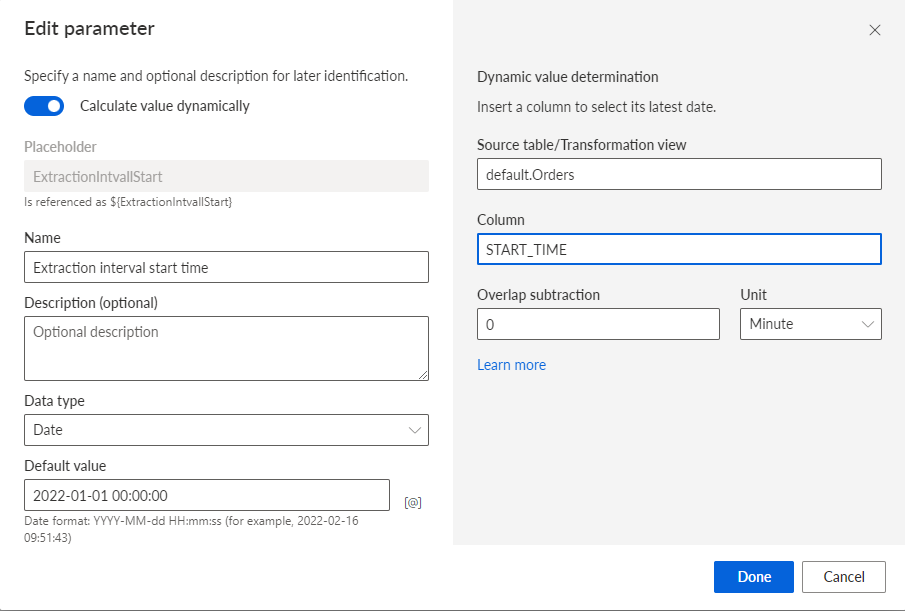
Enable the Calculate value dynamically option. The corresponding dialog opens.
Assign the desired timestamp as the default value as the lower limit of the interval that is used for the first extraction job.
Assign a table field of type TIME to the dynamic parameter. The latest timestamp in the extracted table field will be stored in the parameter and then applied as filter condition in the next extraction run.
Example
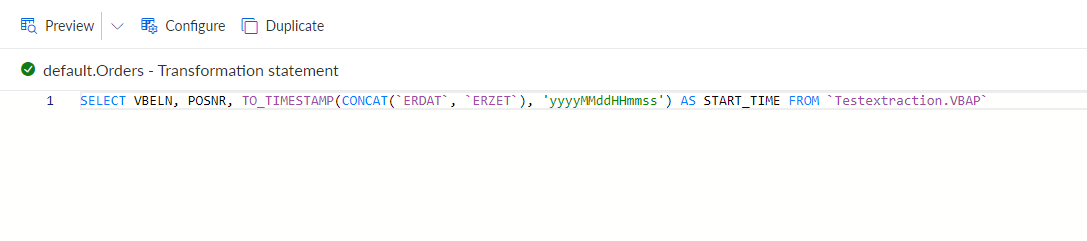
If there is no column of TIME type in the source tables, you must create a transformation that generates a timestamp from the data of the source tables. For more details on how to transform data, see the Configure data transformations chapter.
Open the Transformations section of the data set.
Click Add transformation.
Specify the transformation.
Example
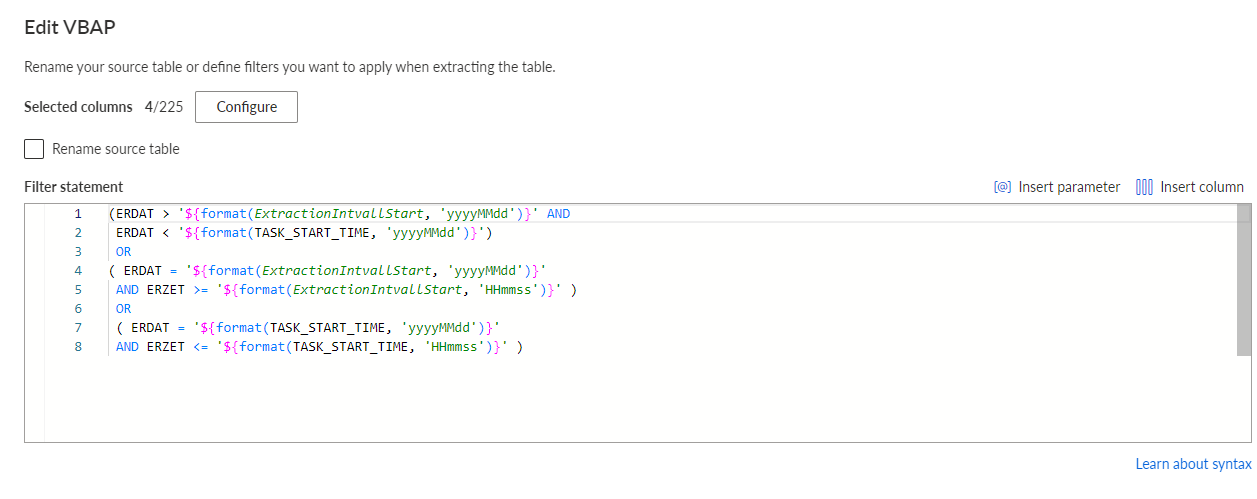
Configure the extraction and use the global parameter and the local dynamic parameter in the filter condition of the data extraction to extract the data from the time interval. Specify the start and end time in the filters and use the format operator to ensure that the timestamp is included in the filter statement in the correct format when applying the filter.
For more details on how to define a filter condition, see the Define filter using SQL statements chapter.
Open the Extractions section of the data set.
Open the extraction.
Click ... Show details on the table you want to configure.
Click Edit. The corresponding dialog opens.
Enter an SQL statement in the Filter statement box to define a filter condition.
Example
You have created a regular automatically executed data extraction.