Add tables to the JDBC extraction
You need to add the tables and columns you want to extract from a JDBC database to the JDBC extraction.
Prerequisites
You have created a JDBC extraction.
Click Extraction in the Data set panel. The Extractions section opens.
Open the Extractions section of a data set.
Click a JDBC extraction in the Extractions list. The Tables page of the selected extraction opens.
Click Add table. The Add table wizard opens with the Select table dialog.
Select the source table you want to add to the extraction.
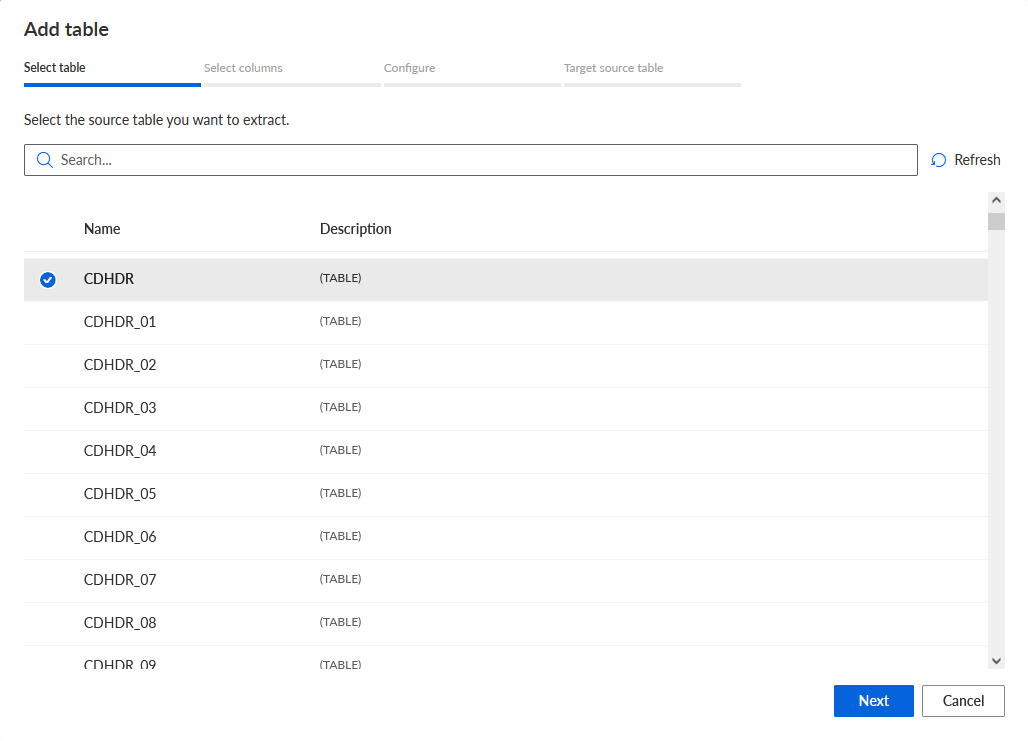
Click Next. The Select columns dialog opens.
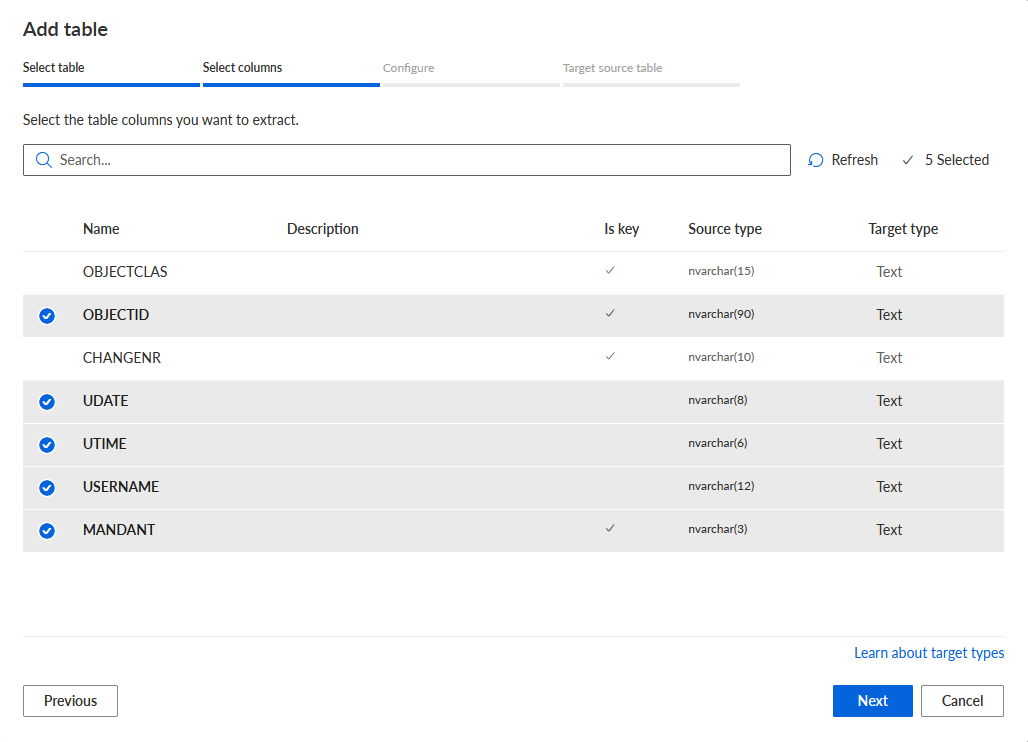
Select the columns you want to extract.
The column list shows for each column the data type mapping, that is, the data type used in the source database and the assigned data type used in ARIS Process Mining. Is key indicates whether the column is part of the key in the database.
Click Next. The Configure dialog opens.
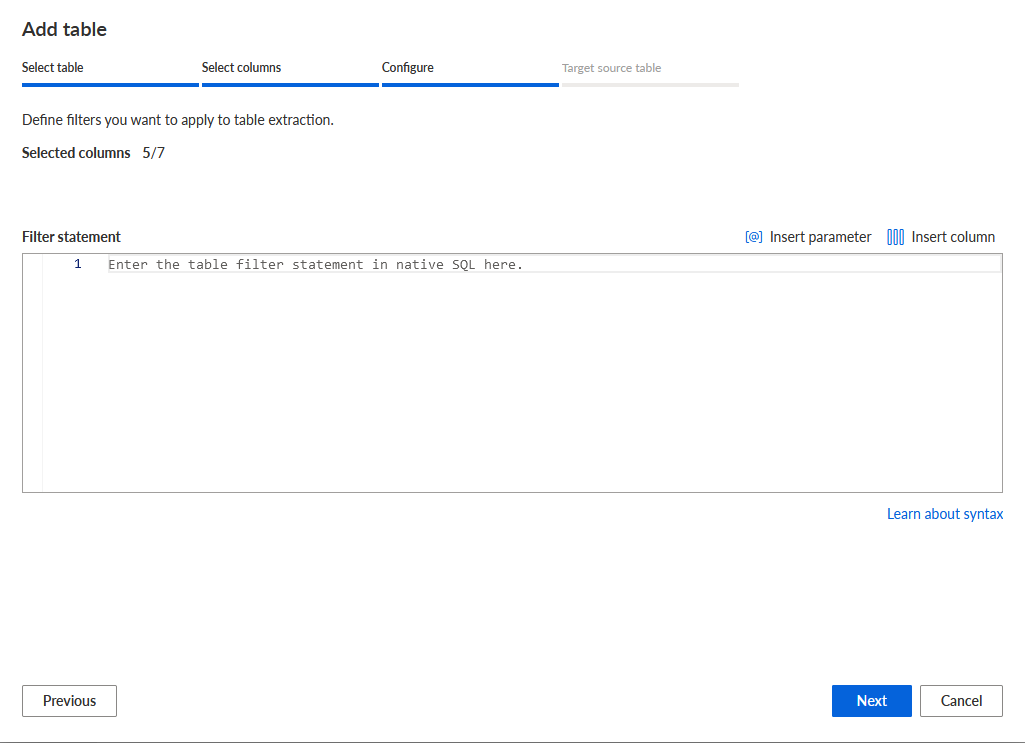
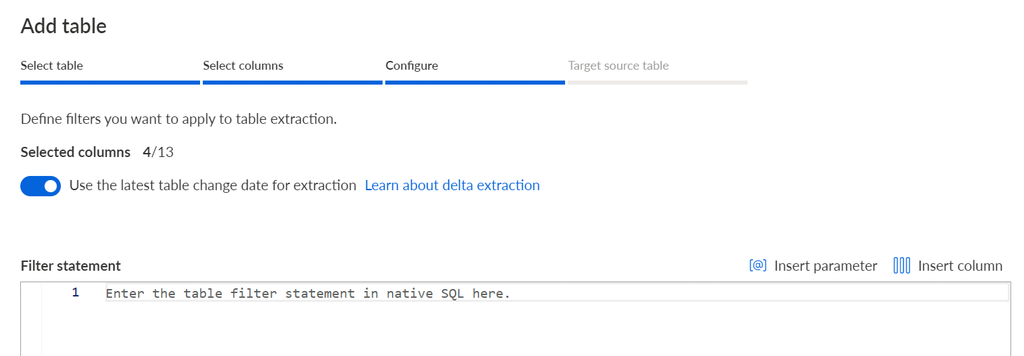
You can specify a filter for the extraction.
Enter an SQL statement in the Filter statement box. The filter will be added to the WHERE clause of the SELECT statement which is executed to extract the data. For more details on creating a filter statement, see the chapter Define filter using SQL statements.
If the selected table is a delta table from a Databricks Delta Lake, the Use the latest table change date for extraction option is additionally available. The option is enabled by default for delta tables, that is, the delta table is extracted using the version history created by the Databricks Delta Lake. A dynamic parameter will be created automatically for the Delta Lake extraction when you finish the wizard. A note about this new parameter is then displayed. The parameter is used for the next Delta Lake extraction with the last extraction date. In addition to the parameter the _ARIS_deltaTblTime column is added to the source table. During a data extraction, this column is filled with the newest history timestamp of all data rows from this extraction. The dynamic parameter uses this column to determine the starting point for the next data extraction.
If the Use the latest table change data for extraction option is disabled, the Delta Lake table is extracted as any other table.
The example in the Delta tables in a Databricks Delta Lake chapter describes how Process Extractor extract data from a Delta Lake using the version history.
Click Next. The Target source table dialog opens.
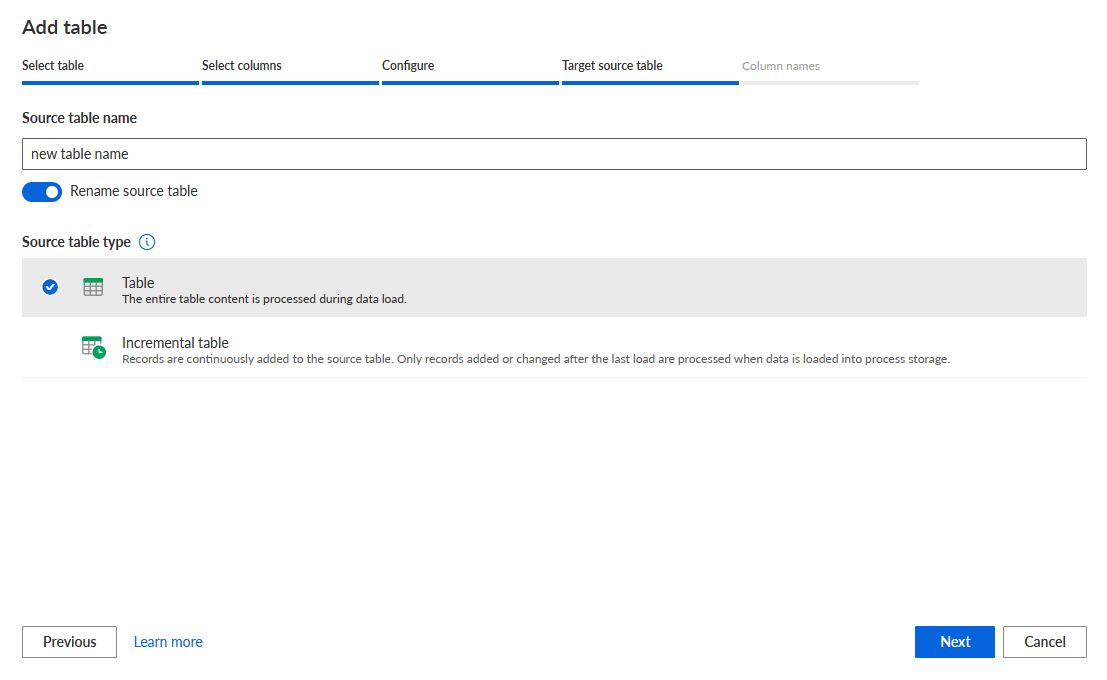
You can change the table name and specify the source table type.
The table type is relevant for a later replacing or updating the uploaded source data. If you select the Table type, the entire table is replaced by a new uploaded table. If you select Incremental table, the existing source table and the uploaded data are merged. That is, only individual records in the source table are replaced with actually changed records and new records are simply added to the table.
To change the table name, enable the Rename source table option and specify a table name. The table name is used in the namespace of a data set. A table name can be used only once in an extraction.
Select the table type for the source table. You can also change the table type afterwards.
If you select the Table type, click Add. The wizard closes.
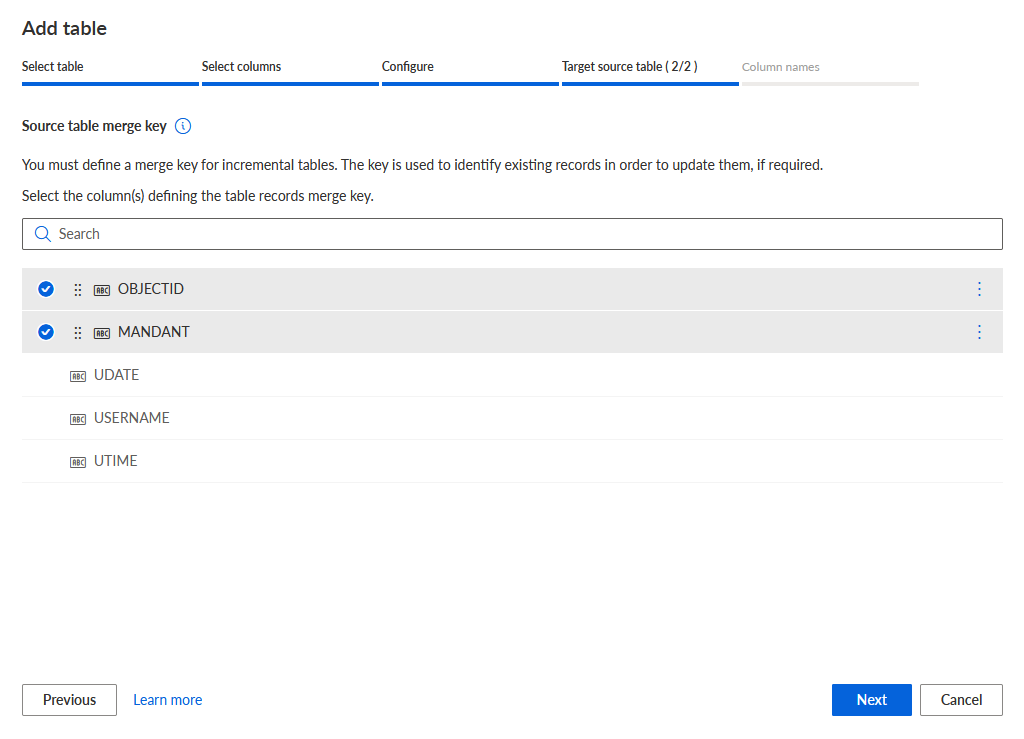
If you select the Incremental table type, the dialog title changes to Target source table (1/2). Click Next to open the Target source table (2/2) dialog.
In the Target source table (2/2) dialog, specify a merge key used for an incremental update. The merge key is used to replace only the records in the source table that have actually changed. You can select one or more columns to specify the merge key.
Click Next. The corresponding dialog opens.
You can change the column names used in the target table for the extracted source columns. By default, the original source column name is used as target column name.
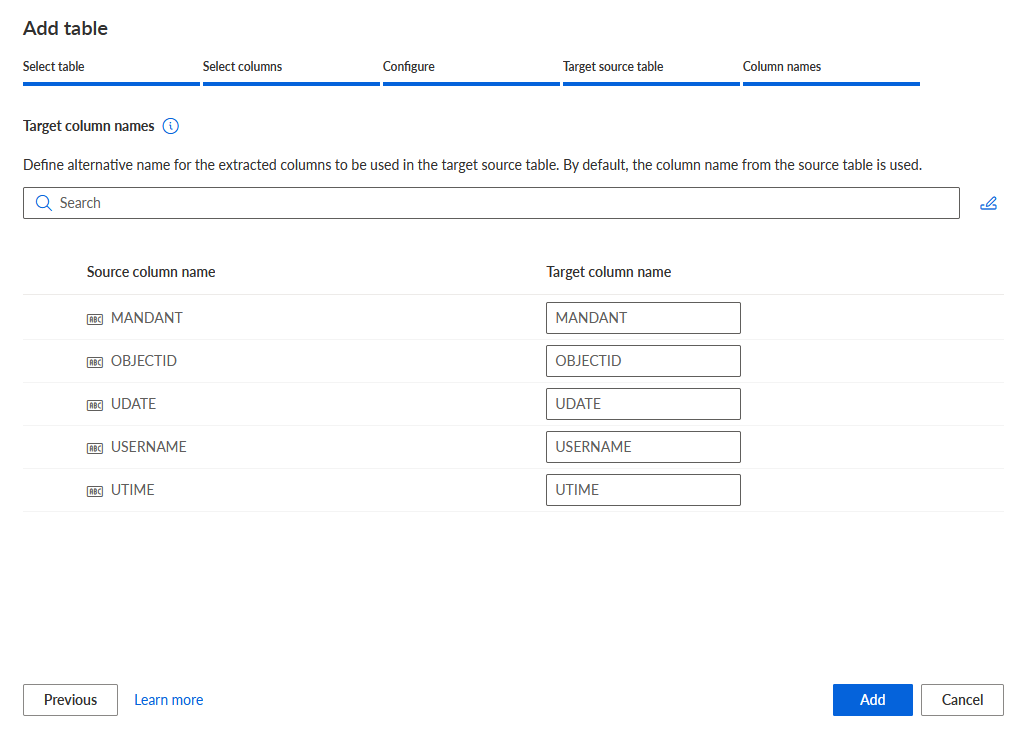
Note that source columns with the _ARIS_ prefix in their name cannot be processed during data loading. A warning is displayed and you must rename the corresponding columns.
If you rename a column of an incremental table, the original column including the data of the last extraction remains in the source table during the next extraction. In addition, a new column is created w]<appropriateith the changed name. The new column contains the data from this extraction time.
Click Add.
You have added a table and columns to the selected extraction to be extracted from the JDBC database.
You can now start a data extraction or you can add further tables to the extraction.
To start the data extraction, click Extract.
If you add further tables, you can specify a dependency filter for the tables. For details on specifying a dependency filter, see chapter Specify a dependency filter. The procedure is described for an SAP data source. The procedure for a JDBC database is much the same. Note that the Advanced filter mode is not available for JDBC extractions.
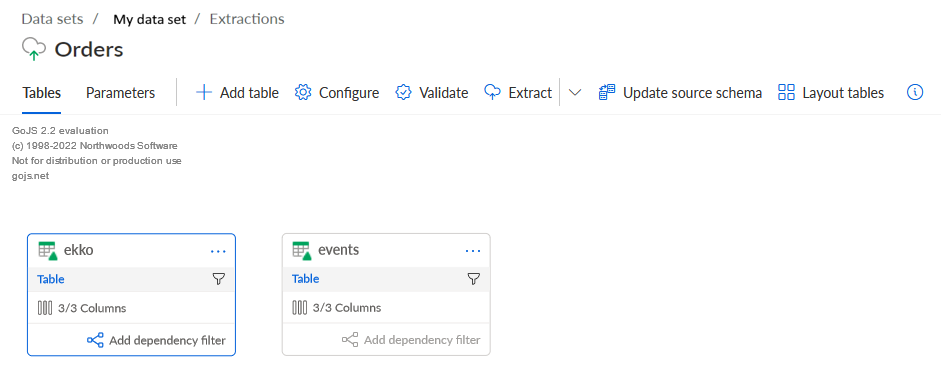
The following figure shows the Orders extraction with the two added Delta Lake tables ekko and events.