Create a dimension table for purchase requisition items
With the ACTIVITIES_PURCHASE_REQUISITION_ITEM transformation, you created activities for purchase requisition items based on SAP data. These activities can be imported into ARIS Process Mining to create appropriate activities of type Create requisition item within process instances.
The created activity table does not yet contain a lot of information for your analyses, because you have only imported a small amount of information from the source tables. To add more information, you need to define tables that contain additional information about purchase requisition items that can be used as dimensional information.
In the extraction configuration for purchase requisition items, we specified columns from EBAN, MAKT and T024D tables as relevant for purchase requisition items. The following transformation combines data from these tables and correlates it with the purchase requisition item activities you specified in the previous transformation.
Click Add transformation and specify a transformation. In the given example, we use the name DIM_PURCHASE_REQUISITION_ITEM and namespace PURCHASE_REQUISITION_ITEM.
Note that "_ARIS" is not allowed as a namespace.
Enter the select * operator in the first line of the SQL statement input field of the new transformation. The operation selects all columns of the specified source tables of the extraction.
Enter the from operator and select the PURCHASE_REQUISITION_ITEM.EBAN table in the Sources panel. The selected table is placed at the cursor position.
Click Preview to view the content of the EBAN source table.
Replace * by the BANFN, BNFPO, ERNAM, ERDAT, MATNR, WERKS, MENGE, MEINS, BADAT, and DISPO columns to select these columns as dimensions.
Click Preview to view the result table containing these columns.
Add aliases for the table and columns. The aliases allow you to specify columns from specific tables when adding other tables.
The statement could look like this:
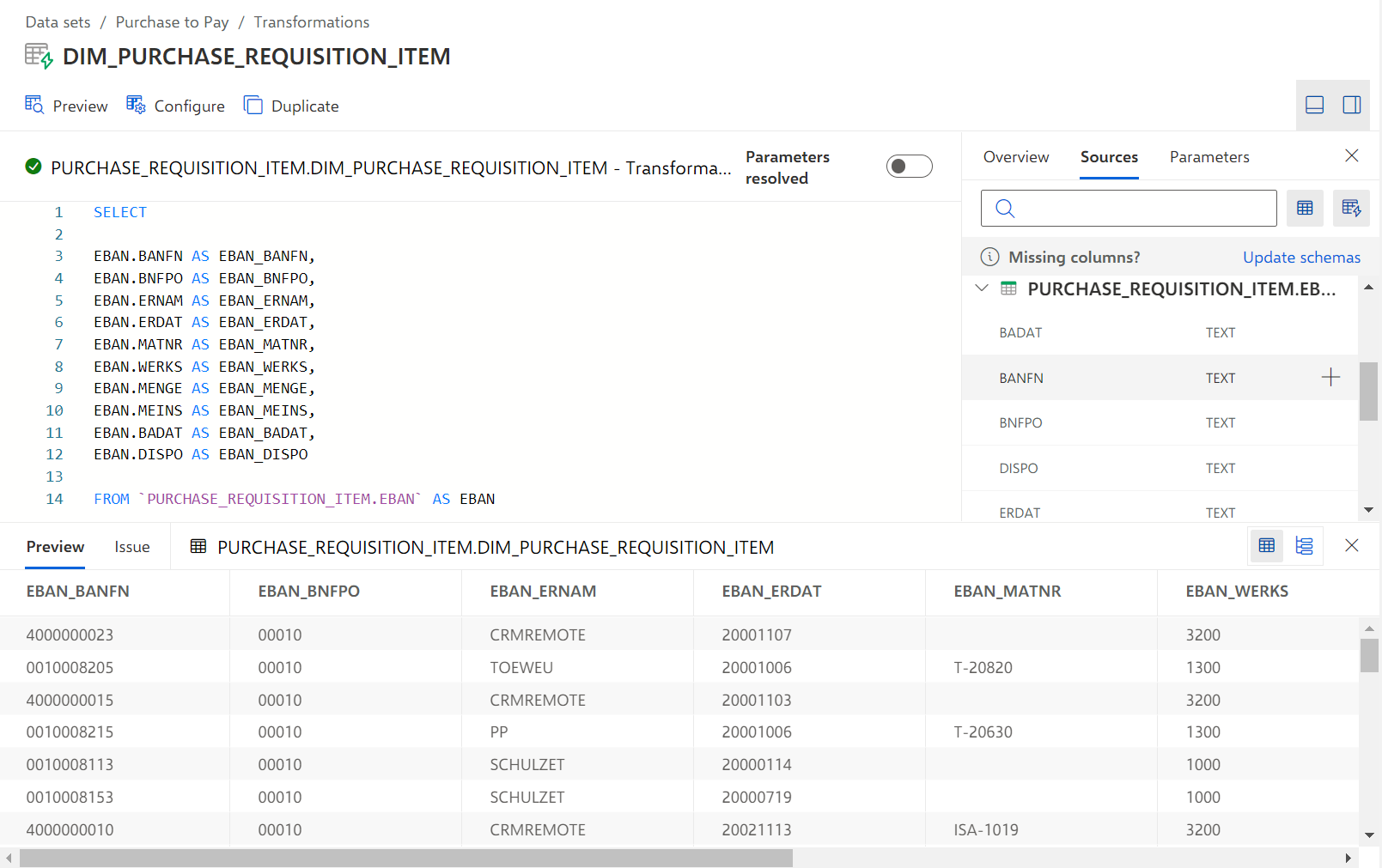
Add the LEFT OUTER JOIN `PURCHASE_REQUISITION_ITEM.MAKT` AS MAKT ON EBAN.MATNR = MAKT.MATNR line to join data from the MAKT table to data from the EBAN table.
Add the following lines to add the MATNR and MAKTX columns to the result table.
MAKT.MATNR AS MAKT_MATNR,
MAKT.MAKTX AS MAKT_MAKTX
Click Preview to view all selected columns with the given values.
Add the LEFT OUTER JOIN `PURCHASE_REQUISITION_ITEM.T024D` AS T024D ON EBAN.WERKS = T024D.WERKS AND EBAN.DISPO = T024D.DISPO line at the end of the statement to add data from the T024D table.
Add the following lines to add the WERKS, DISPO, and DSNAM columns to the result table.
T024D.WERKS AS T024D_WERKS,
T024D.DISPO AS T024D_DISPO,
T024D.DSNAM AS T024D_DSNAM
Click Preview to view the result table with data from the EBAN, MAKT, and T024D source tables.
Add the CONCAT('EBAN-', EBAN.BANFN, '-', EBAN.BNFPO) AS ACTIVITY_ID line after the select operator to connect the dimensional data with the data from the activity table defined in the previous transformation.
As mentioned above, the ACTIVITY_ID is a unique identifier for an activity. By giving the dimension data the same identifier, it can later be linked to the already defined activity data.
Click Preview to view the result of your transformation statement.
You have created the DIM_PURCHASE_REQUISITION_ITEM transformation including the SQL statement for creating dimension columns.
The SQL statement looks like this.
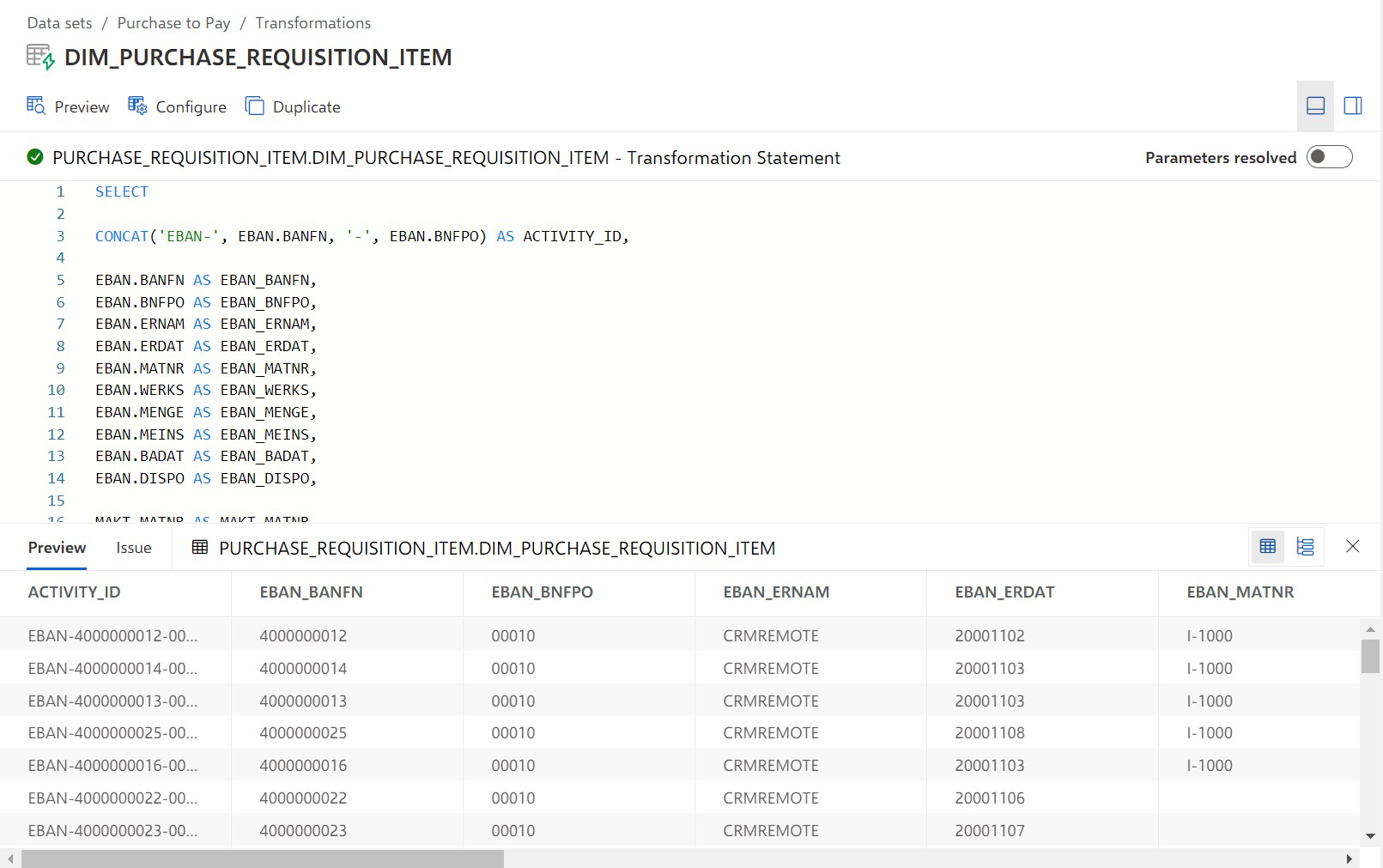
Here you can find the sample transformation statement as an SQL code snippet. You can use the snippet to follow the described example: