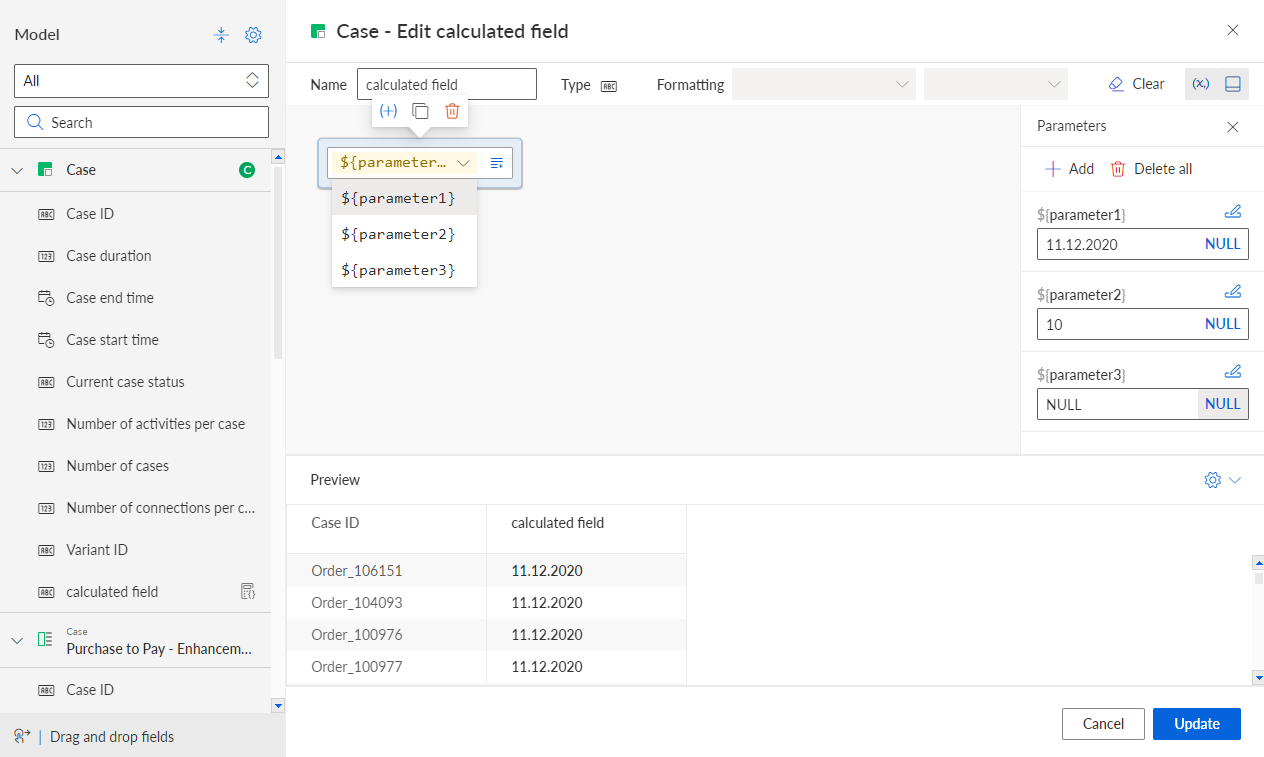
Use parameters in the visual editor
You can create parameters that you can use in the current calculation rule. Parameters allow the calculated field to accept input from other users and to abstract your calculation.
Create or edit a calculated field using the visual editor.
Click
 Show parameters in the editor. The Parameters panel is displayed.
Click + Add in the Parameters panel. The Add parameter dialog opens.
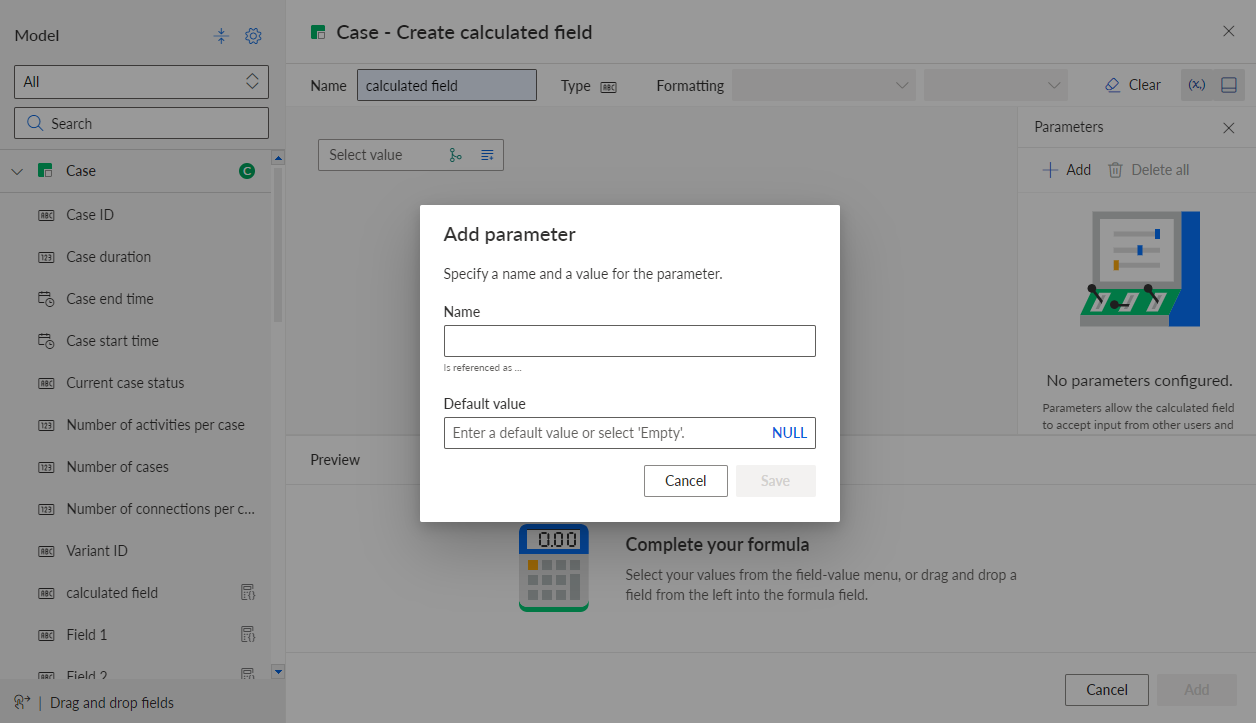
Add a name. Parameter names may only contain letters, numbers, hyphens, and underscores. The parameter name is used to identify and to reference the parameter. The parameter is referenced in the calculation rule as follows: ${<parameter name>}, for example ${parameter}.
You can enter a default value or click NULL. The corresponding value will be used as parameter value.
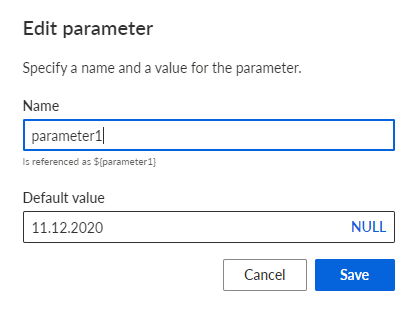
Click Save.
The parameter is created and available in the Parameters panel.
Example
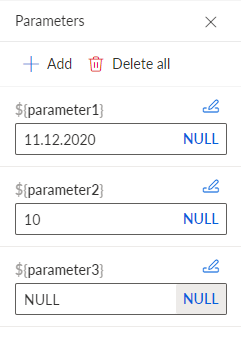
To insert a parameter in the calculation rule, proceed as follows.
Click the
 Add value icon in the Select value block.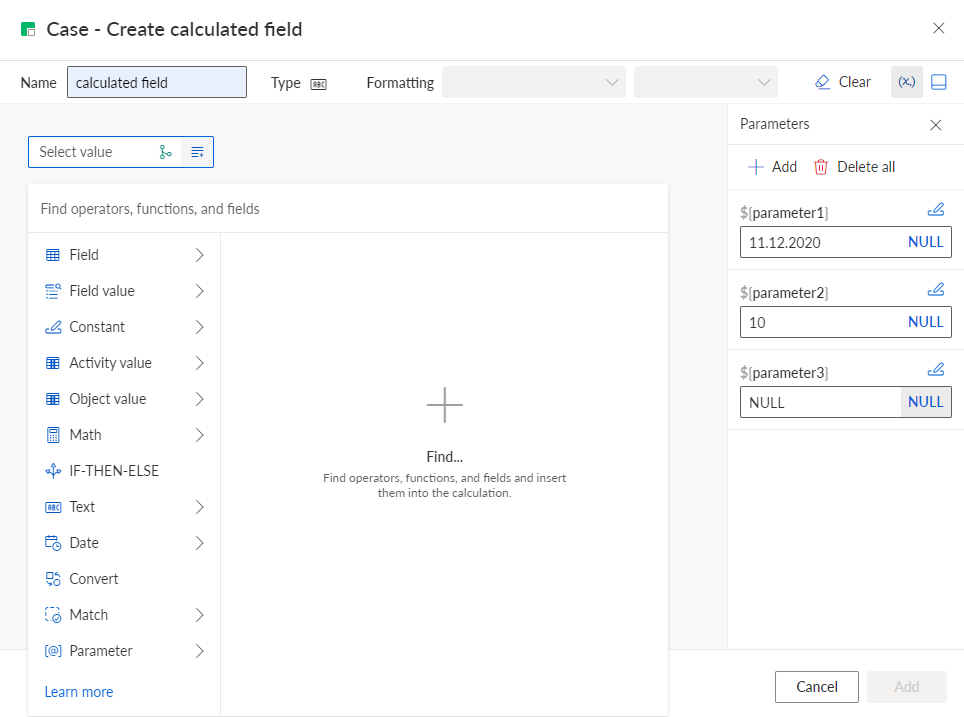
Click Parameter.
Select the parameter to insert in the calculation rule.
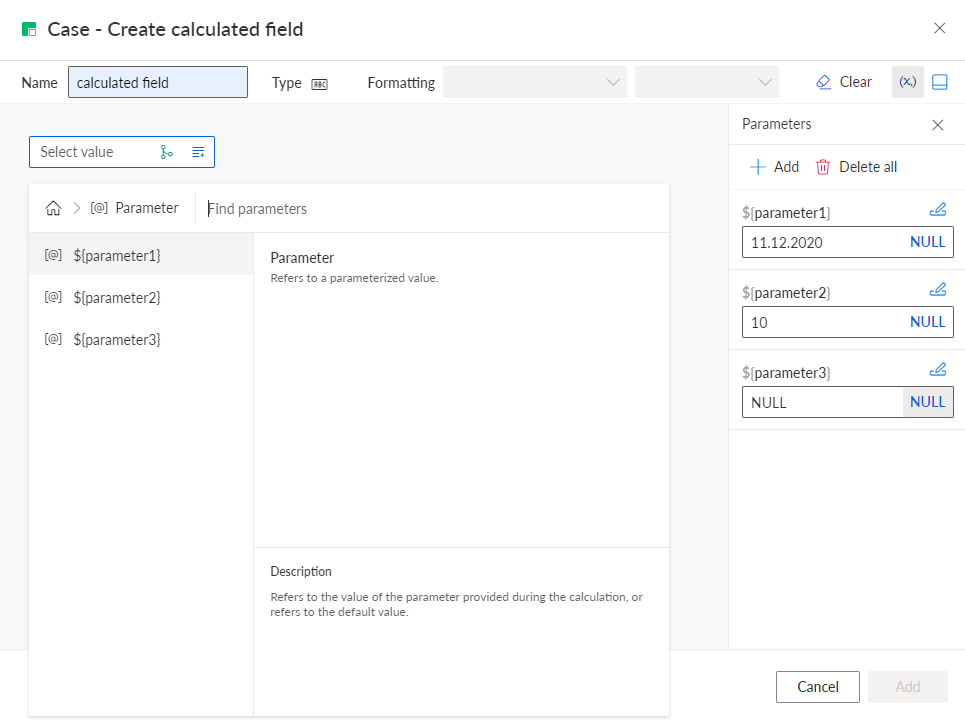
You have created a parameter and inserted it in the calculation rule.
Calculated field with a parameter and a specified default value.