Add calculated fields
You can create individual case and activity fields and add them to the process data. To do this, you can define specific operations, for example, to specify a new measure or time span.
Click Analysis model in the Data set panel. The Analysis model section opens.
In the Model panel, select the object, for example, the Activity or Case object, to which you want to add the new field.
Click
 New field.
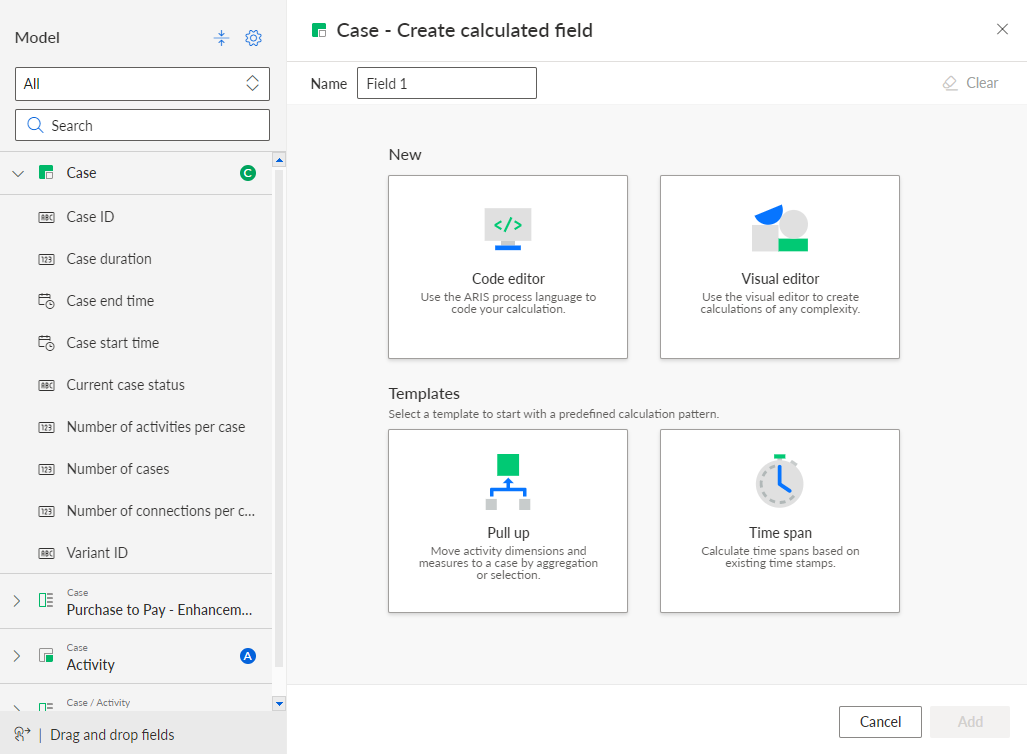
Enter a name for the new field in the corresponding input box.
Select a method to define the calculation rule. The corresponding editor opens.
You can only create activity fields in the code and in the visual editor.
Code editor : Use the code editor to define any calculation rule.
Visual editor : Use the graphical editor to define any calculation rule.
Pull up: Use a template that provides a preset calculation pattern to define a pull-up calculation rule.
Time span: Use a template that provides a preset calculation pattern to define a rule to calculate time spans.
Define a calculation rule in the editor.
Click Add.
Click Recalculate fields to update the data of the analysis model.
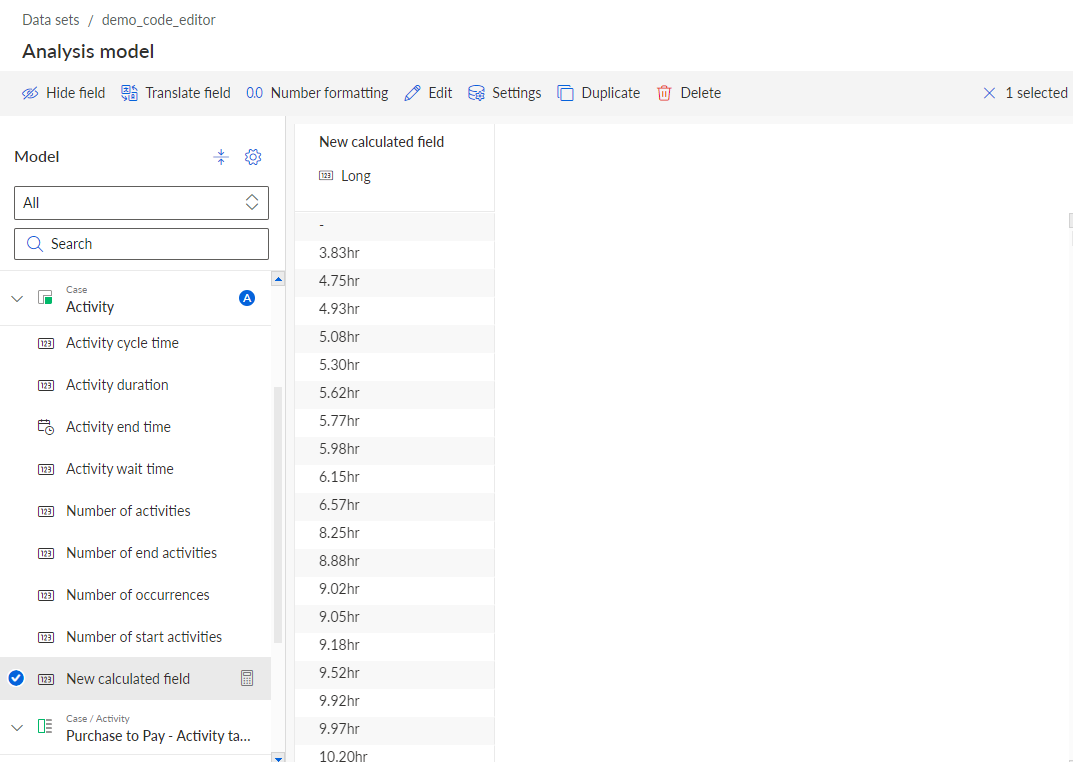
The new field is added to the analysis model and listed under the selected object in the Model panel.
If needed, you can edit the field settings in any available editor, such as the name, the identifier, or the description of a field. Various options are available depending on the field type. For fields of the type Number, you can specify the format and scaling; for fields of the Date type, you can specify the granularity. To do this, click the administration Settings button in the editor header. The specified field properties are displayed in the tooltip of a field, for example. To display the description, click Show more in the displayed tooltip. The option is only available in the tooltip if a description is available for the field.
Tip
You can edit a calculated field. In the Model panel, move the mouse pointer over a calculated field and click the ... icon > Edit. A corresponding dialog opens.
You can duplicate a calculated field. In the Model panel, move the mouse pointer over a calculated field and click the ... icon > Duplicate. A copy of the selected field is created.
You can delete a calculated field. In the Model panel, move the mouse pointer over a calculated field and click the ... icon > Delete. To delete all calculated fields at once, click Manage model > Delete all calculated fields in the analysis model header.
The new calculated field is added to the Activity object.