Specify the symptom to analyze
Based on your selection, you can specify a symptom to analyze and optionally a filter to exclude certain cases from analysis. Both the symptom and the optional filter are preset in the combination that ARIS Process Mining assumes you are looking for. However, you are always able to change and modify them.
The cases are divided into two groups: 'symptomatic cases' and 'non-symptomatic cases', they are categorized into cases affected by the symptom and in cases where the symptom does not occur.
You can change the preset symptom and selection in the corresponding drop-down menus. Based on your selection, ARIS Process Mining has preset a symptom and selection for the root cause analysis, in this example, the Case duration as symptom and Time frame case as additional selection.
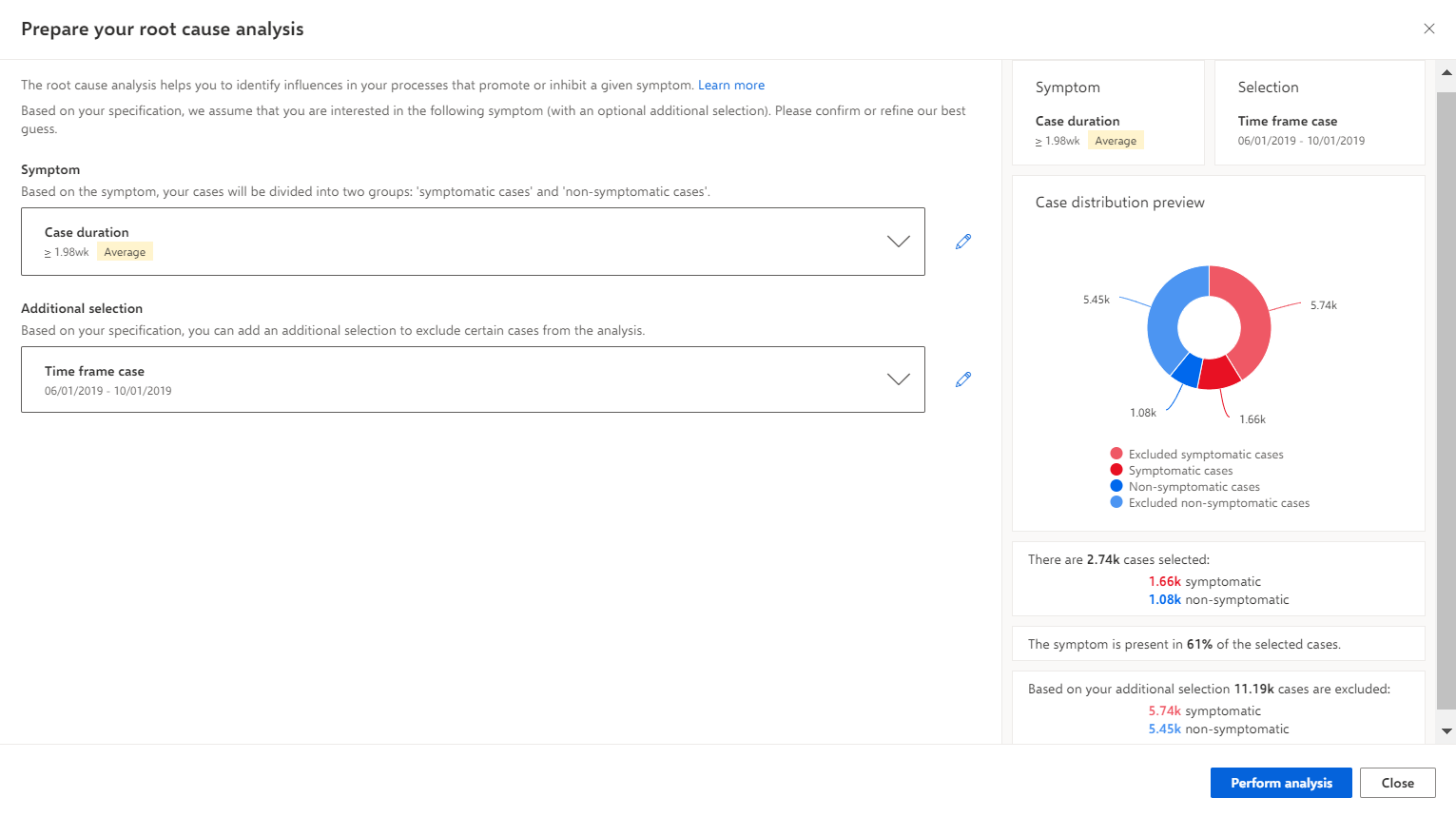
To edit the symptom settings, click
 Edit symptom. The Edit your symptom dialog opens. Depending on your selection, such as a data point or a time range, the dialog provides the corresponding options. In the following example, the dialog provides the settings for a time range symptom.
To switch to the value selection view, click Switch to value selection.
Enable the Not option to invert the selection.
Click the Start or End box to set the start or end time of the time range, respectively.
Enable the Smallest value option to start with the first date of the time range.
Enable the Largest value option to end with the last date of the time range.
To extend the time range, click Add additional range and specify the new time range.
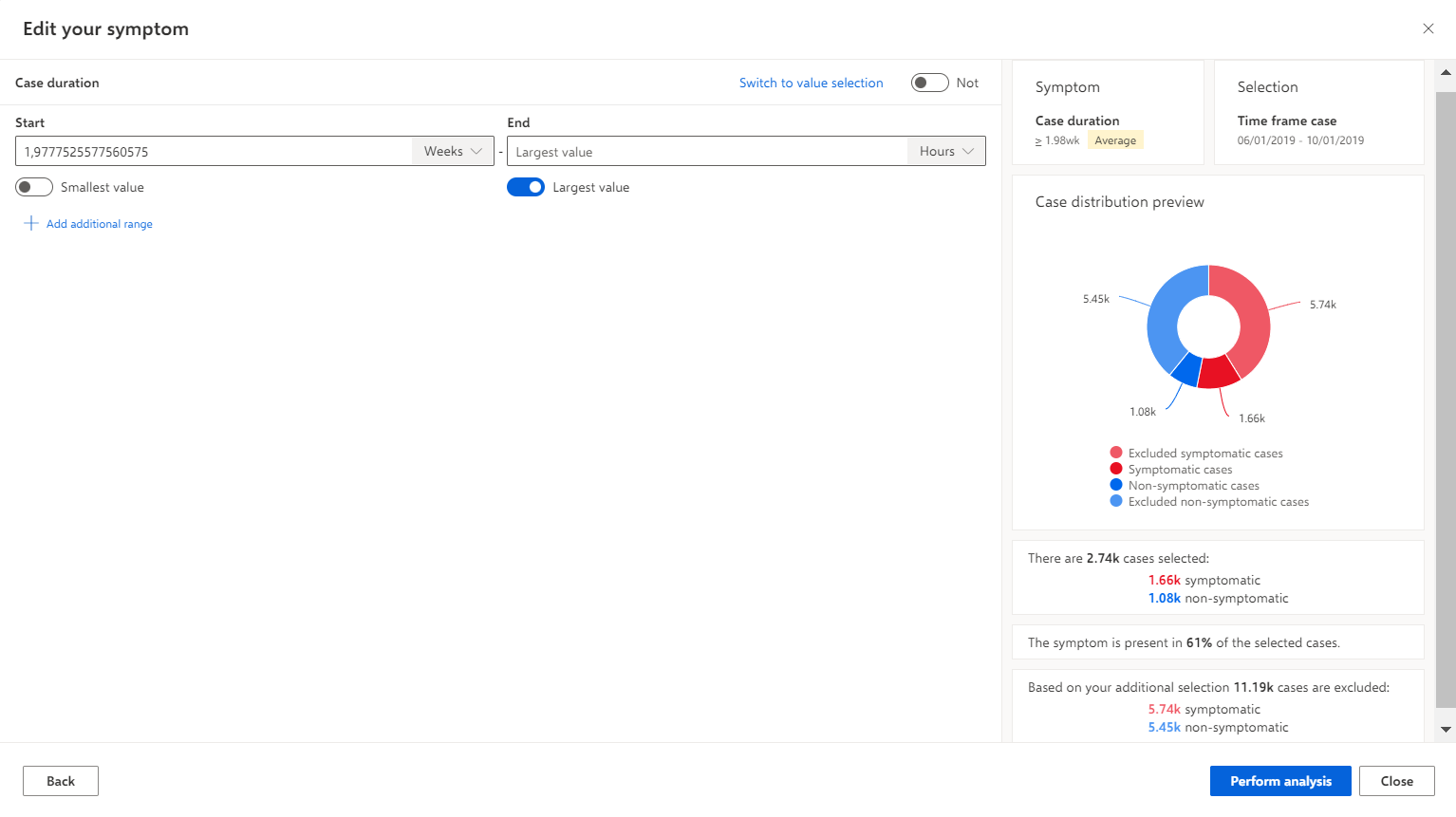
Click Back to return to the previous dialog.
You can specify an additional selection to filter the cases used for the analysis.
Select a selection in the Additional selection drop-down menu.
Click
Edit additional selection.Make your settings.
Click Perform analysis.
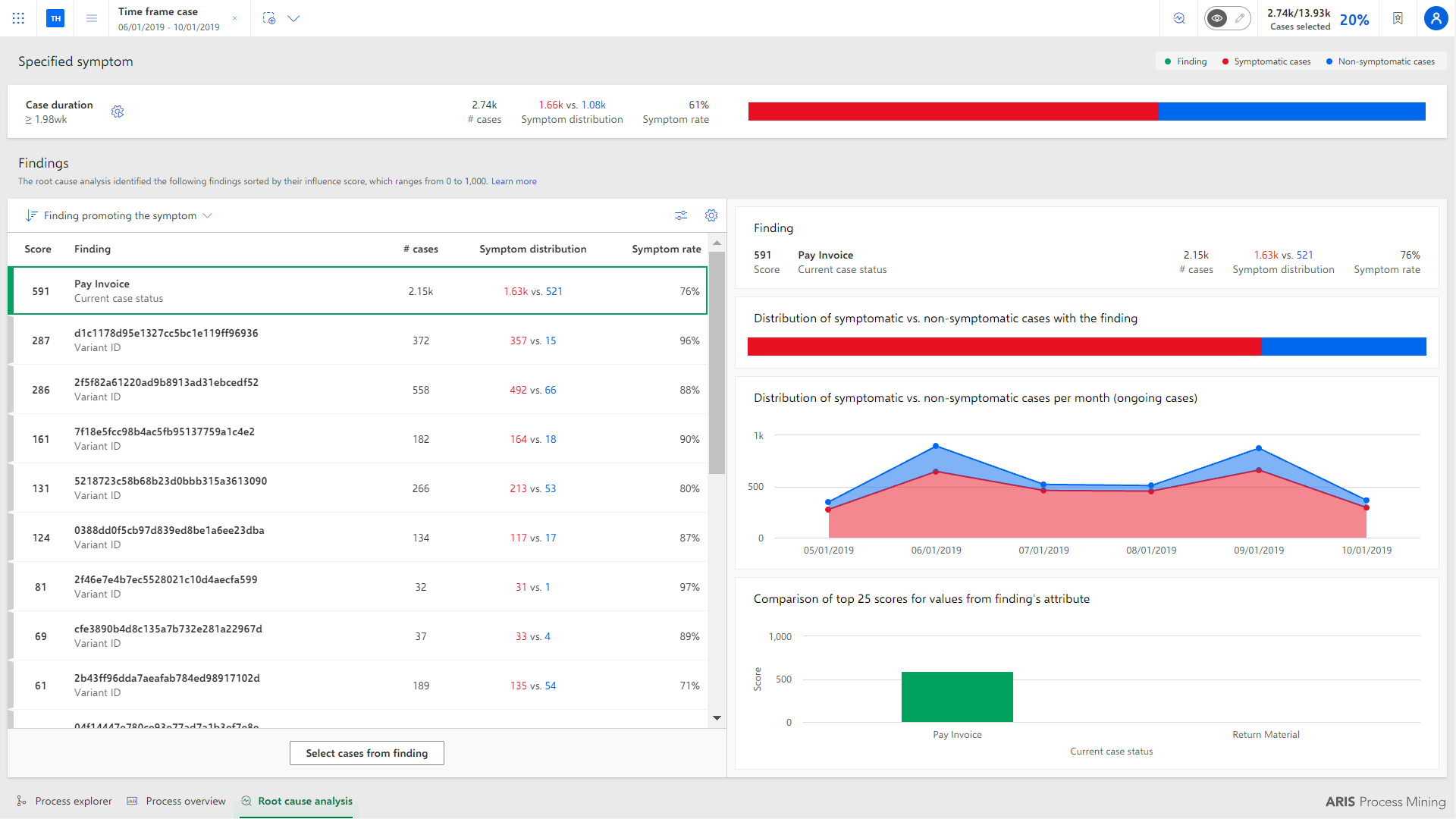
You have specified the symptom for the root cause analysis. The Root Cause Miner app opens.
Root Cause Miner app with the Case duration as specified symptom.