Use the Root Cause Miner app
You can use the Root Cause Miner app to analyze prominent symptoms in the process data.
Based on your symptom settings and your analysis configuration, ARIS Process Mining provides a list with findings of possible root causes that affect the symptom. Technically, a root cause is a dimension value that affects a symptom observed in the analysis. The root causes are divided into two categories: Root causes that have a promoting effect and root causes that have an inhibiting effect on the observed symptom.
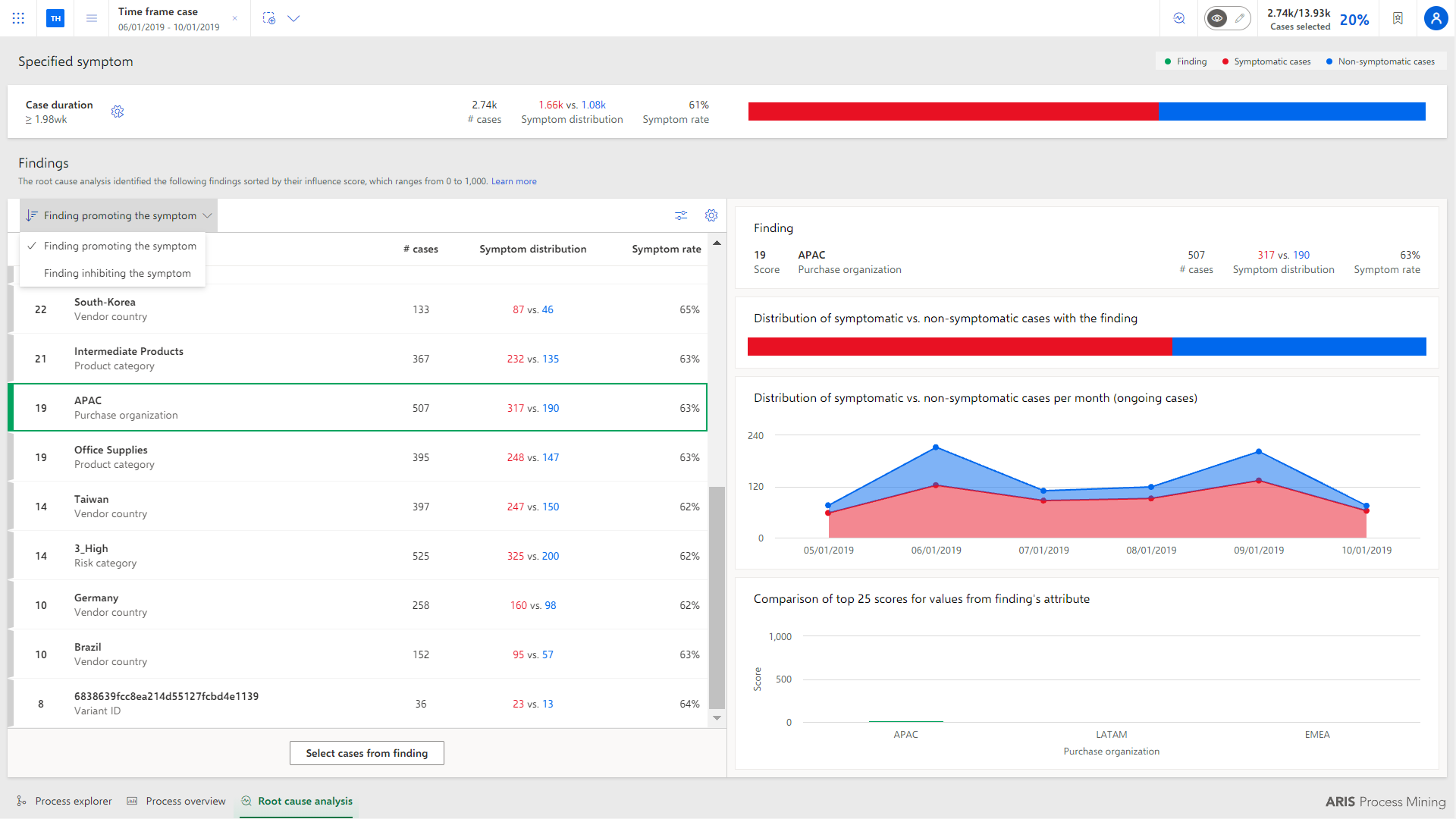
The app shows information on the analysis at the top: The used symptom for the root cause analysis (for example, Activity start time), the total number of cases, the number of symptomatic and non-symptomatic cases, and the percentage of cases leading to the symptom. The analysis results are presented numerically and graphically in a distribution and bar chart. The finding details on the right side show additional details for the selected finding on the left side. These details help you to decide whether the finding should be examined further.
Additionally, the Findings list displays the possible root causes that affect the symptom. The Score indicates to what extent the root cause promotes or inhibits the symptom. The higher the score, the stronger the effect. It does not necessarily correspond to the percentage of symptomatic processes. For each finding, the number of cases (# cases) affected by the root cause is displayed. The Symptom distribution shows the ratio of symptomatic and non-symptomatic cases for each finding.
Note that global filters set in other applications are not automatically applied to the Root Cause Miner app. When performing the root cause analysis, the global filters at that point are automatically taken and kept until a newer root cause analysis. In case the filters of the root cause analysis differ from the global filters, a hint is displayed in the header of the app.
Click Finding promoting the symptom and select Finding inhibiting the symptom if you want to view the root causes that have an inhibiting effect on the observed symptom. By default, Finding promoting the symptom is preset.
You can influence the result of the root cause analysis to be displayed. Click
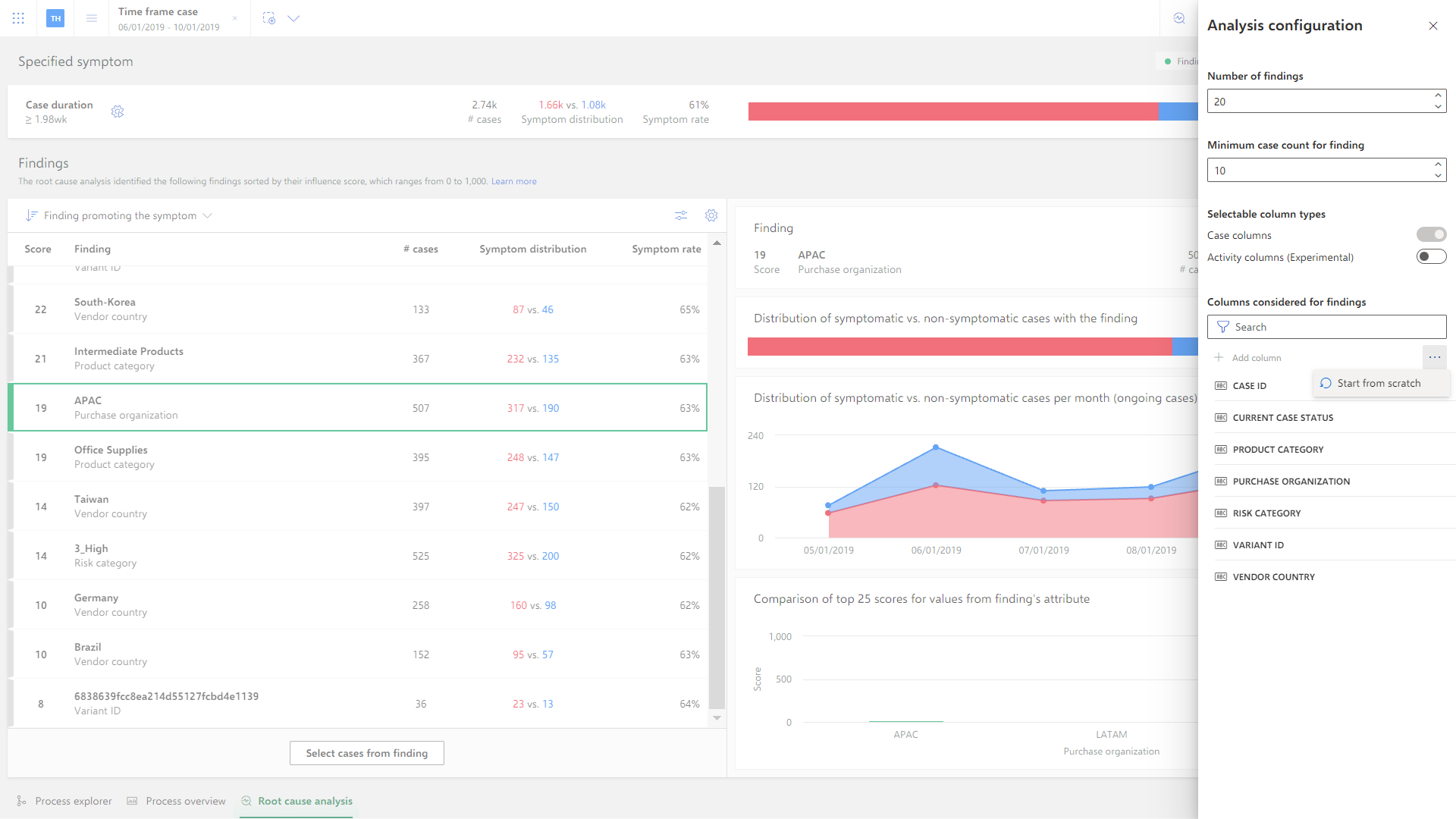
 Analysis configuration to specify the number of findings with the highest score, the minimum number of cases required for a finding, and the dimensions (fields) whose values are considerred for findings.
You can remove single fields from the analysis. Move the mouse pointer over a field and click
 Remove. To add removed fields back to the analysis, click + Add field and select a field.
To delete the list of considered fields for the findings, click ... More options > Start from scratch next to the + Add field option. Only the Variant ID field remains.
Click
 Settings to configure the dimension and measure displayed in the analysis chart. The options provided depend on the symptom selected for the analysis.
You can select a root cause in the Findings list and apply it as a filter to the analysis. The list displays the possible root causes that affect the symptom.
Click Select cases from findings. Only the cases affected by the selected root cause are analyzed. Your selections are displayed in the header of the app. Click the selection to edit its field or to delete it.
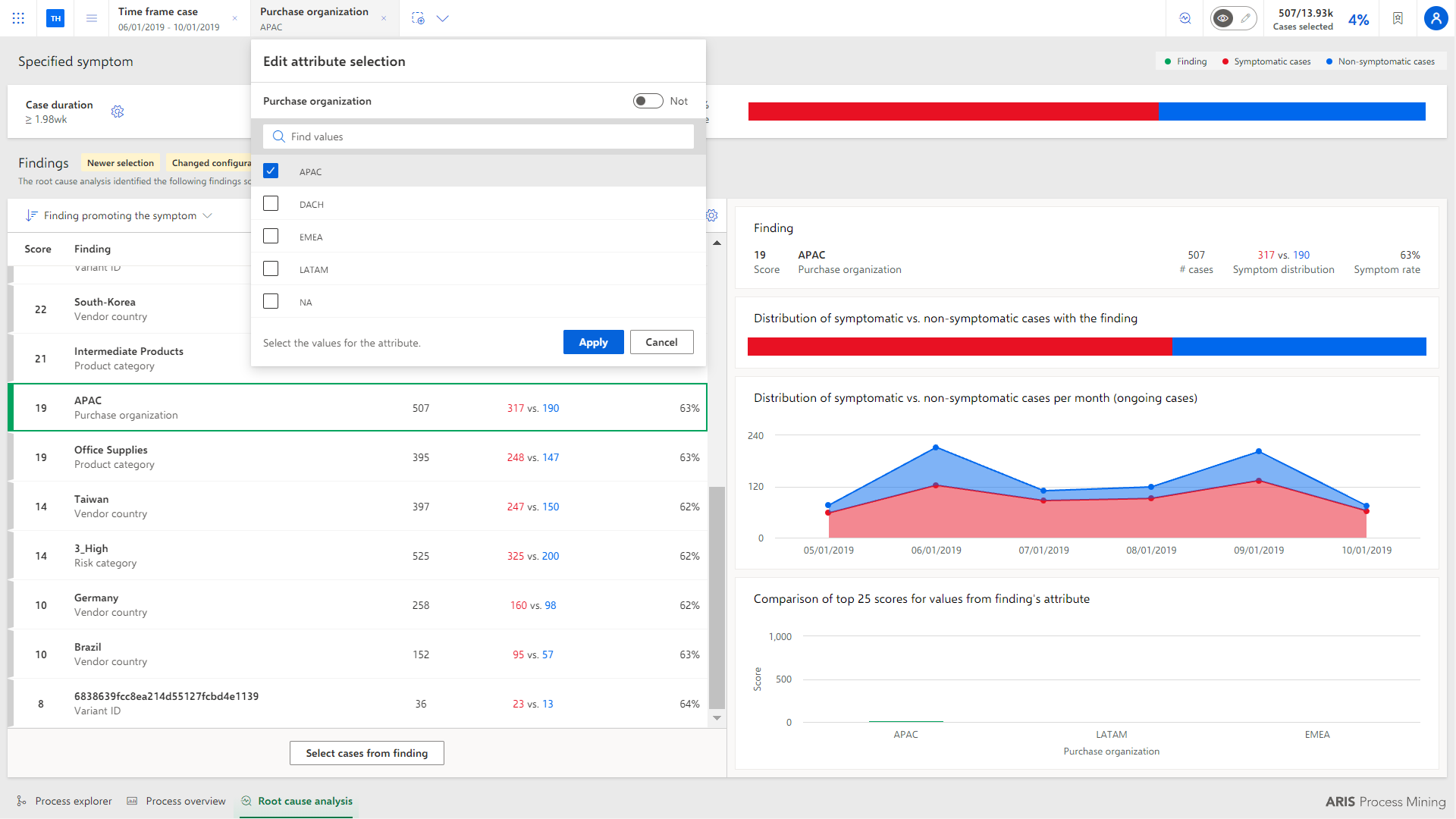
Click Re-Perform analysis to perform the root cause analysis with the changed context as result of the different selected cases.
If you change your configuration, click Re-perform analysis, to run your analysis again with the changed settings.
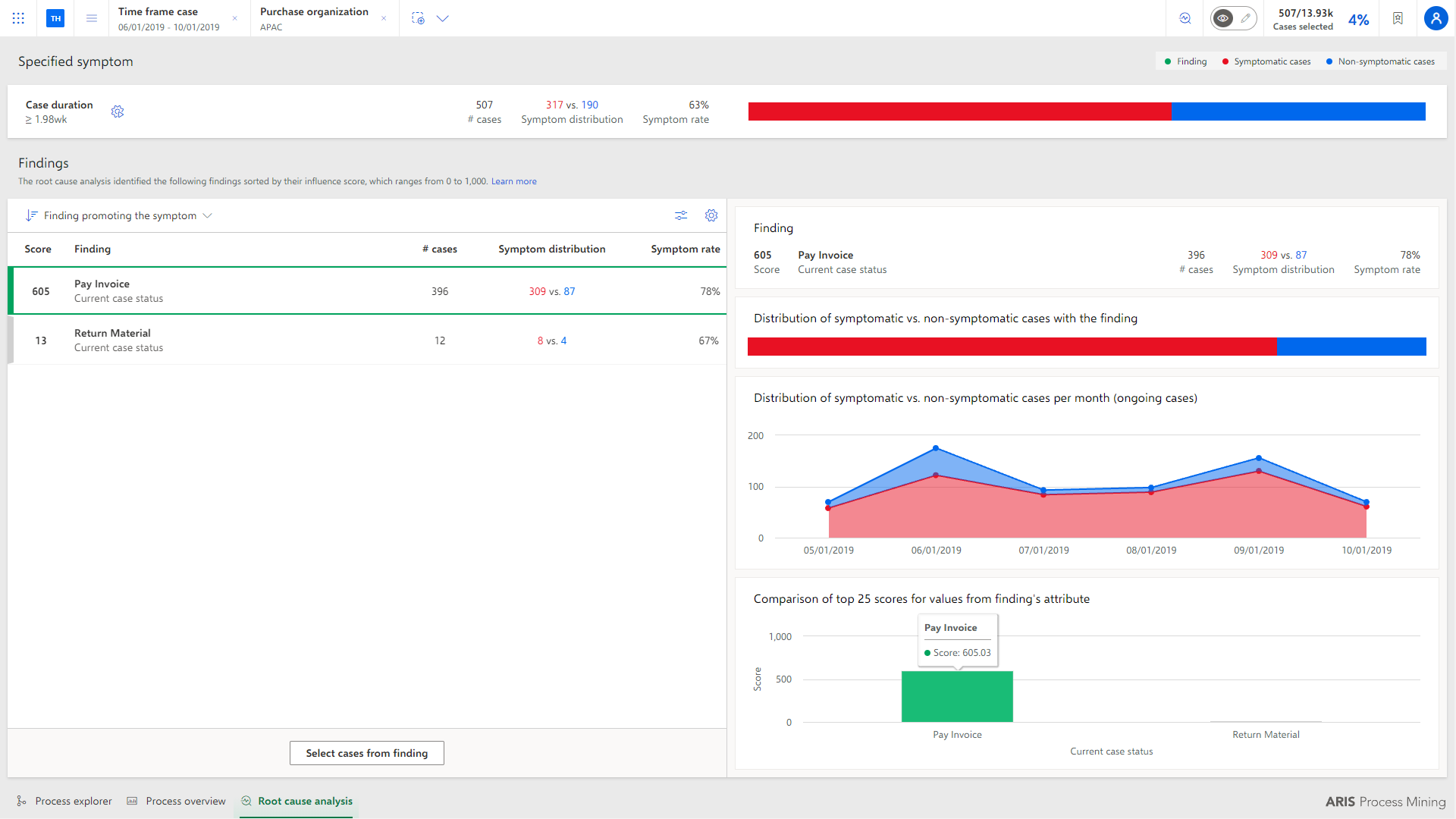
The root cause analysis is performed based on your settings. The result is displayed in the analysis charts.
Warning
If you reload the browser tab where ARIS Process Mining is running, the Root Cause Miner app will close and your settings will be lost.