Select data of interest
You begin root cause analysis by selecting data of interest from your configured apps for further analysis. This could be, for example, an activity with a high throughput time or anomalous data points. Based on your selection, you can specify the symptom to analyze.
Procedure. Procedure
Click
 Enable symptom selection. Your selection will be used to specify a symptom for your root cause analysis.
Example
Analysis of root causes in the Overview app.
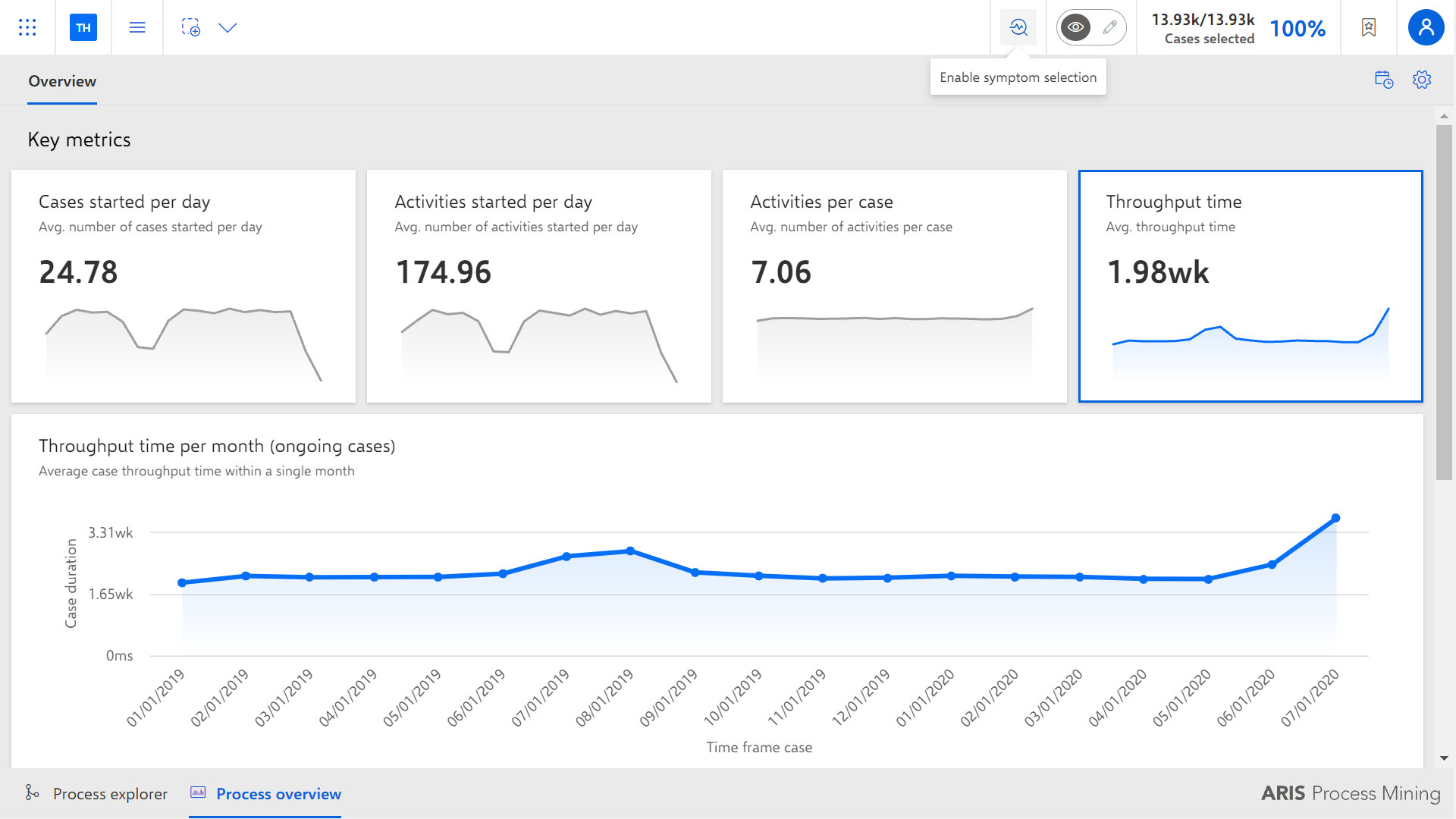
Select the data of interest for the current analysis, for example, the time range with the peak in the throughput time.
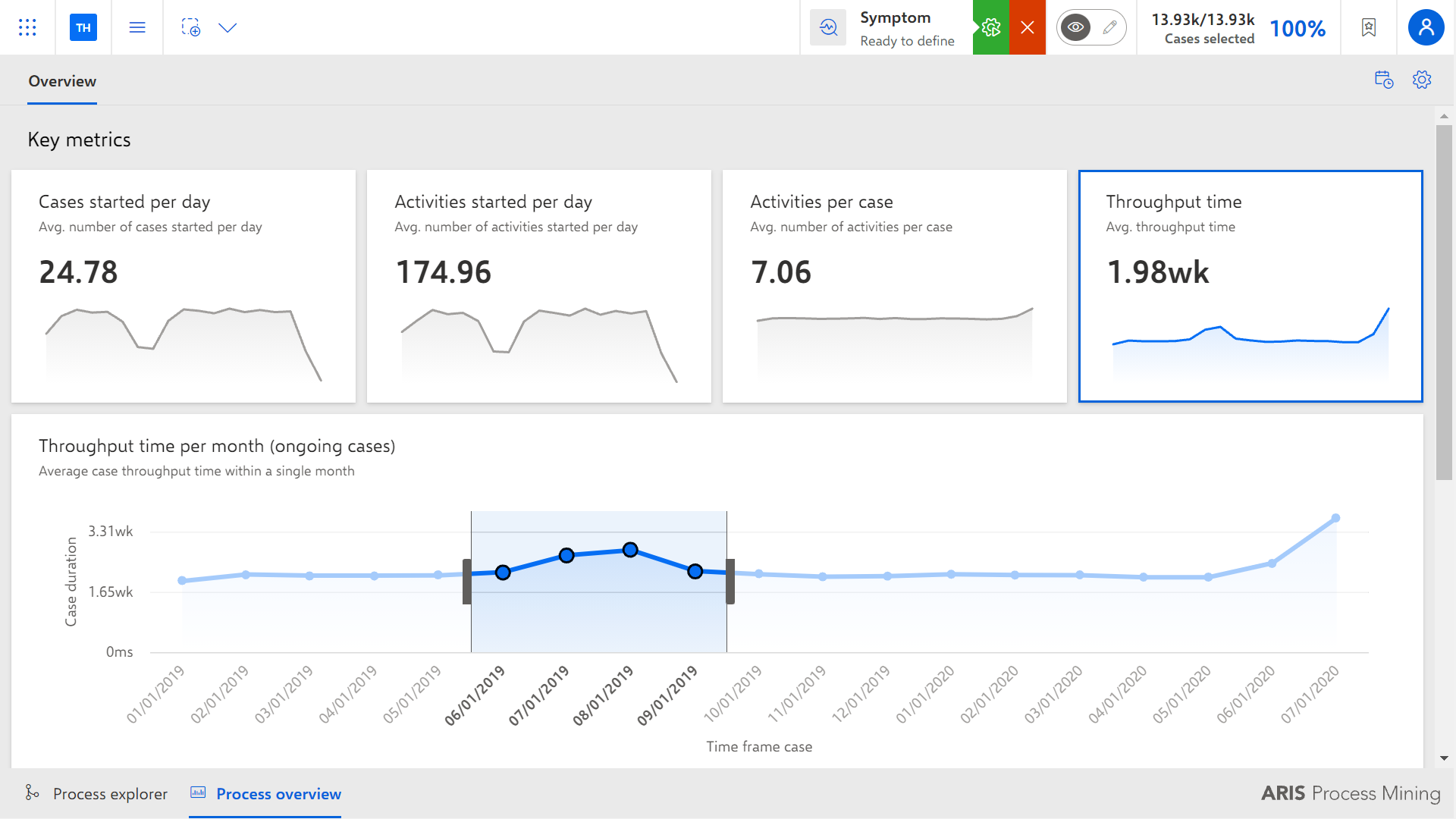
Click
 Define selection.
The dialog to specify the symptom opens.