Configure the ratio aggregation
You can configure a user-defined aggregation rule that allows to calculate the ratio of a measure for specific cases or activities relative to all cases or activities.
You can insert a new component or configure an already inserted component, such as a line chart.
Click
 Add new component, or click a component >
  Configure. The corresponding Configuration panel opens.
Click Add measure in the Configuration panel to add a measure for which you want to configure a ratio aggregation rule.
Select a field to be used as a measure, such as Product category.
You can toggle between
 Text types only and
  Number types only by clicking the corresponding icon.
Select the Ratio (RATIO) aggregation. The Edit aggregation panel opens.
Configure the aggregation ratio.
Click Done.
The selected measure is added to the Configuration panel. The measure is displayed with the configured aggregation in the corresponding chart.
Ratio calculation rule
The default ratio configuration uses Number of activities or Number of cases and COUNT as the aggregation for the measure values. The calculation rule calculates the ratio of the number of cases or activities with a specific configured value relative to all cases or activities. The format of measures that use the RATIO aggregation is automatically set to Percentage.
The result for the ratio is always calculated within the scope of the dimensions added to the analysis. You can add the dimensions to the Configuration panel. For details on adding dimensions to an analysis, see the chapter Use the App builder.
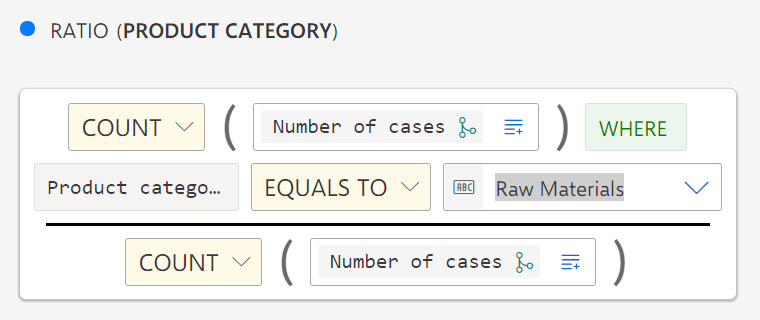
The following figure shows the ratio calculation rule for the selected Product category measure. The numerator calculates the number of cases that belong to the Raw materials product category. The denominator calculates the total number of cases.
The following examples help you to get familiar with the configuration of the ratio aggregation of a measure.