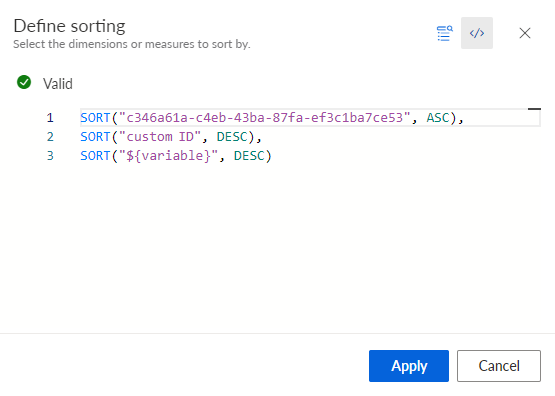
Change the sort order using a textual editor
You can define a sort order using a textual editor. The textual editor allows you to define a dynamic sort order using variables.
Click the
 icon to open the code editor.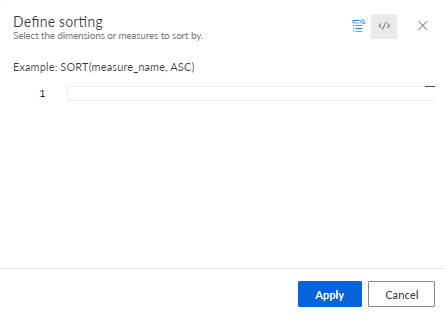
Click in the first line of the editor and press Ctrl + Space. A box with the available elements opens. Select the required elements in the box. The editor provides only the SORT operation, sorting types ASC (ascending) and DESC (descending), criteria identifiers, and variables (if available).
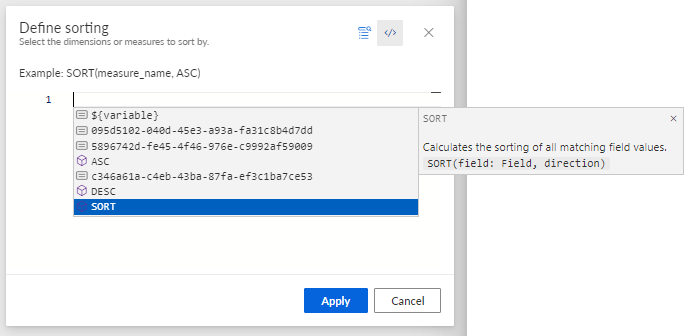
You can add multiple sort order definitions in the following format. Multiple definitions are separated by commas (,).
SORT("field", "sortDirection")Replace field with a criterion identifier. You can use only the identifiers of the criteria assigned to the component.
You can find the identifier on the configuration panel of the corresponding criterion. Select the criterion in the drop-down menu in the Configuration panel, for example, Activity name. You can edit the criteria identifiers and specify your own identifiers, for example, a name. An identifier must be unique. Then you can use the specified criteria identifiers in the sorting definition.
Replace "sortDirection" with ASC (ascending) or DESC (descending).
You can use variables instead of criteria identifiers, and sorting types. Variables are referred as follows: ${variable name}.
Press Enter to add a new line and specify an addition sorting definition if required.
Click Apply.
You created a custom sorting definition.
The sorting definition contained a default criterion identifier in the first line, a user-defined criterion identifier (custom ID) in the second line, and a variable instead of the criterion identifier in the last line.