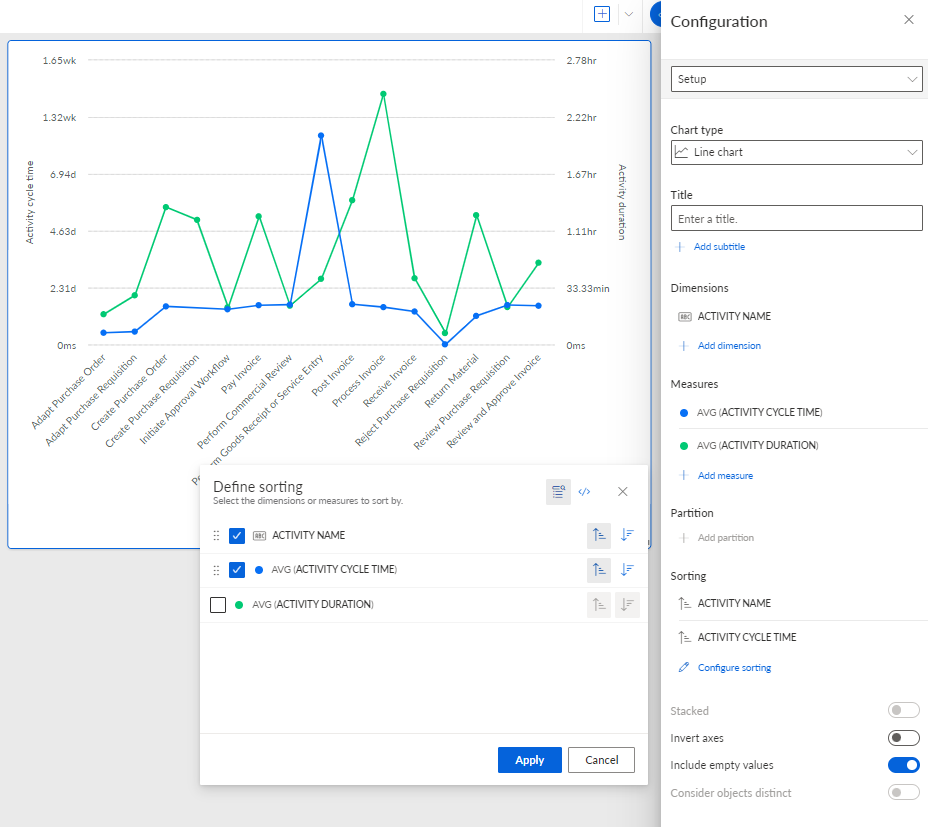
Change the sort order of criteria values
You can change the sort order of the criteria (dimensions and measures) values displayed in the analysis. You can select criteria to sort the values in ascending or descending order.
If you specify a sort order for values based on compliance-related analysis criteria, the values are always sorted according to their criteria identifiers (dimension identifier or measure identifier) and not to their values. The translated values of the criteria are not taken into account when sorting. This ensures the same sort order in all languages.
Prerequisite
You have assigned at leased one criteria to the component.
Open the Setup options of the Configuration panel. The Setup options are displayed by default when you select a component.
Under Sorting, click
 Configure sorting. The corresponding dialog opens. The dialog lists all criteria assigned to the component.
Select criteria to sort the values.
Select whether to sort the values in
 ascending or
  descending order.
You can change the order of the sorting criteria in the list using a drag-and-drop operation.
Click Apply.
You specified a sort order for the criteria values displayed in the analysis. The values are displayed in the sort order you specified.
You can switch the sort order between ascending () and descending (). In the Configuration panel under Sorting, move the mouse pointer over a criterion and click the or icon.
Dialog to configure the sort order of the criteria values. Activity name and Activity cycle time are selected as sort criteria with an ascending sort order.