Specify quick filters
You can add fields to the analysis to use as quick filters. Quick filters work in the same way as an ad-hoc filter. Quick filters are also applied to other apps added to the current analysis. For example, if you have added the Overview app to the analysis, the values in the Overview app are also filtered based on the filter settings in the Process model overlay app.
Click the
 icon next to Quick filter in the Process model overlay panel to display the quick filter options.
Click + Add field below Quick filters and select fields in the Add filter field panel. The filter fields are added to the Process model overlay panel.
Example
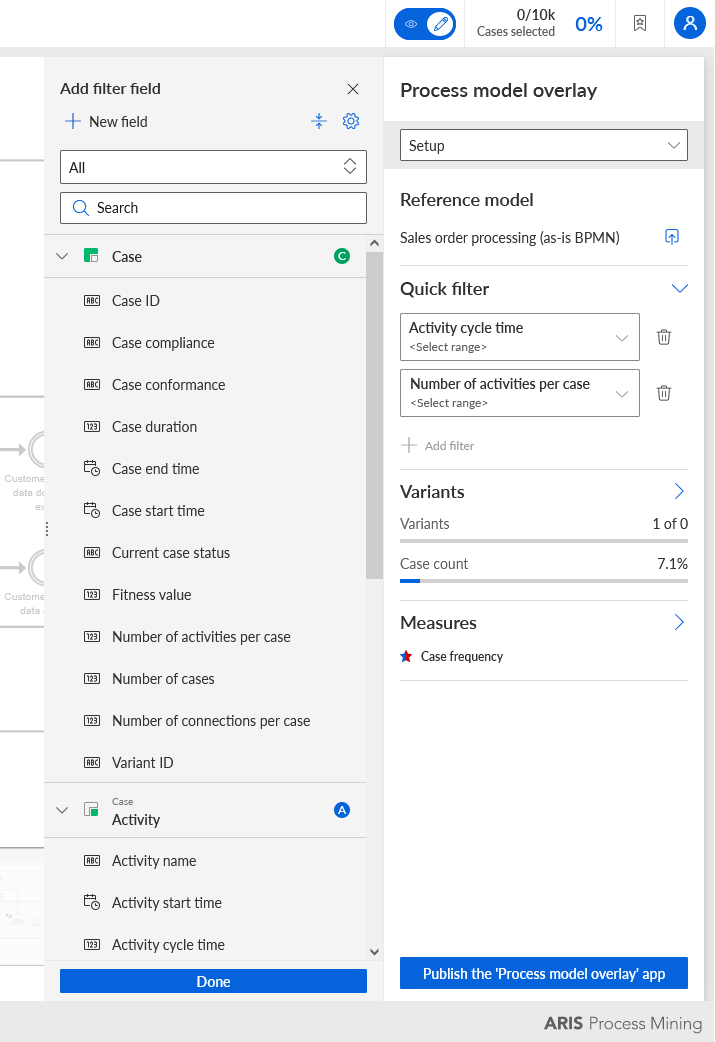
Click Done.
To specify the values for the quick filter, click a filter field and specify the field values as filter. The specified filter is also displayed in the analysis header and can be used as an adhoc filter.
Example
The field values displayed in the process model are filtered according to the filter settings, that is, Number of activities per case (> = 10 < 50) and Activity cycle time (> = 60 < 90 min)
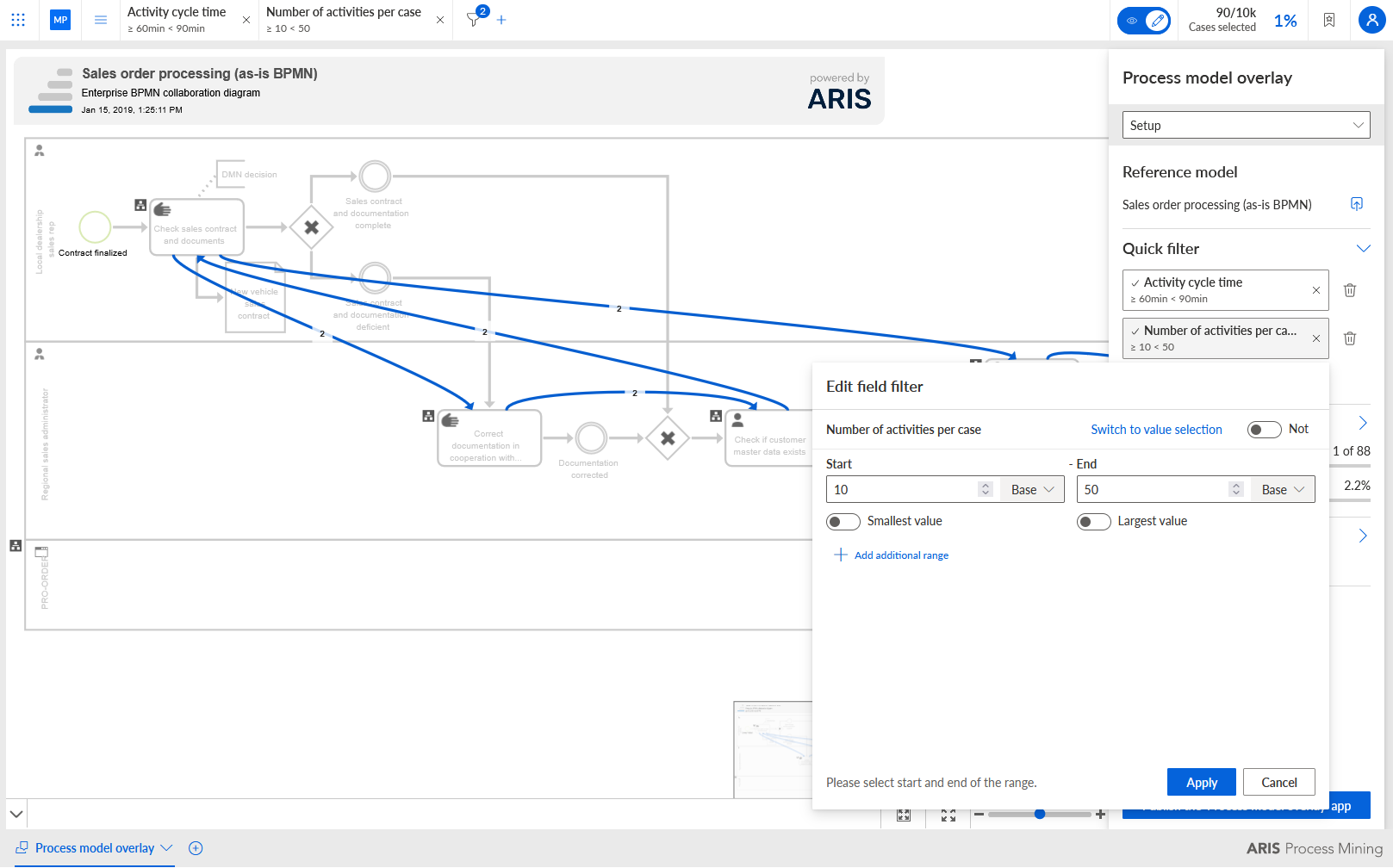
You added quick filters to the Process model overlay app. The specified quick filters are applied directly to the measure values in the process model.