Specify the analysis criteria
Use the Process model overlay panel to specify the measures for the process model analysis. The Case frequency measure is the default analysis criterion.
Click the
 icon next to Measures in the Process model overlay panel to display the measure options. The measures selected for the analysis are displayed with the Case frequency as the default measure.
Example
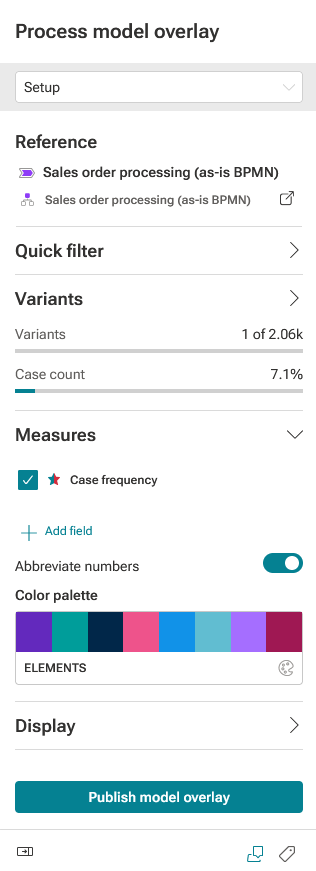
You can add other measures to the analysis.
Click + Add field. The Add field panel opens. The panel provides all criteria that you can use as measures. You can use the panel in the same way as the Model panel.
Select a measure, for example, Case duration. The Select aggregation panel opens.
Select an aggregation, for example, average (AVG).
Click Done.
The selected criterion is added to the measure list in the panel in disabled state and is not displayed in the analysis.
Example
The Case duration measure is added to the panel
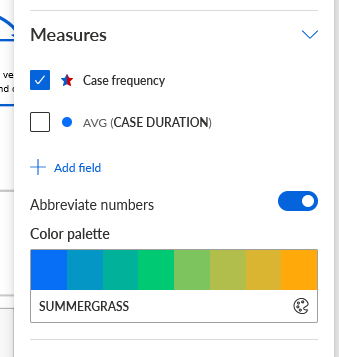
To display or hide individual measures in the process model, select or deselect the measures in the Measures options.
In view mode, you can show or hide all measures or individual measures in the process model. To do this, enable or disable the Measure option on the side panel in view mode.
To configure the measure name, move the mouse pointer over a measure and click
 Configure. The Measure options panel opens. Here you can specify the name of the measure and whether the name should be displayed in the process model. Click Done.
To configure the color of an individual measure, move the mouse pointer over the measure and click
Configure. The Measure options panel opens. Click the color field and select a color. Click Done.You can change the color palette to provide other colors. Click the color field under Color palette and select another color palette.
To configure the default measure, click the
 Edit default measure icon. Note that the displayed icon changes with the selected default measure. The Measure panel opens.
Example
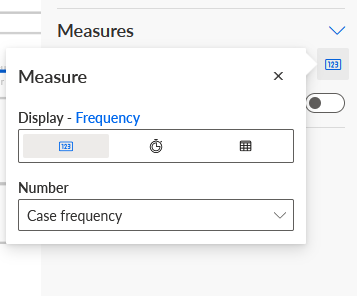
To display the Activity frequency measure instead the Case frequency measure, click the Number drop-down menu and select Activity frequency.
To analyze the Throughput time measure, click the
 Throughput time icon, and then select an aggregation type in the corresponding drop-down menu.
Example
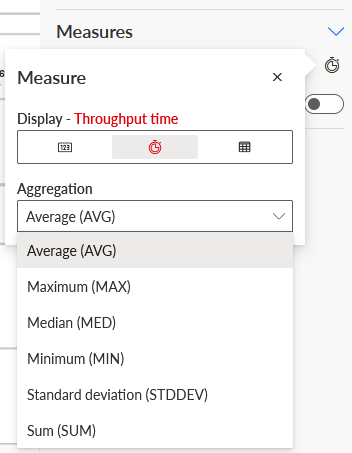
You can also analyze any other available measure.
Click the
 Measure icon.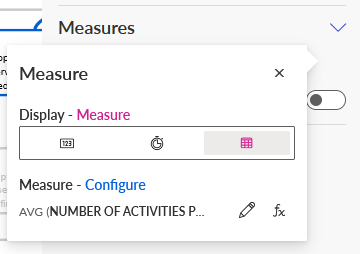
Click the
 Change custom measure icon. The Model panel opens. The Model panel provides all measures available for the analysis model. Select a measure and an aggregation and click Done.
To specify an aggregation for the measure values, click the
 Edit aggregation icon and select an aggregation. The Select aggregation panel opens. The available aggregations depend on the selected measure. The default is the average values (AVG). Click Done.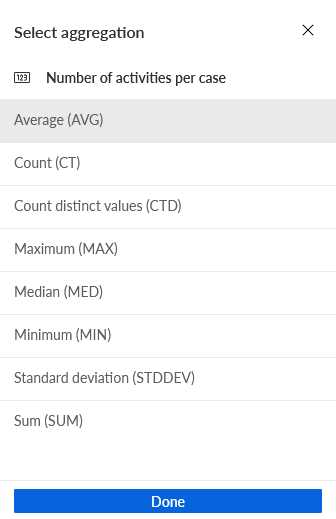
You can specify where you want to display the measure values. If you select a case measure, you can display the values only at the activities, only at the connections, or at both elements. If you select an activity measure, the values are displayed only at the activities.
Click Configure and select the appropriate option in the Select display mode panel. Click Done.
You can abbreviate the measure values displayed in the process model. Enable the Abbreviate numbers option.
You can hide the connections in the process flow diagram.
Click the
icon next to Display in the Process model overlay panel.Disable the Display connections option. The option is enabled by default. The option is not available in view mode.
You configured the measures for the process model overlay.
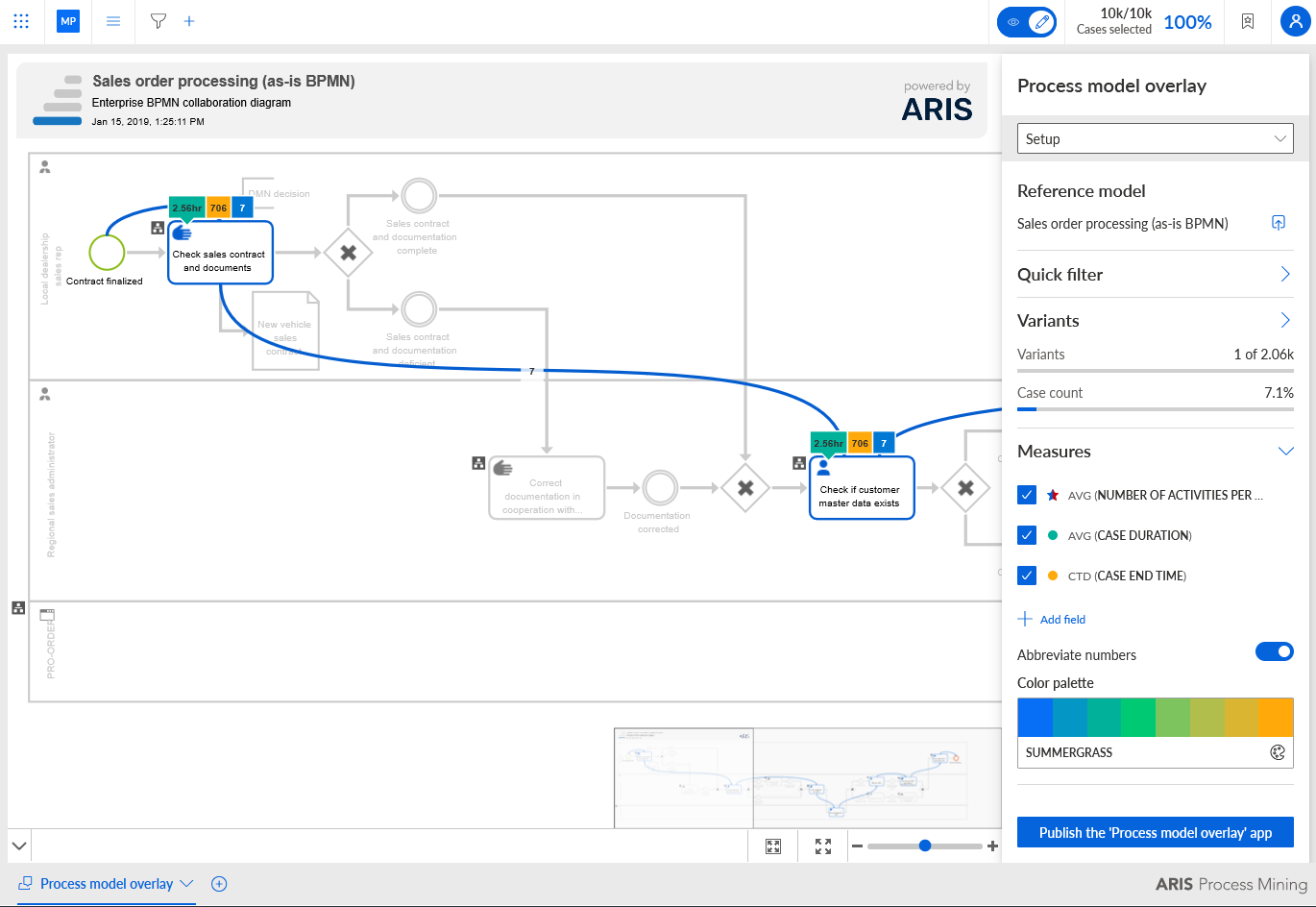
The default measure is changed to the Number of activities per case measure. The Case duration and Case end time measures are added to the analysis and displayed in the process model. The option to abbreviate the measure values is enabled.