Use variables and parameters
You can use variables and parameters to create calculated fields to which values can be assigned dynamically. Parameters defined for calculated fields can take variable values as input. If you want to use variables and parameters, you must create the calculated field using the code editor.
Create a calculated field for your analysis using the code editor and add a parameter to the calculated field.
Example
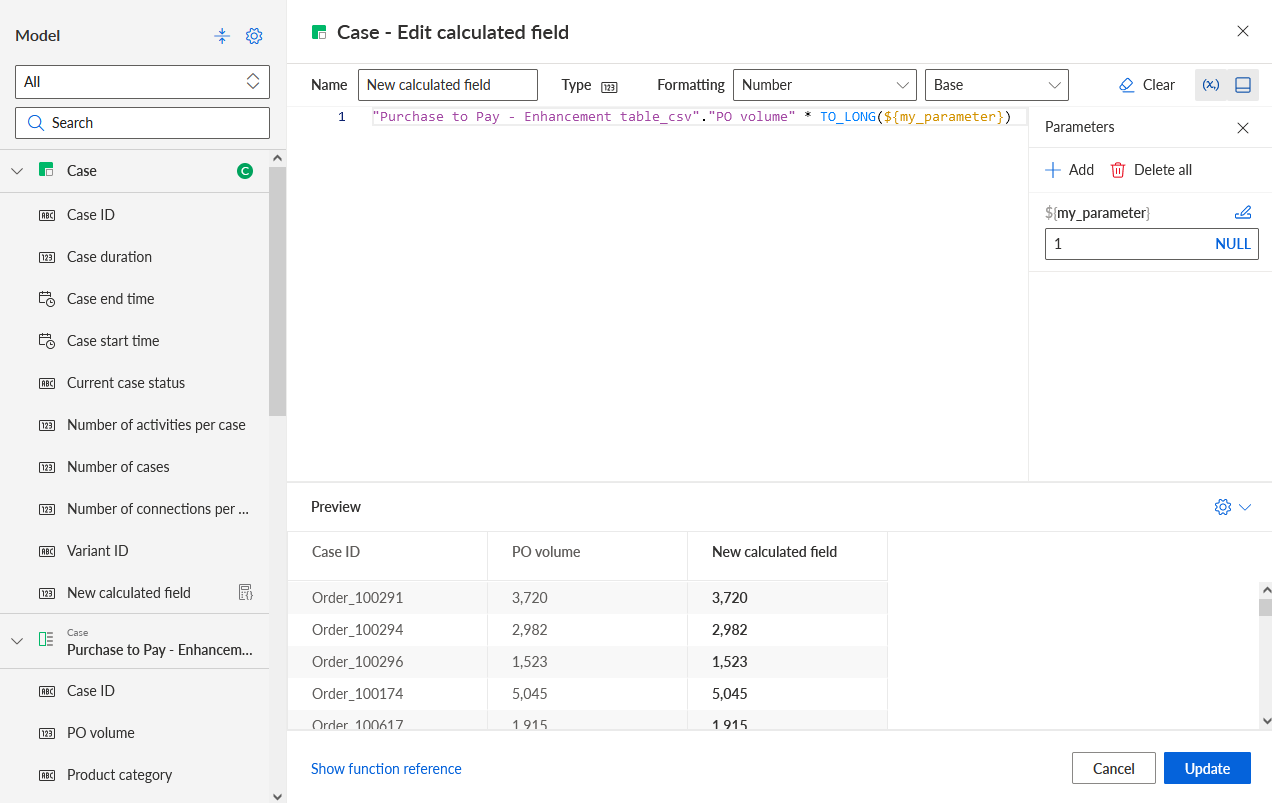
The calculation rule of the New calculated field multiplies the values of the PO volume field by the my_parameter parameter. The default parameter value is set to 1.
Specify the parameter value for the calculated field.
Click the
 Measure icon in the Process panel.
Click the
 Change custom measure icon. The Model panel opens.
In the Model panel, select the calculated field containing the parameter you created, for example, the New calculated field. The Define field parameters panel opens.
Specify the parameter value in the Define field parameters panel.
To specify a value for the parameter, click the input field and enter a value.
To leave the parameter value empty, click NULL.
Example
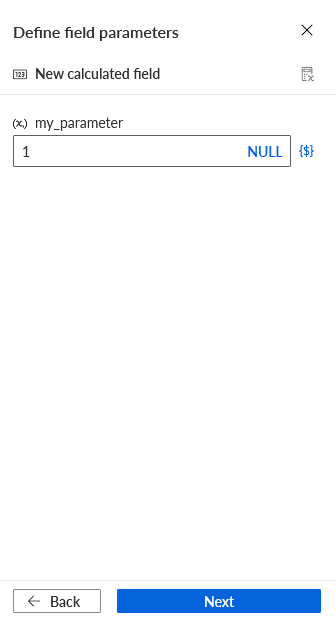
The input field of the my_parameter parameter contains the value 1.
To add a variable to the parameter, click the
 variable icon. Select a variable in the drop-down menu. The menu provides the variables created for the analysis.
Example
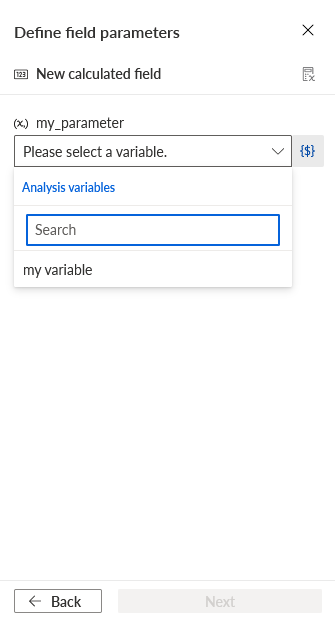
The drop-down menu displays my variable that you can select as a variable for the parameter.
Click Next.
Select the aggregation for the measure values.
You defined a parameter that can use a specified value or a variable for later user input.