Use ARIS Process Mining data in ARIS simulations
You can use the Process overlay app to transfer dedicated attribute data to ARIS in order to use real data from ARIS Process Mining in ARIS simulations. Using real data from ARIS Process Mining can accelerate the data input and improve the quality of process simulations. ARIS Process Mining can compute the statistical distributions of the time-related simulation attributes Processing time, Orientation time, and Static wait time.
To use real data in an ARIS process simulation, you must transfer a suitable reference process from ARIS to ARIS Process Mining, create an activity mapping, map the simulation attributes to ARIS Process Mining measures, calculate attribute values of a specified distribution type, and transfer the result to ARIS.
The simulation attribute values (distributions) of each function in the reference process are calculated from the activities in the event log to which the functions are mapped in the activity mapping. For those functions in the reference model that are not mapped to activities, no values can be calculated. However, any attribute value that already exists in ARIS can be deleted.
It is possible that some values cannot be calculated, for example due to the method filter used in ARIS. It is also possible that some values cannot be calculated because there are no activity measures in ARIS Process Mining that can be used for the calculation, either because they do not exist in the data, or because the cases that contain the relevant activities are not included in the current case filters.
When calculating the Triangular distribution, its parameters ("a", "b", and "c") are estimated from the minimum, maximum, and average of the corresponding activity measure in the data.
Prerequisites
Click the
 Edit simulation attributes icon at the bottom of the Process model overlay panel. The Attribute calculation side panel opens and the attribute table is displayed. As long as no attributes are mapped, the attribute table is empty.
The attribute value calculation always applies to the workspace version of the ARIS model. If the model used in the Process model overlay app has a different version than the workspace version, a note is displayed in the Attribute calculation side panel.
Map one or more of the simulation attributes (Processing time, Orientation time, and Static wait time) to ARIS Process Mining measures.
Click Click to select measure for each attribute mapping. The Map measure panel opens. Only activity measures of the Time span type are provided.
Select a measure.
Click Done.
The current values of the simulation attributes are loaded from ARIS and displayed in the attribute table. The left column displays the function names from the ARIS reference model.
If you change an attribute mapping, the calculated values in the attribute table are not automatically updated. You must manually trigger the recalculation. If you delete an attribute mapping, the corresponding column in the table is removed and the calculated values can no longer be transferred to ARIS.
If the reference model contains functions that are not mapped, the names of these functions are displayed in gray and no values can be calculated for these functions. For a better overview of the table, you can hide functions for which no attribute values can be calculated, unless you change their attribute values. Enable the Hide unmapped and unchanged functions option in the side panel.
You can calculate the values or distribution parameters for the simulation attributes based on the attribute mapping. You can do this for specific table cells, a table column or row, or for the entire table. If no values are available in ARIS for a simulation attribute, that is, if there are no values in an attribute column, you can calculate distribution parameters as initial values for the attribute.
Calculate initial values for an attribute.
Click a column header to select the corresponding attribute.
Click Select distribution.
Select a distribution type from the drop-down menu and click Calculate. Calculated values are displayed in the selected column cells. When a cell contains a calculated value, and not an original value from ARIS, the cell is marked with a green dot.
Calculate attribute values.
Click one or more cells, column headers, or row headers to select the relevant values, or click the first (empty) cell in the table to select the entire table.
Click Calculate attributes. Calculated attribute values are displayed in the selected column cells. A green dot indicates that the value is calculated and not an original value from ARIS.
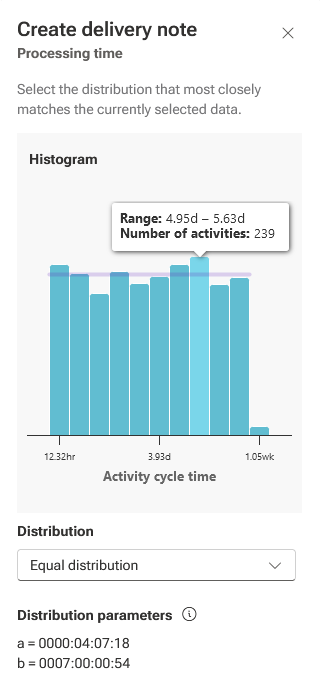
You can display a distribution histogram for a single simulation attribute value. The distribution histogram helps you select the suitable distribution for the data you have.
Click a table cell of a simulation attribute you want to change.
Click
 Edit details. A side panel opens. The side panel shows the histogram with the currently used distribution and the distribution parameters. No histogram is shown if you selected more than one cell. To show a histogram, select other table cells while the side panel is open.
From the Distribution drop-down menu, select a distribution that best matches the data distribution. The distribution parameters are recalculated and the histogram is updated.
The calculated values are immediately checked to see if they are accepted by ARIS. If not, an error message from ARIS is displayed and the calculated values cannot be transferred from the side panel to the table.
Move the mouse pointer over the
 icon to show more information about the parameters.
Click Apply.
The values in the table cell of the selected simulation attribute change.
Example
You can reset calculated values to the original values from ARIS.
Select the values in the table and click the
 Reset icon.
Click Reset. The original value is reloaded and the green dot is removed.
You can delete values in the original ARIS model.
Select the values in the table and click the
 Delete icon.
Click Delete. The values are removed from the table and deleted from the original ARIS model when the model is saved. A green dot indicates that the empty cell is a result of the deletion and not a value that was originally missing in ARIS.
After you finished calculating the attribute values, you can transfer the attribute values to ARIS. Note that the attribute values are saved to the corresponding functions, regardless of whether the model still exists. Click Save attribute values in the side panel.
If values are not accepted by ARIS, they are not saved and the corresponding cells are colored red. Tooltips display error messages from ARIS. (The messages are also displayed when you open the side panel for such cells.)
The simulation attribute values are saved in the ARIS function definitions. The green dots are removed from the attribute table.
To open the model in ARIS, click the  Open published model icon in the side panel.