Define filters for the reference processes
You can define one or more filters for a reference process to determine which reference process is used for which cases. By default, the filter of a reference process is set to All remaining cases. That means all cases are checked for conformance with this reference process. However, you can define more fine-grained filters for each reference process.
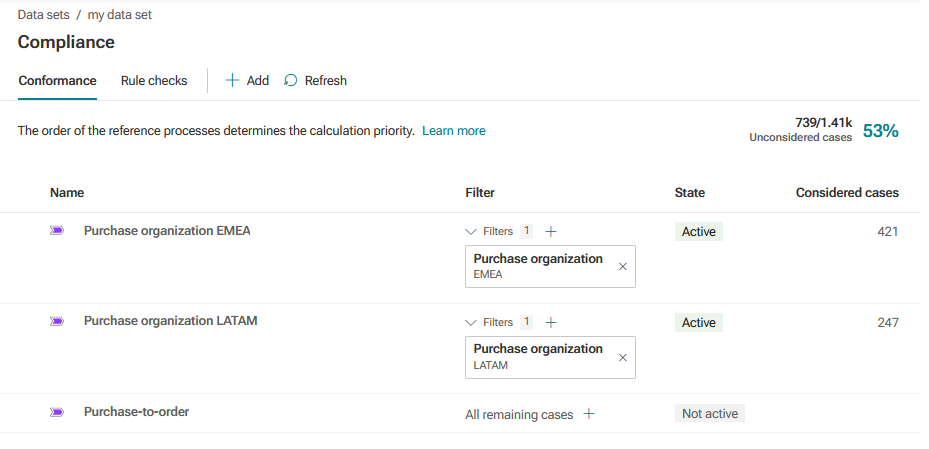
Note that the order of the reference processes determines the calculation priority. This means that the reference processes and their filters are processed from top to bottom in the list. The cases filtered for the first reference process are not considered for the following reference processes in the list. This applies accordingly to the filtered cases of the second reference process, and so on. If the filter of the first reference process is set to All remaining cases, all cases are checked against the first reference process. All following reference processes are not considered in the conformance check. The number of considered cases is displayed for each activated reference process. The total number of unconsidered cases is displayed above the list.
You can set the calculation priority by changing the order of the reference processes in the list.
The example shows two activated reference processes, one process with a filter that only considers cases from the EMEA organization and a second process with a filter for cases from the LATAM organization. The third reference process with the default filter (All remaining cases) is not used as it is not activated. The number of cases considered for each reference process and the total number of cases that are not checked for conformance are also displayed.
Prerequisites
You added one or more reference processes to the conformance configuration.
Click the + Add filter button for a reference process. The Add field filter dialog opens.
Create a field filter.
Select a field in the Fields panel.
The fields Case compliance, Case conformance, Reference process, and Fitness value are calculated by the conformance check and cannot be used to create a filter.
Define a filter condition. Depending on the selected field, different options are available.
Click Add.
The filter is added to the reference process. The number of filters added to the reference process is displayed.
To display the filters defined for a reference process, click the
 icon.
icon.To edit a filter, click the relevant filter. The corresponding dialog opens.
If required, click Recalculate. You must trigger a recalculation if you activated a reference process or change the settings of activated reference processes.
You created a filter for a reference process.
To remove all filters of a reference process, move the mouse pointer over a reference process, click ... More options, and then click  Reset filters.
Note the following when creating a field filter.
If you select one of the fields mentioned above to create a filter and the reference process is set to ‘Active’, an error message is displayed when you close the filter dialog. If the reference process is set to ‘Not active’, the error message is not displayed and the criterion is added as a filter. In this case, the error message is only displayed when the process is subsequently activated.