Schedule automations
Schedule automations to automatically run jobs for data extraction or data loading. You can specify an hourly, daily, weekly, or monthly recurrence for the running of automated jobs.
The frequency of a scheduled job determines the start time in relation to a fixed reference point within a specified time interval. All times are specified in UTC in 24h format, for example, 05/14/2021 1:23:08.
”Every 2 hours”: Counting starts at midnight, and then every second hour in the day.
“First day of the month every 3 months”: This could be a configuration appropriate for quarterly financial statements on April 1, July 1, October 1, and January 1 (for the previous year).
For daily scheduling, counting starts on the first day of the month and continues until the end of the month.
Suppose today is Thursday, February 26, 11:00 a.m. February has only 28 days. Let us schedule an automation at 6:00 a.m. with each of the following rules:
Runs every day: Next run Friday, February 27, because 6:00 a.m. has already passed.
Runs every 2 days = 1st, 3rd, ... 27th day: Next run Friday, February 27 (same next execution time as when scheduling every day)
Runs every 3 days = 1st, 4th, ... 25th, 28th day: Next run Saturday, February 28
Runs every 4 days = 1st, 5th, ... 25th day: Next run on the first day of the next month: Sunday, March 1
Runs every 5 days = 1st, 6th, ... 26th day: Next run on the first day of the next month: Sunday, March 1
The same applies to every interval longer than 5 days, because the end of the month is always exceeded in this case, and counting days restarts at 1.
Click Automation in the Data set panel. The Automation section opens.
Click Add automation.
Enter a name for the automation.
Click Add. The page to configure an automation opens.
Click Configure to schedule the automation. The Configure schedule dialog opens.
Specify the recurrence interval and the time at which the jobs are to be run. Depending on the recurrence interval you select, for example, daily or weekly, different options are available.
All options marked with a red star must be specified.
Click Apply.
You scheduled the job automation.
Example
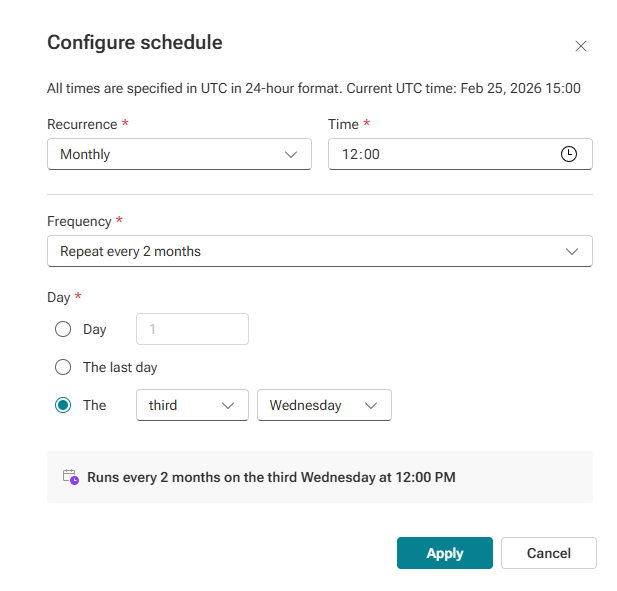
Click Custom to configure the jobs for Extractions and Data load.
Enable the jobs, you want to run, for example, extractions or insight actions. A dialog opens for selecting the jobs.
Select Extract all to run all extraction jobs with the automation. All extractions that exist at the time when the automation is started are included in the automation. If extractions are selected but do not exist, they are ignored.
Click Apply.
Job automation is configured and scheduling is enabled by default.
To deactivate the automation, disable the Enable schedules option. Your settings will be retained.
To start the automation manually, click  Run now. The automation starts immediately (if no other process is currently running) and its status is displayed in the Run log section. A manually started automation is listed as ad-hoc run: <name of the automation>.
You can manage automations on the Automation page.