Run log
You can check the current status and history of all data-related tasks (for example, extraction and loading of data) that have been executed.
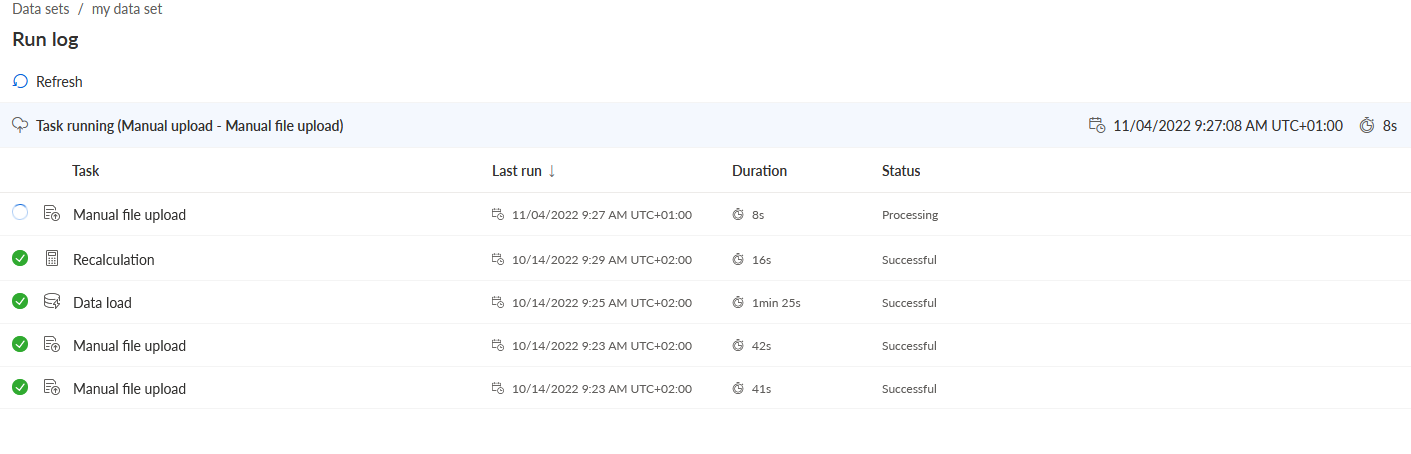
Click Run log in the Data set panel. The Run log section opens. The page lists all executed tasks, including those currently in progress. If no task has been started for the date set yet, the page is empty.
Example
List of tasks performed and currently in progress.
Click
 Refresh to update the view of the states of the running tasks.
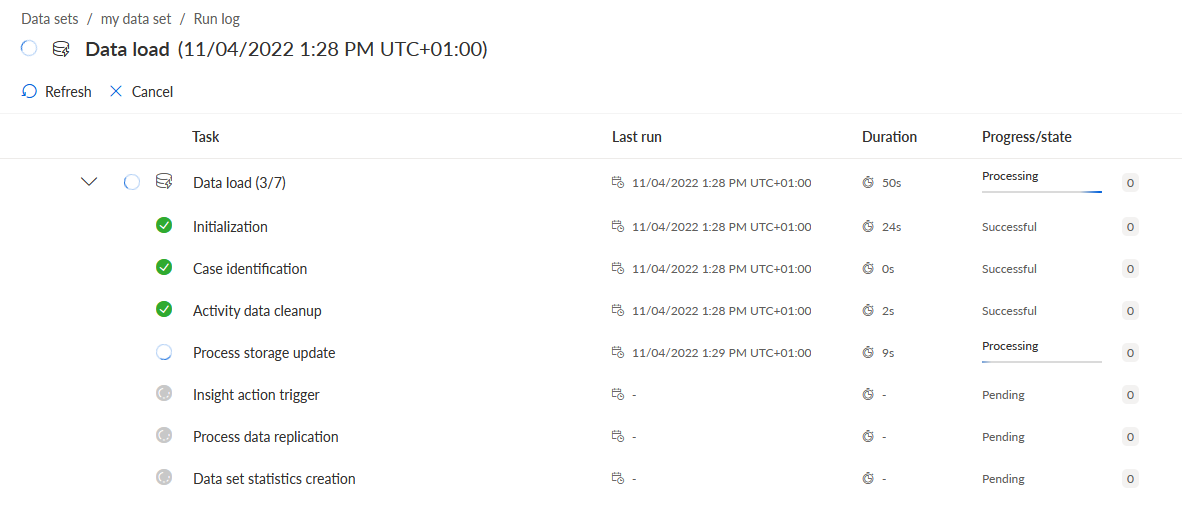
Click a running task for more details. A list with all subordinate tasks of the selected main task is displayed. The list shows the progress and state of the tasks.
To update the view, click
Refresh.To cancel the running task, click X Cancel. If necessary, you must restart the task.
Example
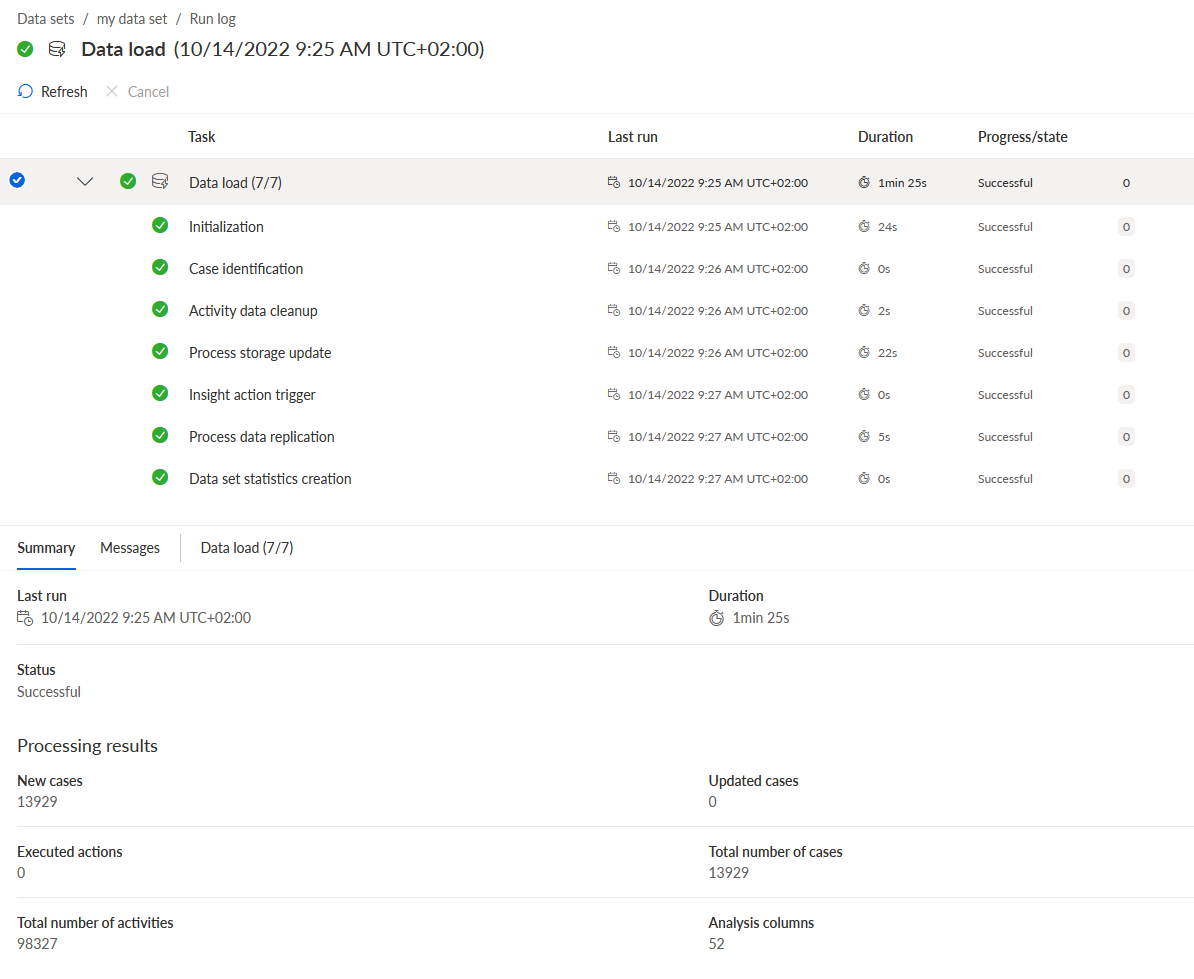
To view more details about an executed task, click the task in the list. A list with all subordinate tasks of the selected main task is displayed.
To view the summary of the main task or a subordinate task, click the corresponding task in the list.
Example
A list with all subordinate tasks and the summary of the Data load task is displayed.
You can view messages displayed for a task. Messages are displayed, for example, if a task could not be executed correctly.
Click a task in the list and then click Messages above the Summary panel.
You checked the status of tasks executed for a data set.