Manage data access
You can specify the data of a data set to which a user or user group has access by defining a corresponding data filter.
By default, only the creator of a data set has full access to the data loaded into the data set.
Users assigned to a user group automatically inherit the privileges assigned to the group. You can assign users to a group in the User management component in ARIS.
Note that if you enable data access control, no user, including yourself, has access to the data of the data set. You must also give your user, that is, the user you are logged in with, full access to the data.
Prerequisite
You have loaded data into the process storage of the data set.
Click the
 More options icon >
  Manage access in the data set panel. The corresponding dialog opens.
Example
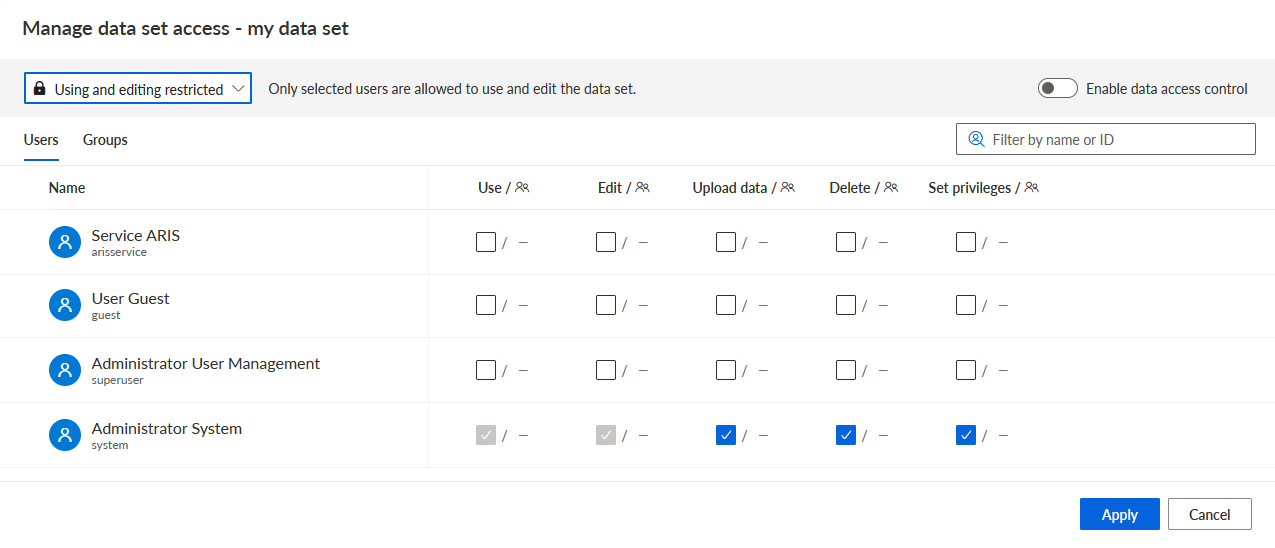
Ensure that Use and editing restricted is selected in the access rights drop-down menu. The option is enabled by default.
Enable the Enable data access control option. The Data access column and the Set to full access option are displayed.
Example
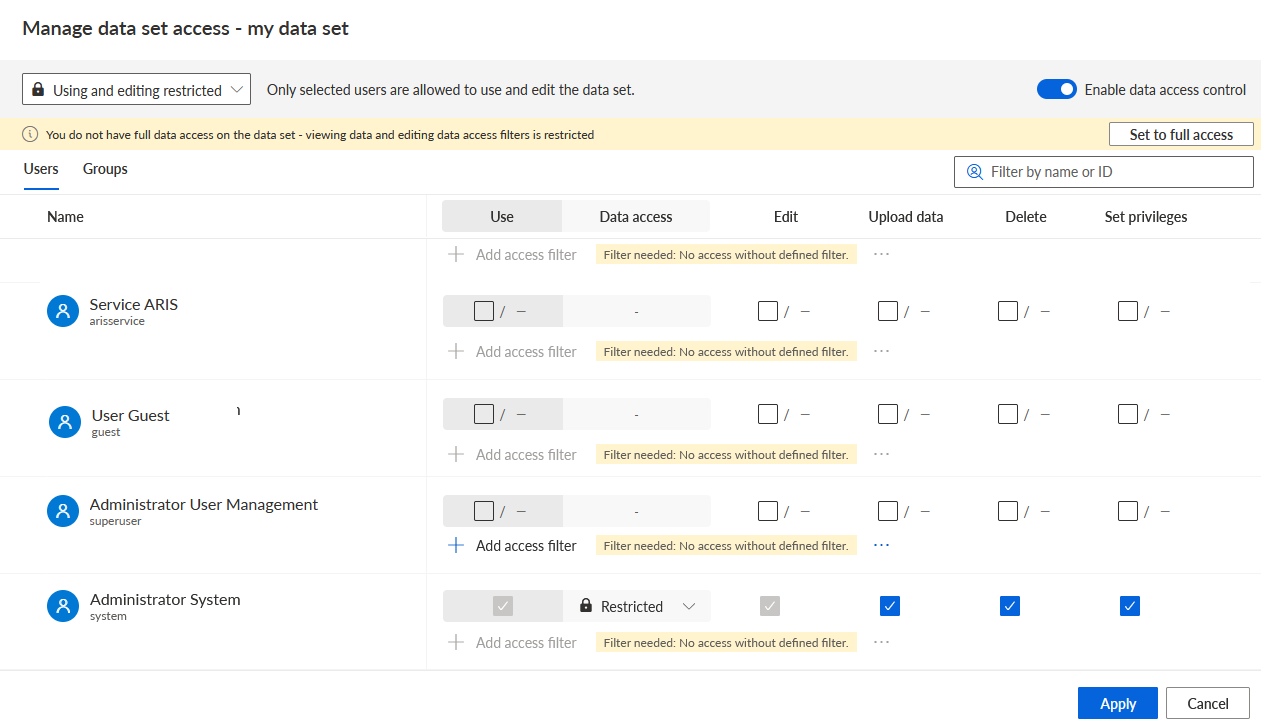
Click Set to full access to grant full data access to your user. This means that you have access to all the data in the data set.
Example
The system user you are logged in with now has full access to the data.
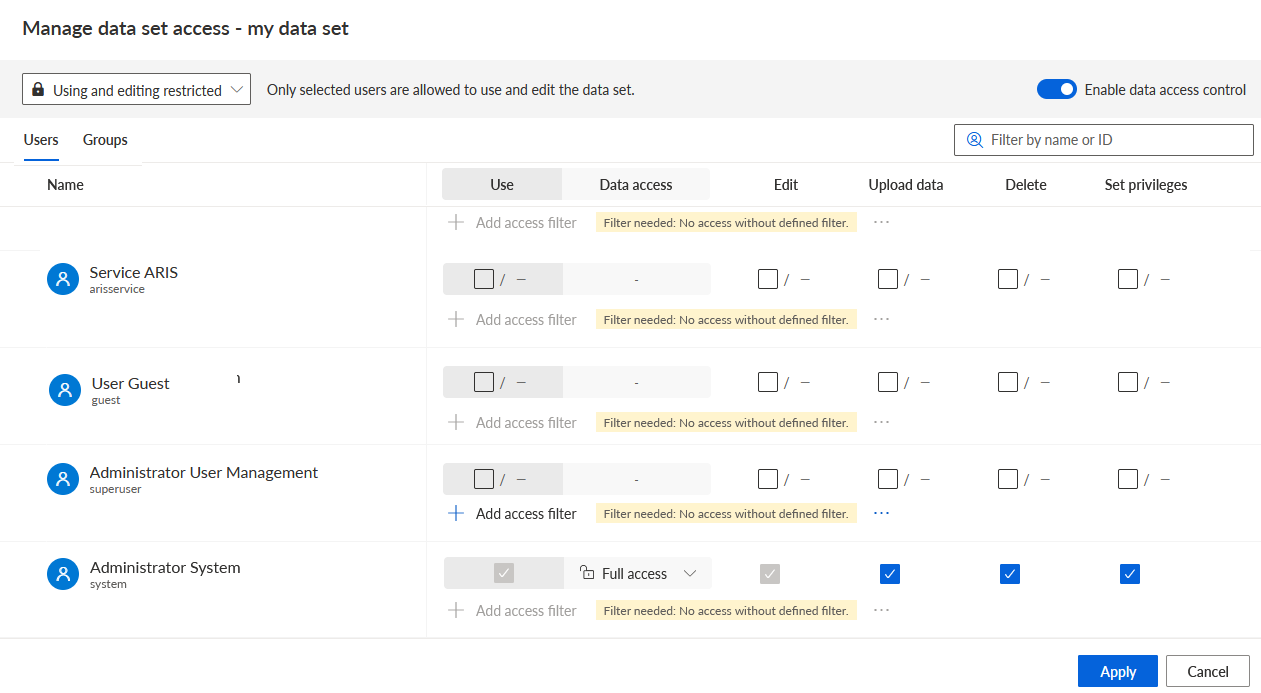
Enable the Use privilege of a user for whom you want to set data access.
Select Restricted in the Data access drop-down menu of the user. The + Add access filter option is enabled.
Example
The guest user now has restricted data access.
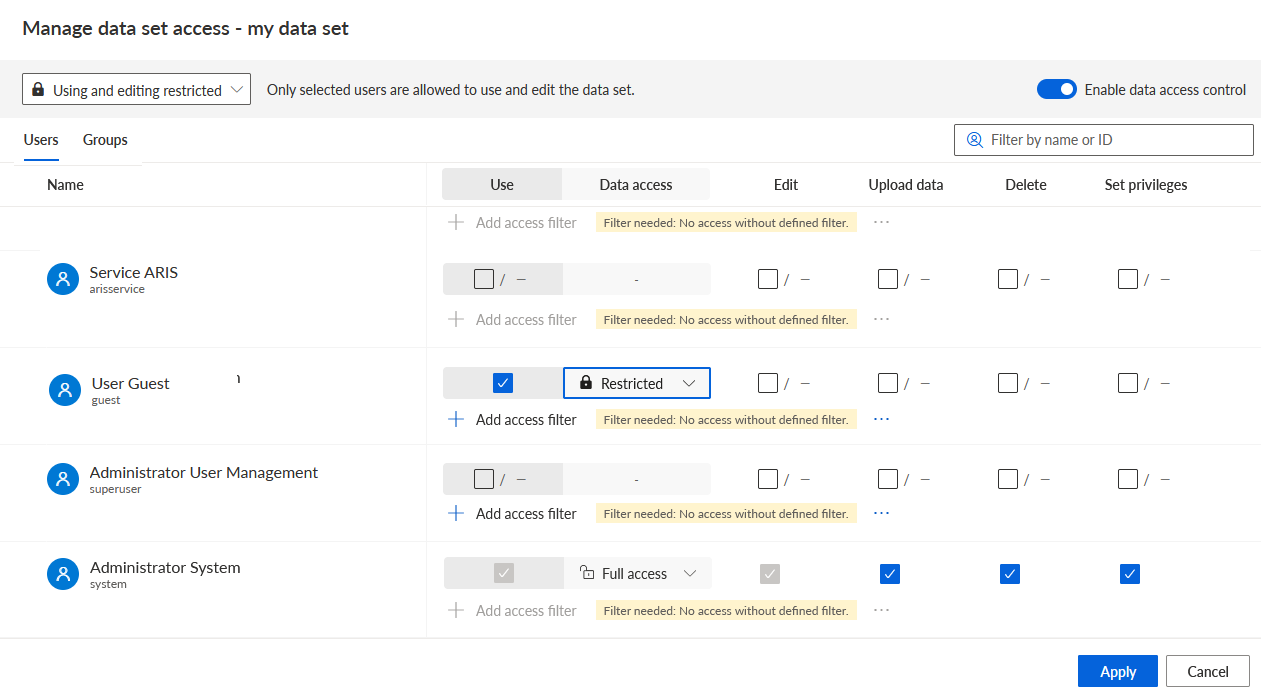
Click + Add access filter. The Define filter rules dialog opens.
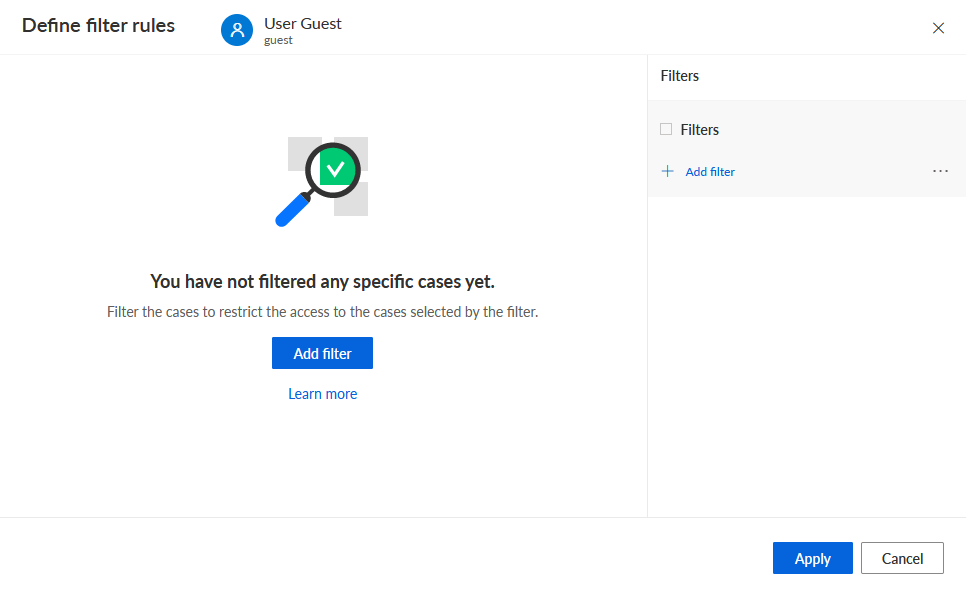
Click Add filter. The Add filter dialog opens.
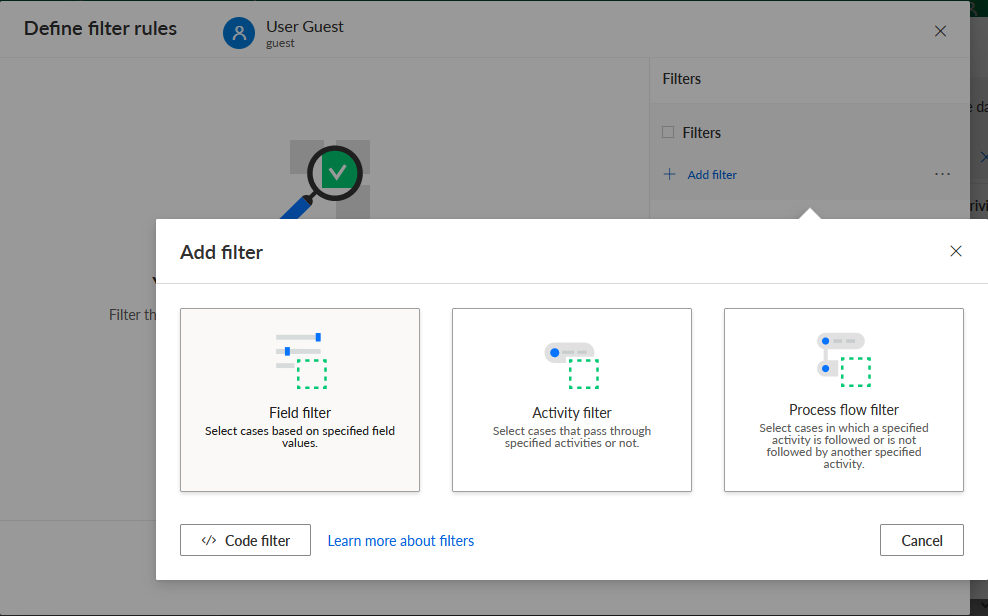
Select a filter method and define a filter rule to specify the data for data access.
Click Add. The defined filters are displayed in the Define filter rules dialog. You can add multiple filters to restrict the data.
Example
In this example, a filter rule is defined for the Case duration.
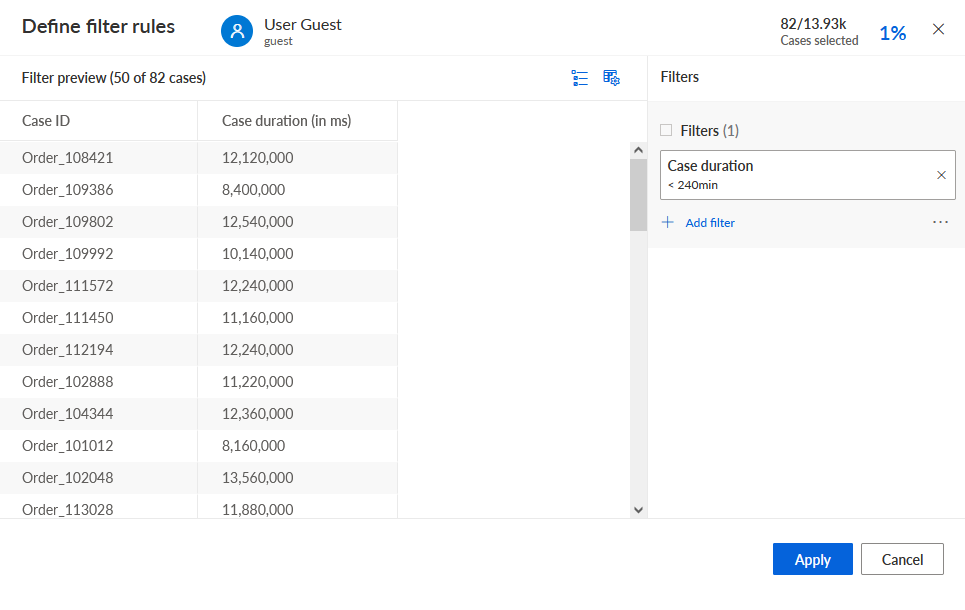
Click Apply. In the Manage data set access dialog, the defined filter is displayed. The number next to Access filters indicates the number of defined filters.
Click Access filters to display the filters defined for the user.
Example
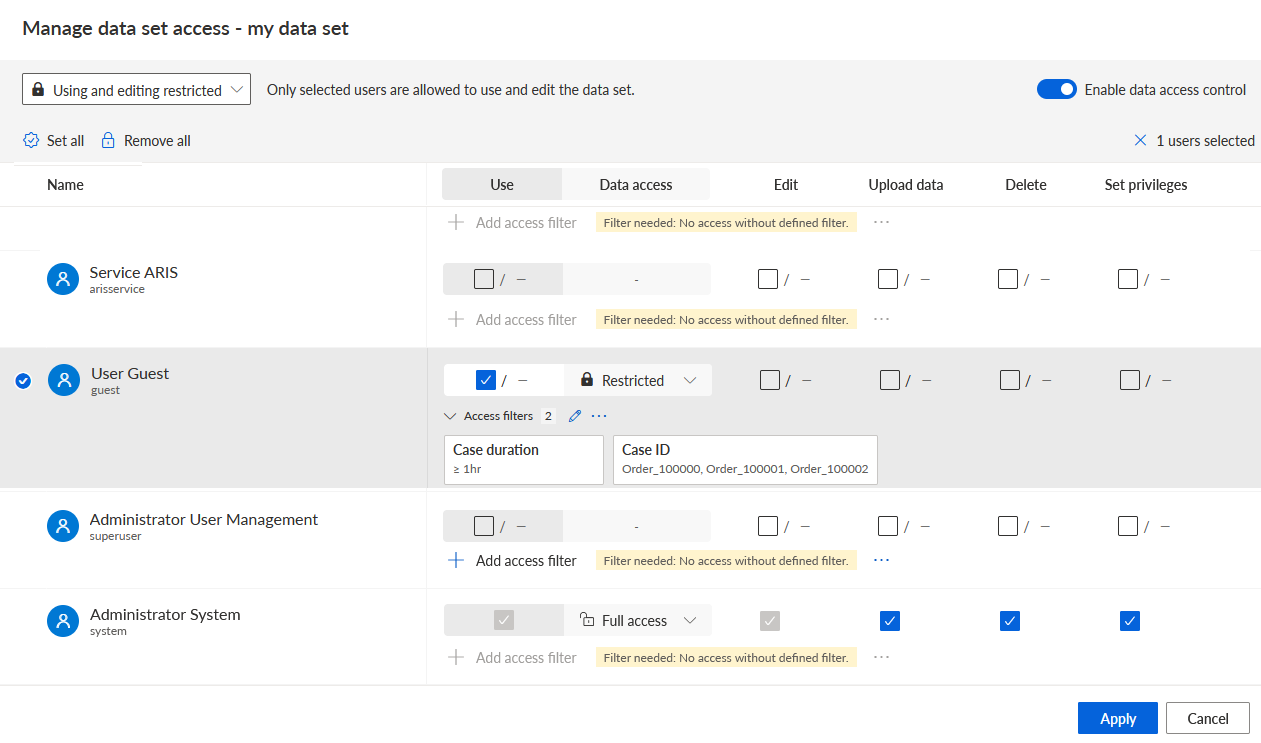
To edit the defined filter rules, click the
 Edit icon.
To delete the defined filter rules, click ... -> Clear all.
You can copy defined access filter rules and assign them, for example, to another user.
To copy defined filter rules, click ... -> Copy.
To assign the copied filter rules to a user, click ... -> Paste.
The copied filter rules are displayed for the selected user.
Click Apply.
You granted full data access to your own user and created a filter to restrict the data access of another user or user group.