Activate and perform the insight calculation
You must first activate the insight trigger before you can perform the insight calculation.
Prerequisites
You have defined the insight trigger condition.
Click
 Activate.
If you have not yet assigned a 'Living Process' license, the corresponding dialog opens. The number of processes you can analyze depends on the selected license.
Select a license in the drop-down menu.
Click Assign. The Activate insight trigger dialog opens.
Select the cases to analyze. You can include only ongoing cases and specify an appropriate start date, or you can include all cases in the analysis (including past cases).
Enable Include only ongoing cases... and specify a date in the date selection box if you want to analyze only ongoing cases. By default, the option is enabled and set to the current date.
Enable Include all cases if you also want to include past cases.
Enable Recalculate after activation to automatically recalculate the insight trigger after it has been activated. You can also start the calculation manually later.
Enable Trigger insight action for the selected insight trigger to start the analysis as soon as you activate the insight trigger. You can also start the insight trigger manually later.
Click Activate.
The insight trigger is activated. If you have activated the Recalculate after activation and Trigger insight action for the selected insight trigger option, the recalculation of the analysis fields and the insight actions of the selected trigger are started immediately after closing the dialog.
Note that if the insight trigger condition was changed, the insights must be recalculated and triggered again. A note is displayed indicating that the trigger is changed and the associated analysis fields need to be recalculated and updated. You can optionally trigger the insights manually. Click Recalculate  and select Recalculate only or Recalculate and trigger insights.
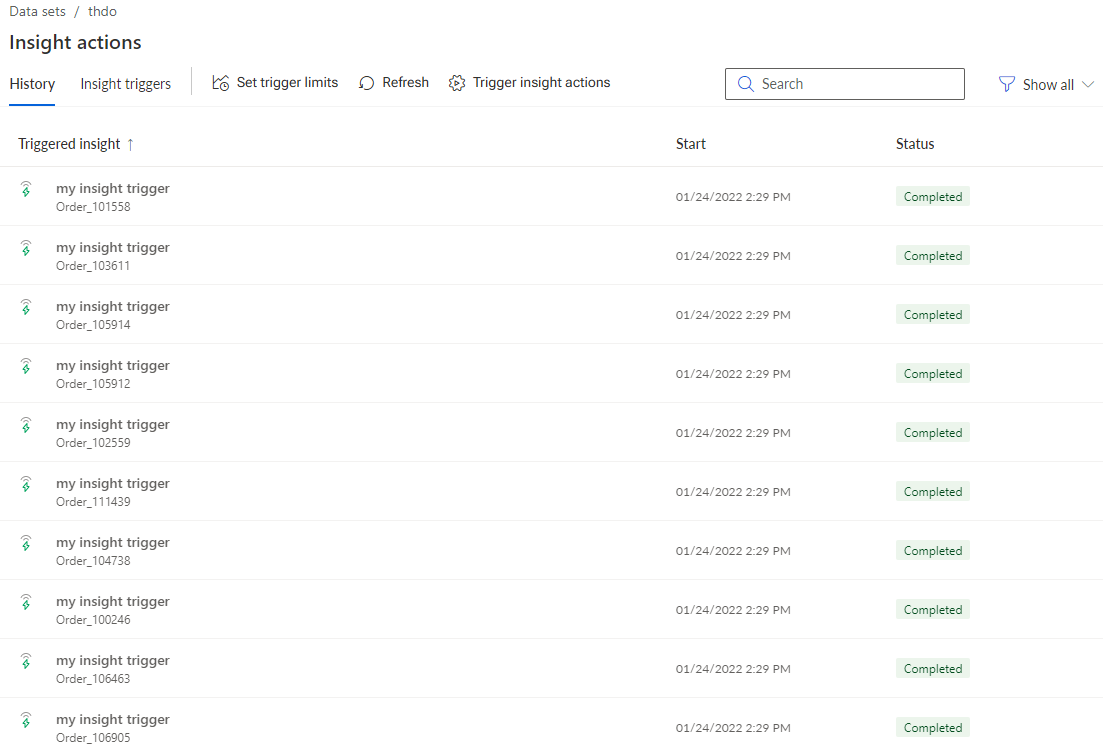
The History page displays all calculated insights with their start time and current status.