Examine process data
The Analysis model page shows all objects included in the analysis model and the corresponding fields that contain the generated process data. You can display and examine the process data using the Model panel. The Model panel lists all objects in hierarchical order. The Case object is the root object in the hierarchy, followed by the Activity as a nested object and several field objects, such as the CaseOrder_csv and Delivers_csv objects.
The Case root object and the Activity nested object contain the automatically generated process data for the analysis model, such as Case ID, Case duration, Activity name, or Activity start time. The fields of the field objects, such as the Delivery_csv object, represent the columns of the data tables of the data model.
Prerequisite
You have loaded the data model of the dataset into the process storage.
Click Analysis model in the Data set panel. The Analysis model section opens.
If the analysis model contains more than 100 fields, the fields in the Model panel are collapsed. Only the object names are displayed, such as Activity or Case. Click
 Expand to expand the entire field list in the Model panel or click the
  icon to expand only the list of a specific object, such as the Activity object.
Example
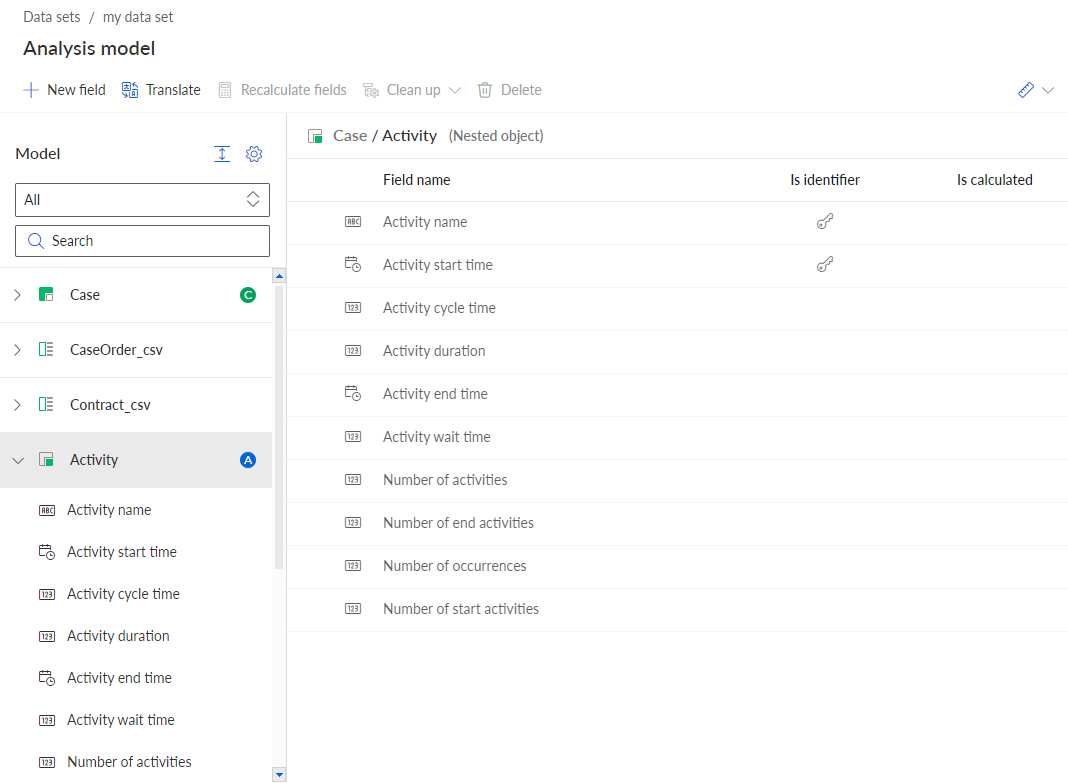
You can show the hierarchy of the objects.
To show the hierarchy of the objects textually, click the
 icon in the Model panel -> Hierarchy view. The objects now display the object hierarchy, for example, Case/Activity or Case/Connection.
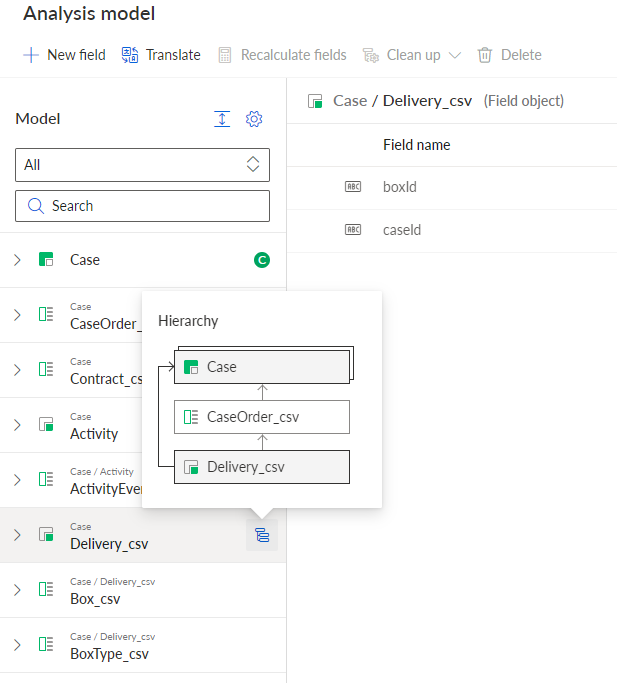
To show the hierarchy of the objects graphically, move the mouse pointer over an object, such as Activity or Connection, and click the
 icon. A corresponding graphic with the object hierarchy is displayed.
Example
A graphic displays the hierarchy of the selected Delivers_csv object. The Delivers_csv object is directly subordinate to the Case and CaseOrder_csv objects.
You can filter the fields displayed in the Model panel. By default, all fields of the analysis model are displayed.
Click All in the drop-down menu and set the filter. You can select the data type of the fields to be displayed in the list:
 Number,
  Text, or
  Date. You can also filter the object, for example, the Case or Activity object.
Example
The filtered field list in the Model panel displays only the Activity fields of type
Number.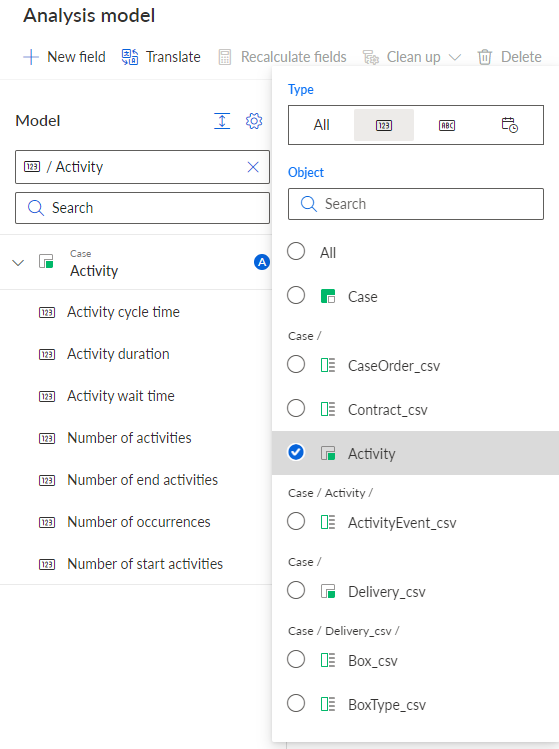
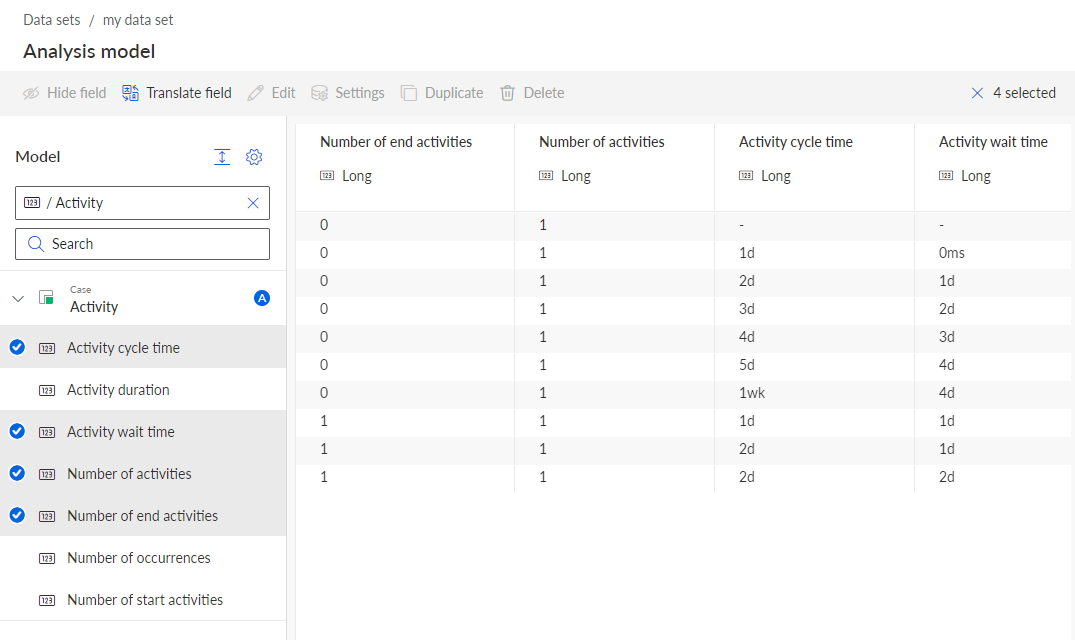
Select the fields to display the corresponding data.
You can select multiple fields by using the Ctrl or Shift key.
The values of the selected fields are displayed.
The analysis model shows the content of some filtered activity fields.