Create global parameters
You can create global parameter configurations. They contain all parameters that can be used for any parameterization in filter definitions or transformation rules. Global parameter configurations are assigned to a data set.
You can manage global parameters in the Parameters section of a data set.
In addition to global parameters, you can create extraction (local) parameter configurations. They can contain dynamic parameters, for example, the usage of the last extraction time with overlap. Extraction parameters have a higher priority and override specified global parameters. Extraction parameters are assigned to individual extractions.
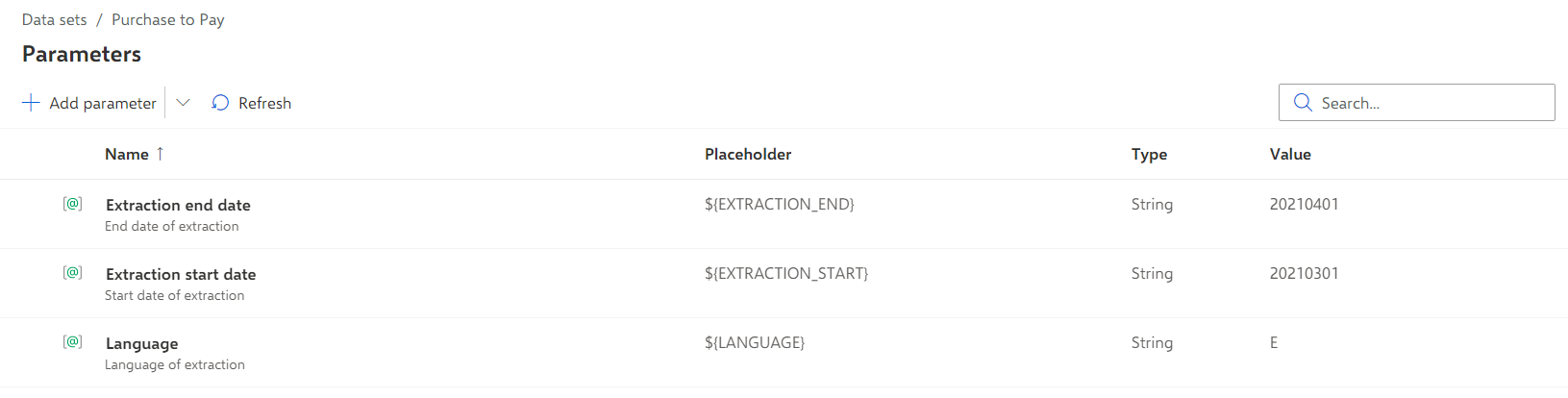
For this example, create the following global parameters for configuring data extraction filter conditions:
Extraction start date parameter contains the start timestamp of the time interval to be extracted. Specify the value in format yyyyMMdd in UTC, for example, 20210301 for 1. March 2021.
Extraction end date parameter contains the end timestamp of the time interval to be extracted. Specify the value in format yyyyMMdd in UTC, for example, 20210401 for 1. April 2021.
Language parameter contains the language of language-dependent text values read from the SAP system. Specify the value "E" (without quotation marks) for reading text values in English.
Click Parameters in Data set panel. The Parameters section opens.
Click Add parameter. The dialog to configure a parameter opens.
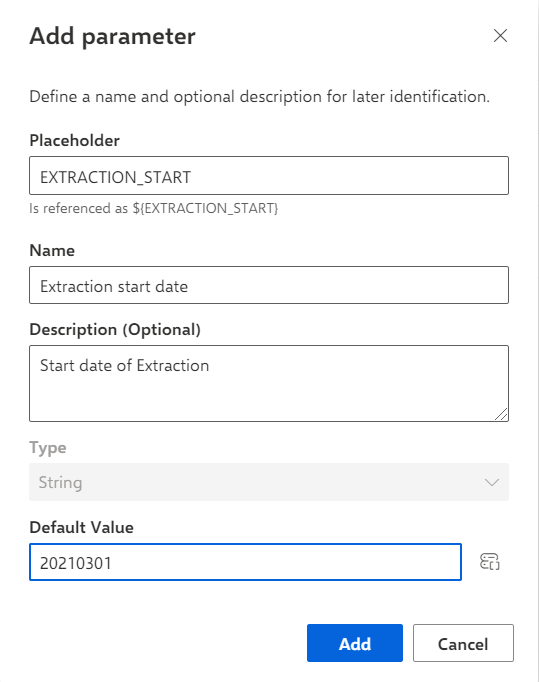
Specify the values of the EXTRACTION_START parameter as described above.
Enter a placeholder, for example, EXTRACTION_START. You can use the parameter placeholder in filter definitions, transformation rules, or automation jobs.
Enter a name. It is used as display name, for example, Extraction start date.
You can enter an optional description, for example, Start date of extraction.
Enter the default value, for example, 20210301 (for 1. March 2021).
If you want to use a system value as the default value, click the icon and select a system parameter in the drop-down menu.
Click Add.
Add the Extraction end date and Language parameters with the values described above.
The required parameters are created and available in the Parameters list.