Manage automations
You can create and schedule automations, start them manually, or subscribe to notifications about their running, for example.
Prerequisite
You scheduled at least one automation.
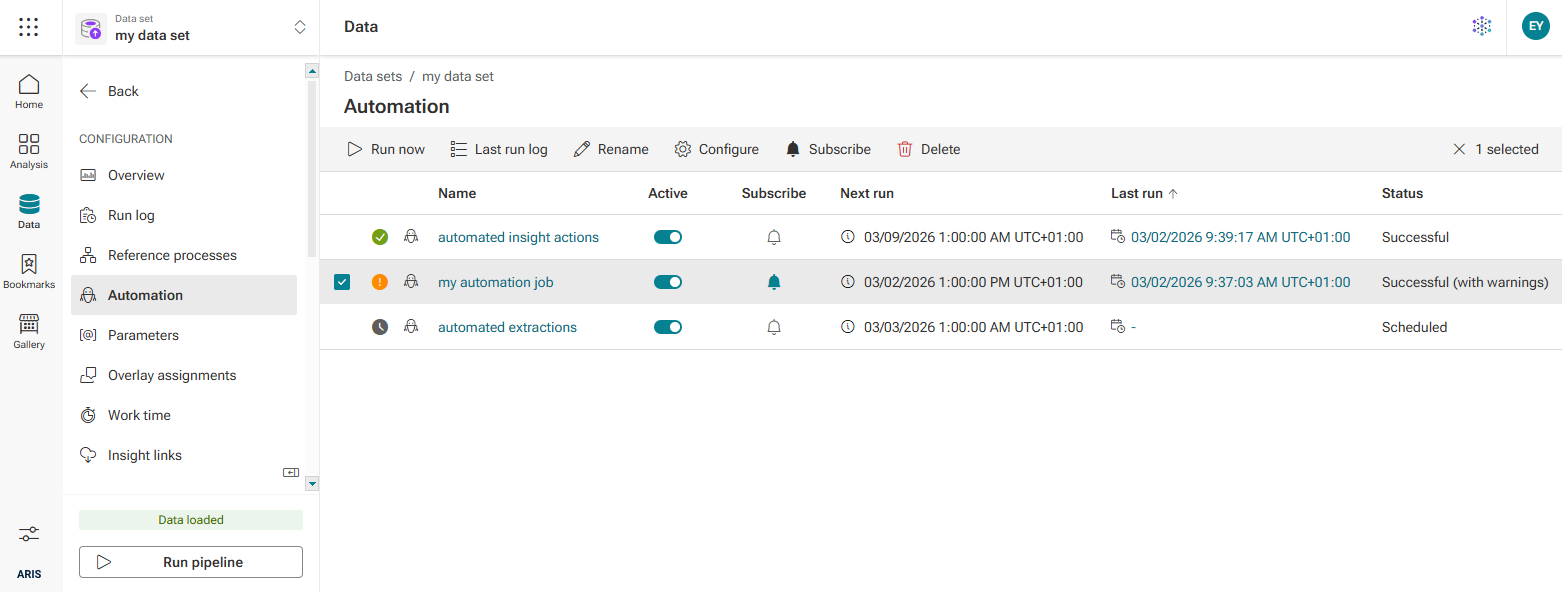
Click Automation in the Data set panel. The Automation section opens. The Automation page lists all scheduled automations. The next and last run as well as the status of the last run are displayed for each job.
To schedule a new automation, click Add automation.
To activate or deactivate an automation, enable or disable the Active slider.
To start an automation manually, select an automation and click
 Run now. The automation starts immediately and its running status is displayed in the Run log section. A manually started automation is listed as ad-hoc run.
To view details about the last run of an automation, click the Last run date of the automation. The Run log section opens with all the details about the selected automation.
To view information about an automation's schedule rule, move the mouse pointer over the
 icon of the automation.
You can subscribe to notifications about the status of automations, for example, warnings or canceled jobs.
Click the
 Subscribe button of an automation. A corresponding dialog opens.
Enable the job status you want to be informed about, for example, successful runs or failed runs. All notifications are enabled by default.
Click Subscribe.
The
Subscribe button changed to  Subscribed. You will be informed about the automation status by e-mail.
To delete an automation, select the automation and click
 Delete. Note that deleted automations cannot be restored.
You managed automations.
Please note that you can also start data extractions data loads, and insight actions manually and independently of the scheduled automations. At the bottom of the data set panel, click Run pipeline and select a job to run, Extract data, Load data, or Trigger insight action. If a job is already running, the option cannot be selected.
The automated insight actions automation was successfully run. My automation job was also successfully run, but with warnings. The automation was subscribed too. The automated extraction automation has not yet been run.