Save analyses as bookmarks
You can save the settings of an analysis as a bookmark to access the settings at any time in all your projects.
Click the
 Personal favorites icon in the analysis header. The Bookmarks panel opens.
Example
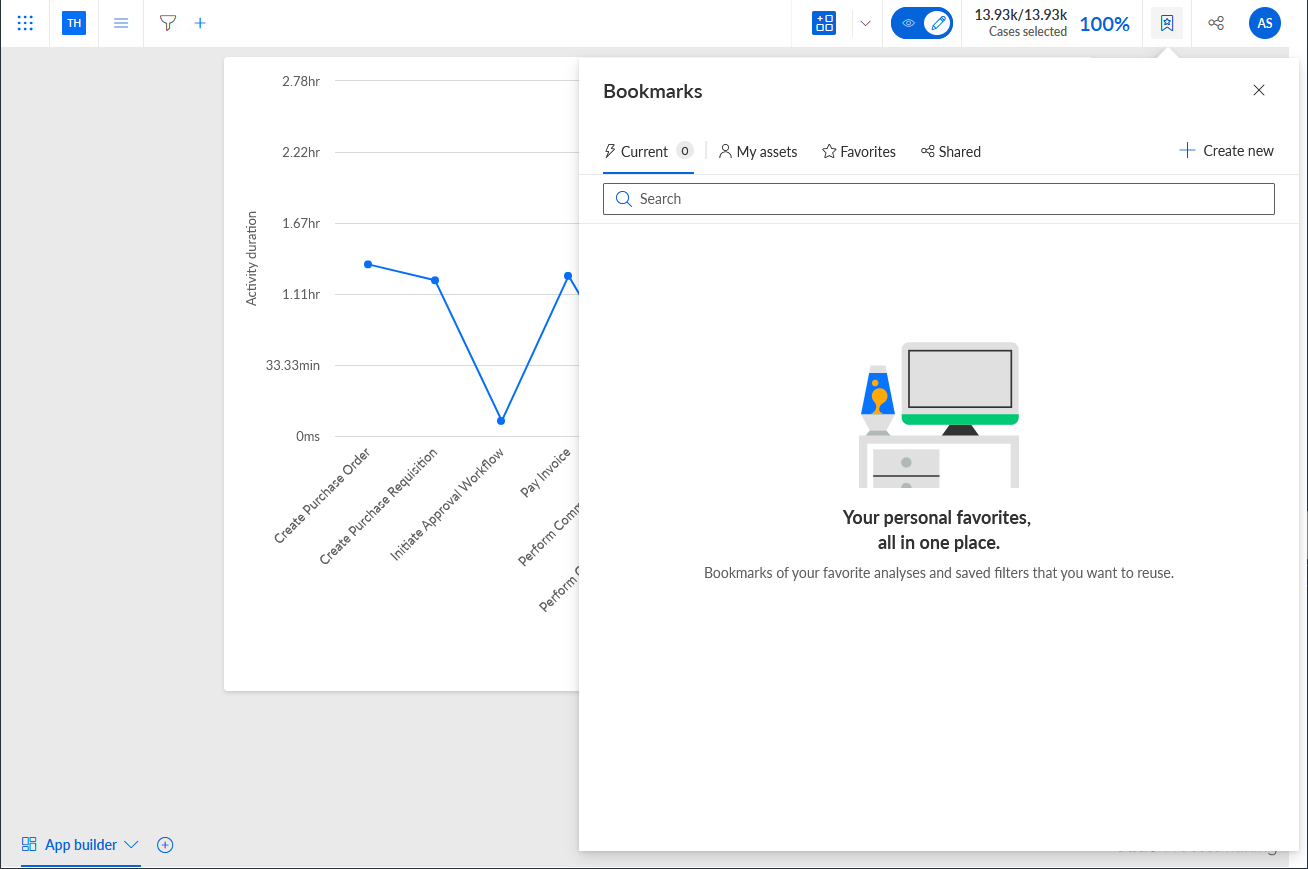
Click Create new. The Create bookmark dialog opens.
Enter a title.
Enter an optional description. To edit the text format of the description, click Format and make your settings.
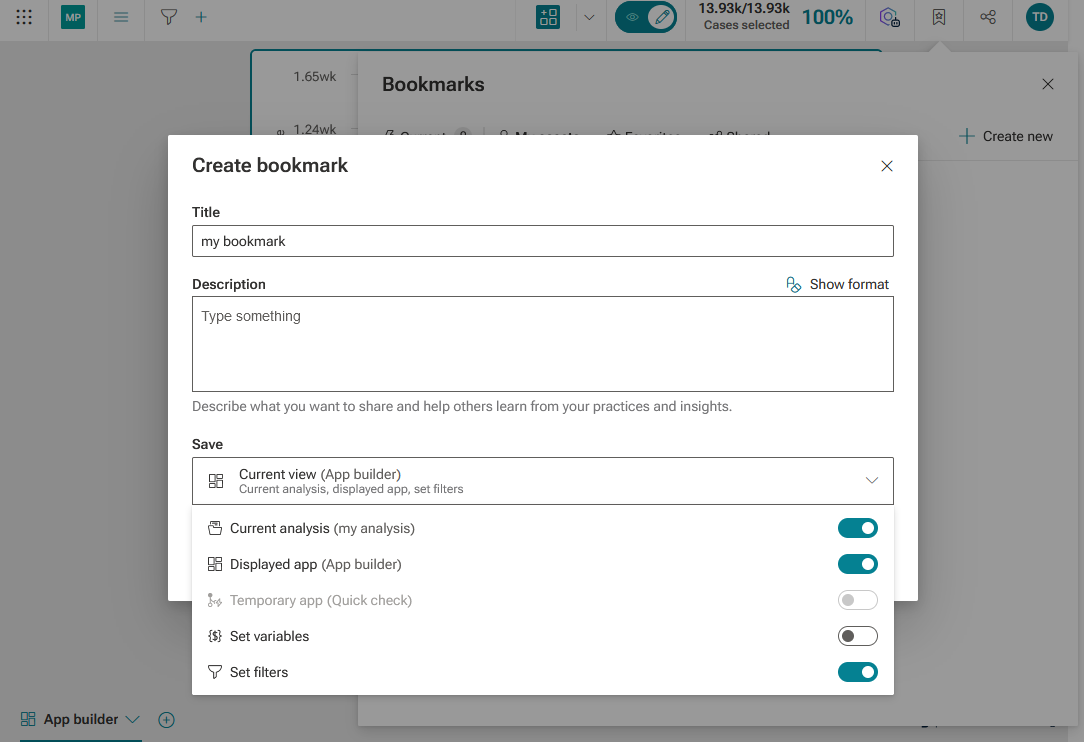
Select the settings that you want to save in the bookmark. To do that, enable or disable the settings in the Save drop-down menu. By default, all settings that can be saved in a bookmark are enabled.
If you disable Current analysis, the Displayed app and Set variables settings are automatically disabled.
Example
The variables set in the analysis are disabled for saving in the bookmark.
Click Create.
The selected settings of the current analysis are saved as a bookmark in the Bookmarks panel.
You can edit the bookmark settings afterwards.
To delete a bookmark, move the mouse pointer over a bookmark, click the ... More options icon > Delete.
Warning
Deleted bookmarks cannot be restored.
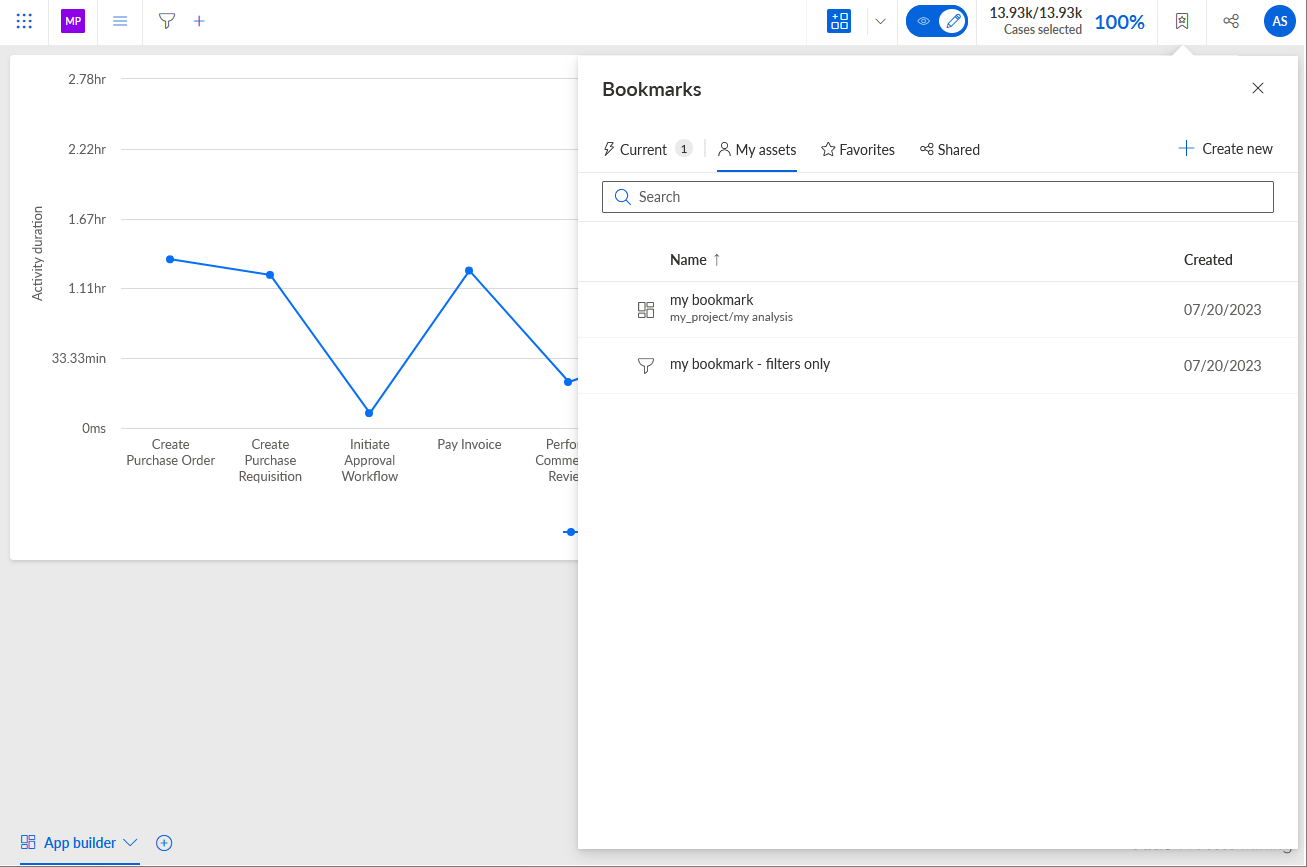
The My assets tab in the Bookmarks panel lists all bookmarks you have created.