Create calculated fields
You can create new calculated fields to use as additional analysis criteria in the Process explorer. The new field is also added to the analysis model of the data set and is available for all analyses based on this analysis model.
You can use variables and parameters to create calculated fields to which values can be assigned dynamically.
Click the
 Measure icon in the Process panel.
Click the
 Change custom measure icon. The Model panel opens.
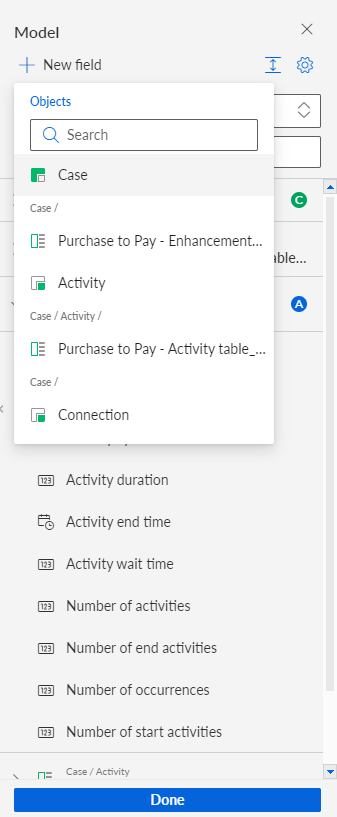
Click + New field to add a calculated field.
Select the object to which you want to add the calculated field, for example, the Case object.
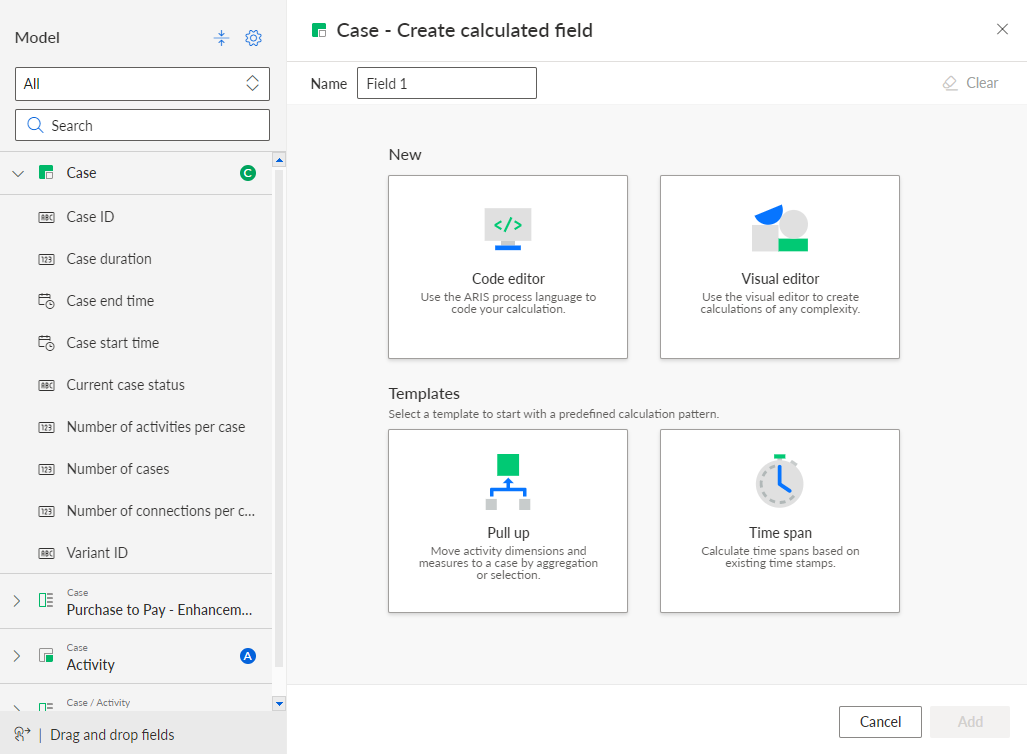
Enter a name for the new field in the corresponding input box, for example, New calculated field.
Select a method to define the calculation rule. To create an activity field,you can use only the code and visual editors.
Code editor : Use the code editor to define any calculation rule.
Visual editor : Use the graphical editor to define any calculation rule.
Pull up: Use a template that provides a preset calculation pattern to define a pull-up calculation rule.
Time span: Use a template that provides a preset calculation pattern to define a rule to calculate time spans.
Define a calculation rule.
Click Add.
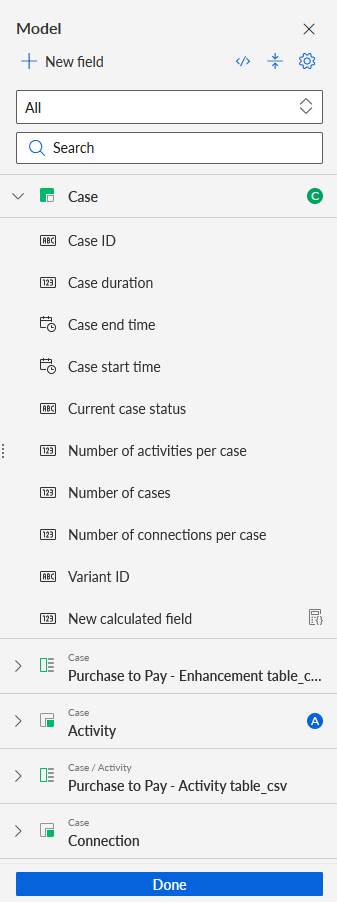
You created a calculated field. The new field is added to the selected object in the Model panel. The field is also available in the analysis model and can be edited and managed in the Analysis model section.
You can use the new field as an analysis criterion in the Process explorer.
Tip
You can edit a calculated field. In the Model panel, move the mouse pointer over a calculated field and click the Edit icon > Edit. A corresponding dialog opens.
The New calculated field is added to the Case object in the Model panel.