Work with filters
You can filter the processes so that only cases that meet certain conditions are displayed. These filters help you to examine specific aspects of your processes. You can filter the processes by fields, individual activities, or a specific activity sequence.
You can select specific elements in an analysis component, for example, an activity in the flow chart or a column in a column chart. The values of the selected elements are used to filter the data of your entire analysis. Alternatively, you can specify a selection to filter the analysis data.
If you filter processes by fields, only the cases that correspond to certain field values, such as a ranking value, are displayed.
If you filter processes according to individual activities, only the cases that contain specific activities are displayed.
If you filter processes according to a specific activity sequence, only the cases in which certain activities follow each other are displayed.
You can select an element of an analysis component to filer your data.
Select an activity in the flow chart, for example, Create invoice.
Click the
 Apply icon marked in green in the analysis header.
Your selection is applied to the entire analysis. Only the cases that contain the selected element are considered in your analysis.
To remove the selected element, click the x Remove icon of the selection.
You can also specify a selection to filter the analysis data.
Click Add new selection in the analysis header.
Click Field selection, for example, to filter the processes by specified fields.
Select a field in the Fields panel, for example, Product category, and select the field values, for example, Consultancy and Legal.
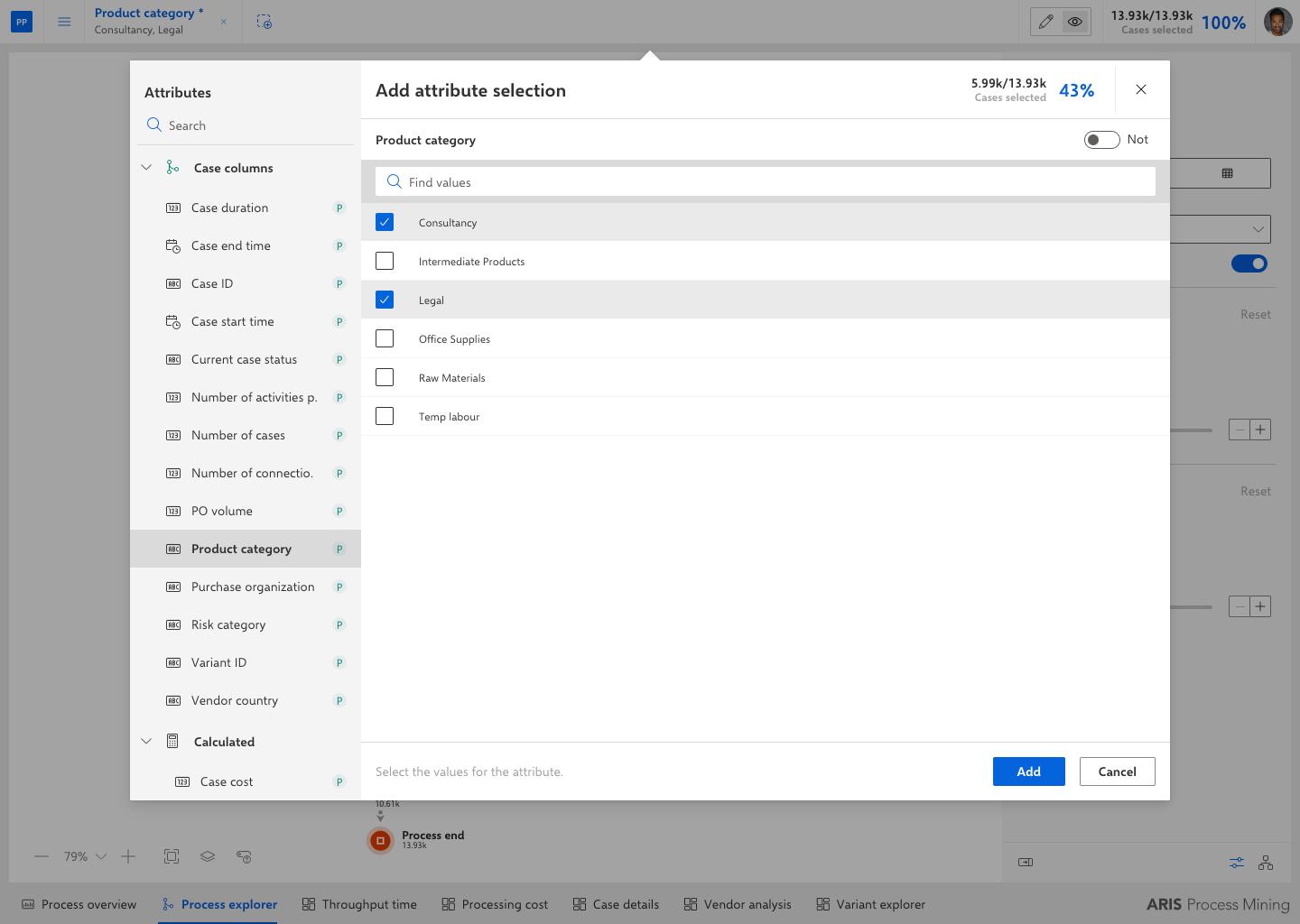
Alternatively, you can click Switch to value selection to set the filter conditions based on the field values.
Specify your settings.
Click Add.
Your selection is added to your analysis and only the process with cases that match the filter conditions is displayed.