Inspect variants to spot deviations
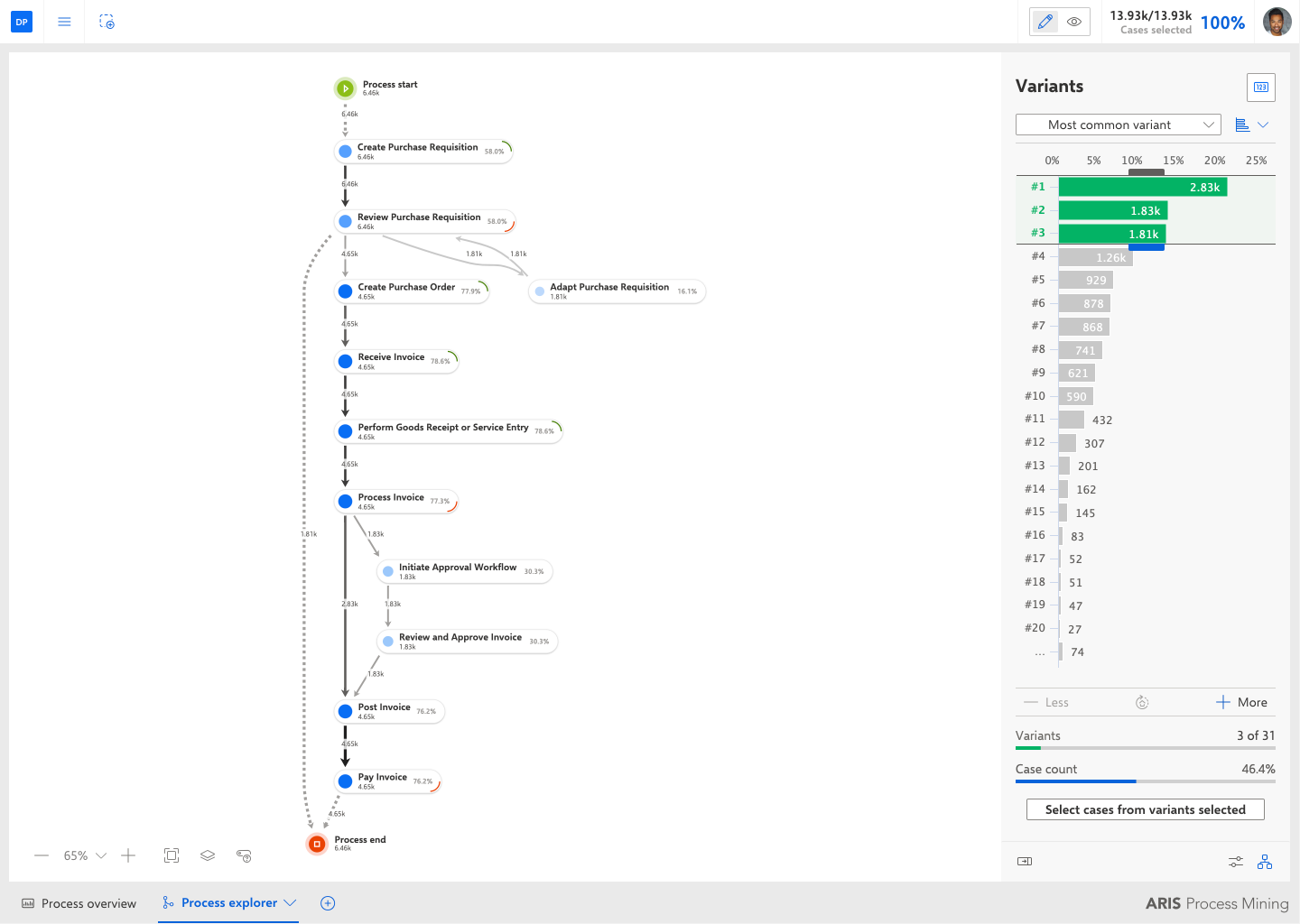
In addition to the process measure analysis, you can analyze the behavior of processes variants. By default, the Process explorer shows a cumulative process, that is, a process that contains all or some of the process variants that occurred. The variant analysis helps you to analyze the structure of the different process variants down to the individual case. It allows you to compare different processes to identify possible flaws in a process.
In the Process explorer, click the
 Show variant panel icon below the Process panel.
The Variants panel lists all available variants of the displayed process. The most common variant is displayed first.
Move the mouse pointer over a variant to display further information in a tooltip.
You can display the variants in
 bar view or in
 list view. By default, they are displayed in bar view. Click the Switch variant view icon and select List view.
In the Variants panel, you can select the variants to be analyzed.
Click the drop-down menu to select a preset variant selection, such as Most common variant or Least common variant.
You can select one or multiple variants in both views. In bar view, you can select multiple variants using the sliders.
If there are more variants than the panel can display, click + More to display further variants.
You can configure the measures displayed in the process. Click the
 Configure displayed measure button in the upper right corner of the panel, and select the measure to be displayed.
The variant analysis helps you to find deviations in your processes.
The variants analysis shows the most common variant covering 46.4% of all cases.