Enhance process data
You can add more data to enhance your current analysis model. To enhance the analysis model, you must first add one or more data tables that contain appropriate data. You can use specific columns within each table to link the tables together. These columns are called foreign keys.
A data set can only contain one activity table, but several enhancement tables. You can link a table to one or more other tables, but there can only ever be one link between two tables.
The data for the enhancement table must be stored in an appropriate CSV file. An enhancement table must contain at least two columns and one of these columns can be used as foreign key.
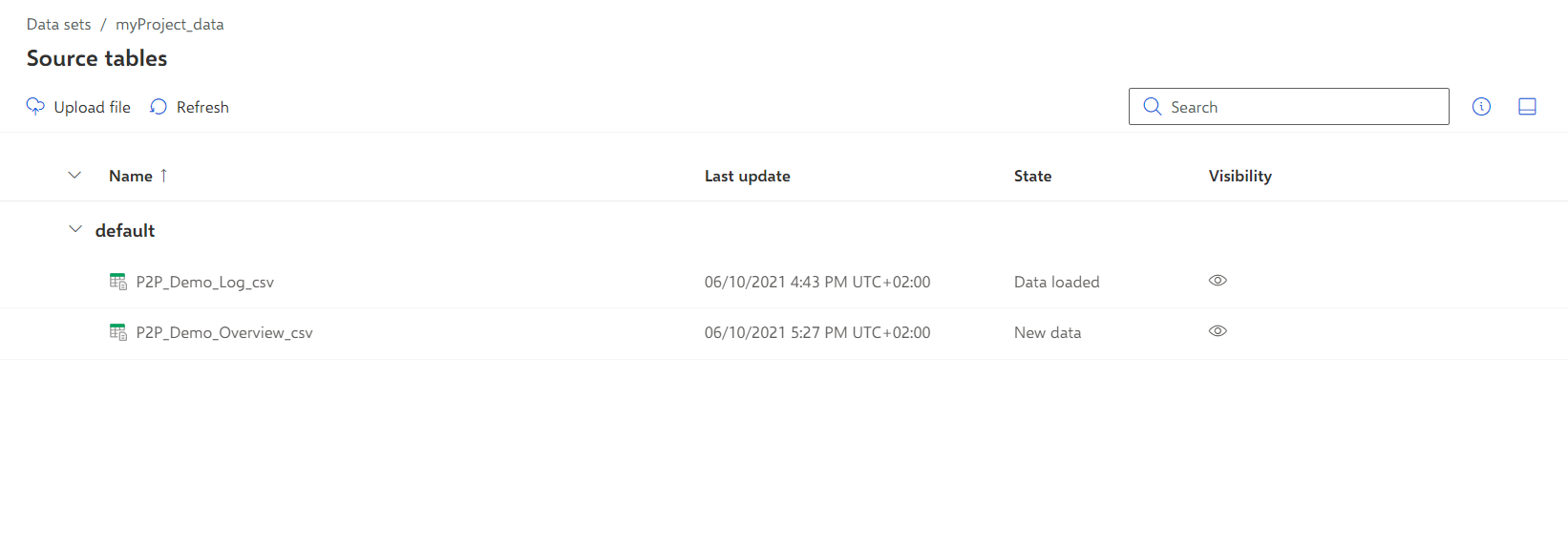
Click Source tables in the Data set panel. The Source tables section opens.
Click Upload file.
Select the P2P_Demo_Overview.csv file and proceed as shown in the Upload process data chapter.
The P2P_Demo_Overview.csv table is added to the Source table page.
Click Data modeling in the Data set panel. The Data modeling section opens.
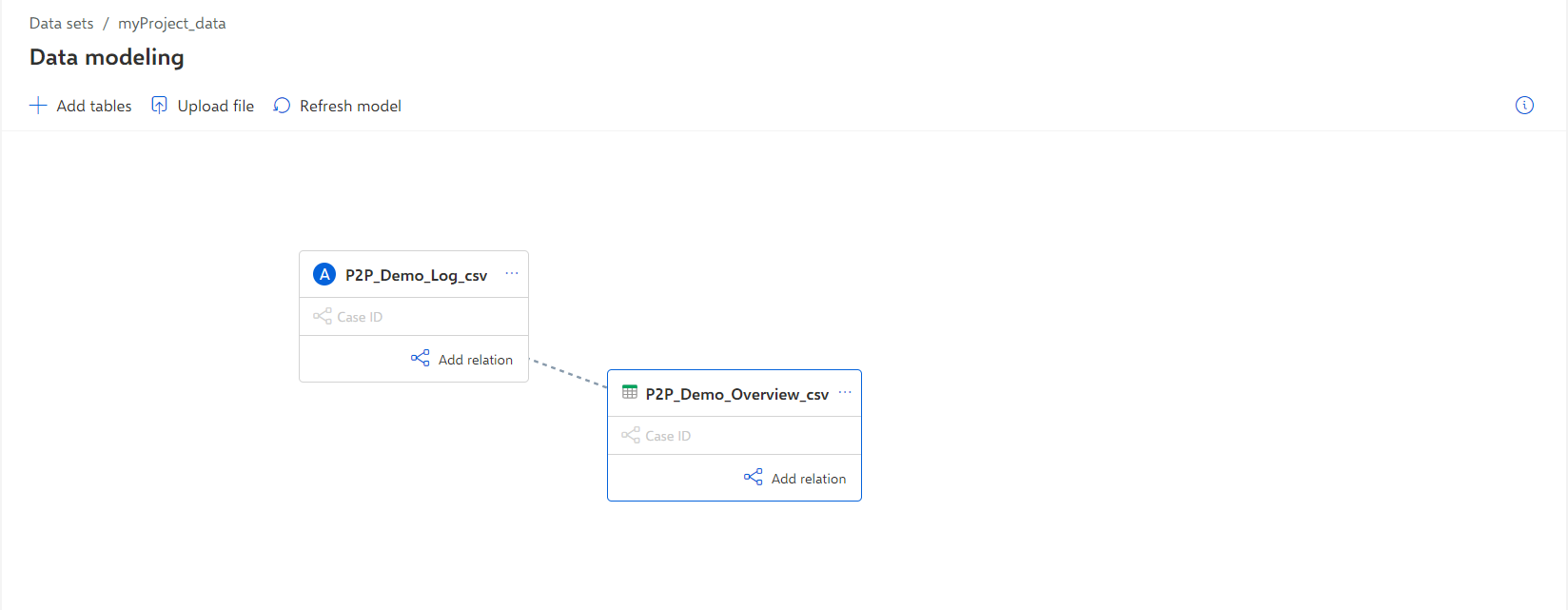
Click + Add tables and add the P2P_Demo_Overview.csv table as shown in the Configure process data chapter. The table is added to the Data modeling page.
Click ... More options on the P2P_Demo_Overview.csv table icon > Change table role. The Select data table type dialog opens.
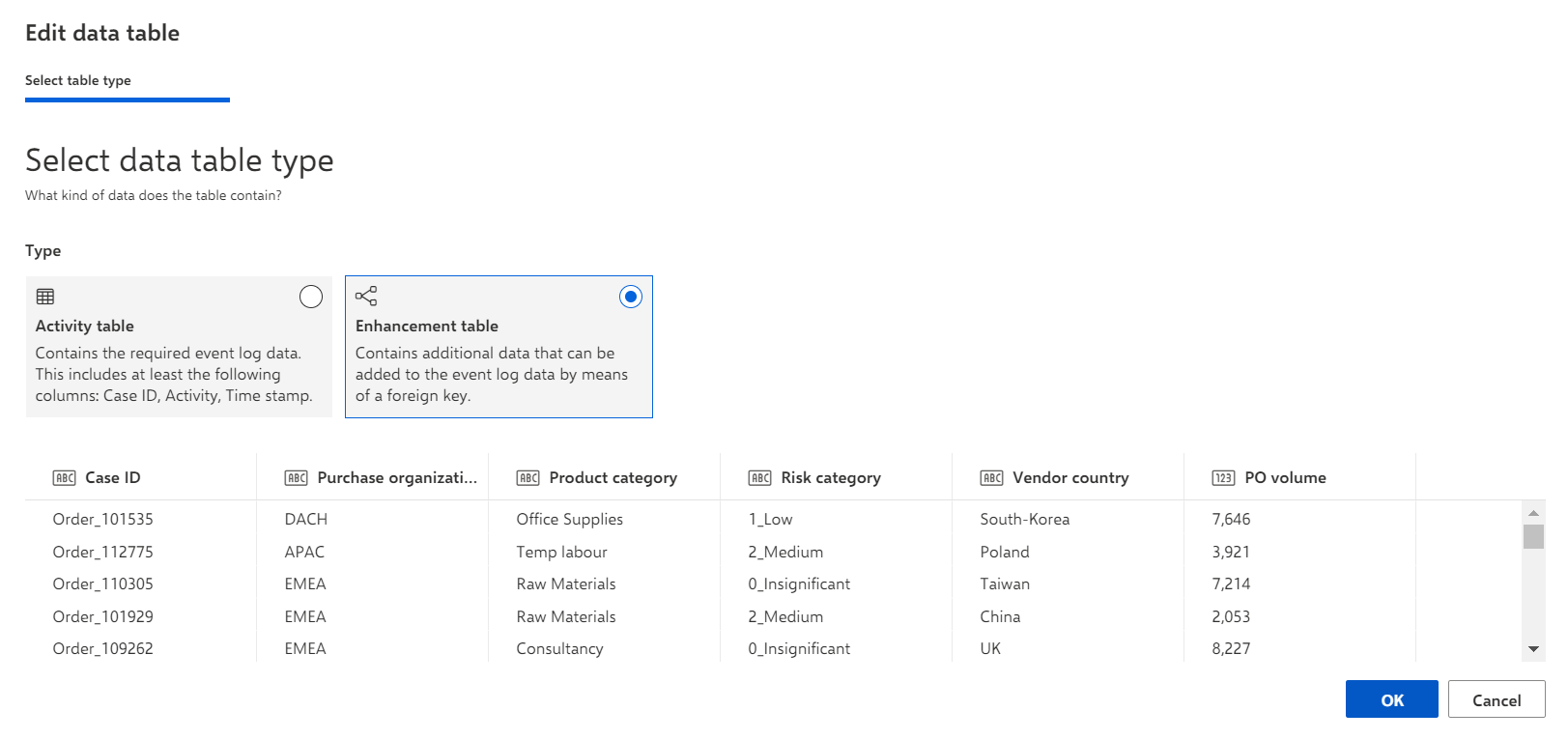
Select Enhancement table and click OK. The new table is added to the Data modeling page.
Click
 Add relation on the activity table. A Connect with table button is displayed on each table that can be connected.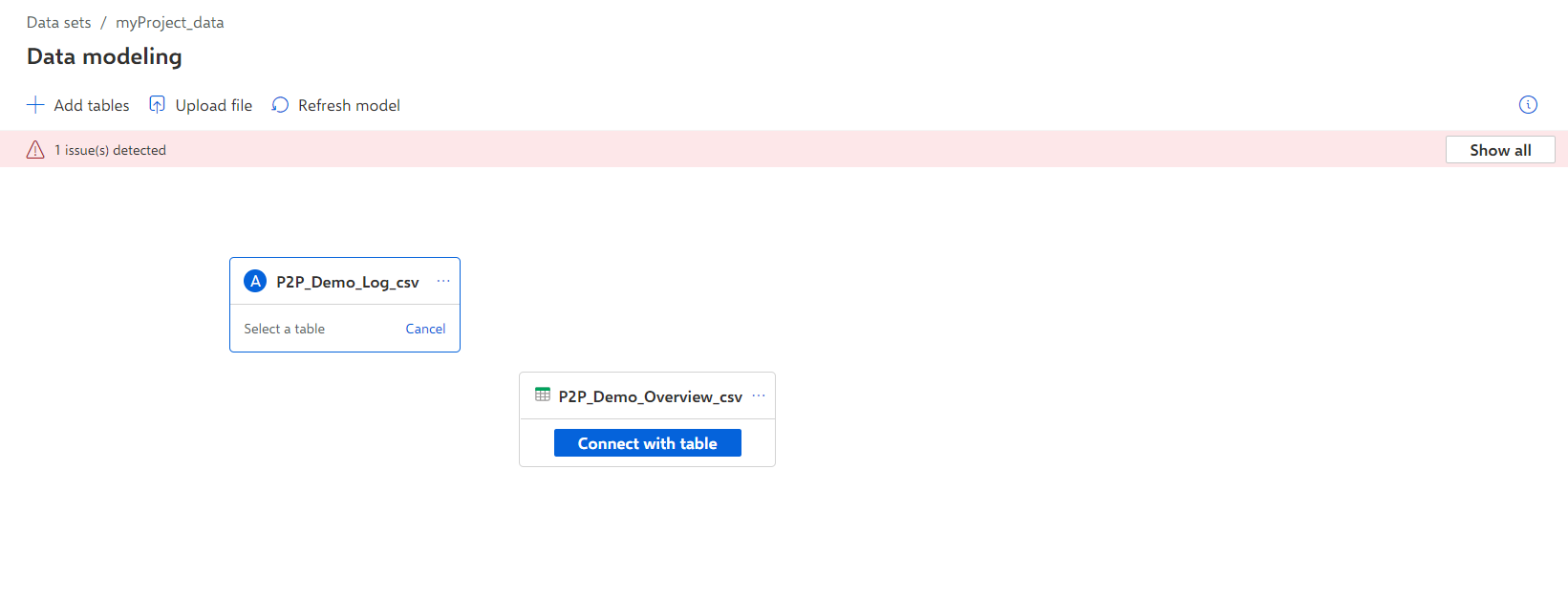
Click the Connect with table button on the enhancement table. The Edit relation dialog opens.
Select a foreign key from each table to connect both tables, for example, the case ID.
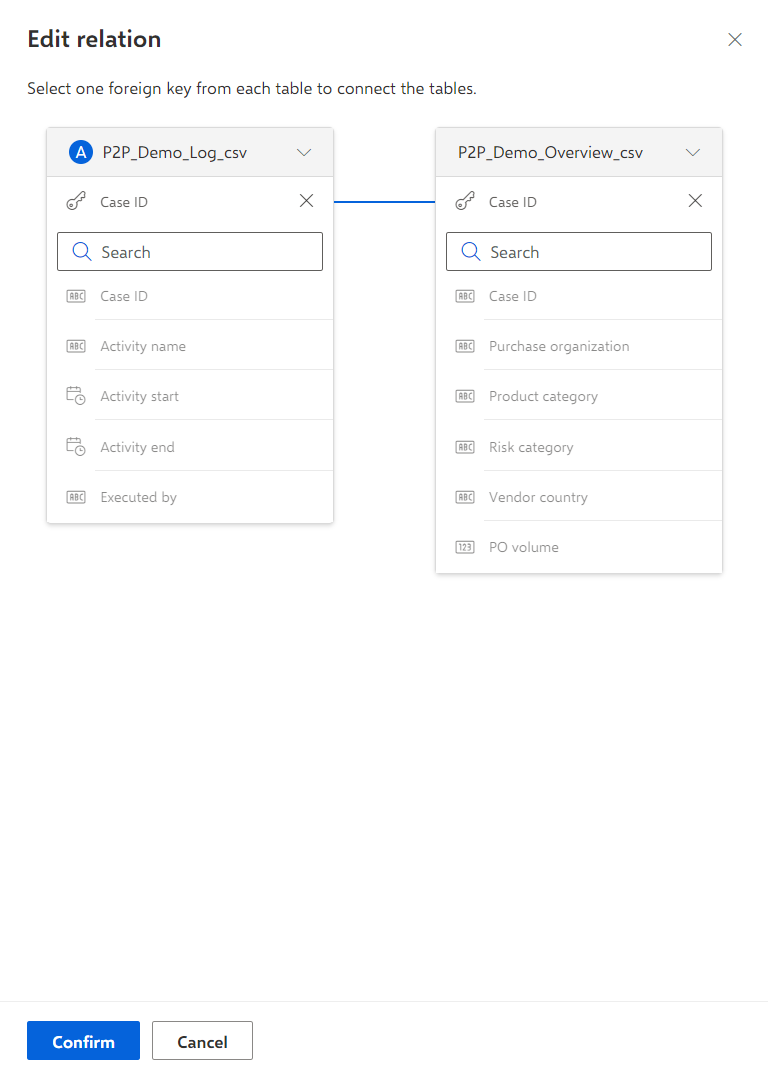
Click Confirm.
Both data tables are connected now, and the selected foreign key is displayed in the corresponding data table.
Click the
 More options icon > Load data in the data set panel.
Click Run in the Run data load dialog. Depending on the amount of data to be processed, it takes a few moments to load the data.
Your analysis model is updated with the newly loaded data.
Now you can start analyzing your processes.