Use the advanced filter mode
In the advanced filter mode, you can define more complex dependency filters using specific SQL statements. You can use the statements to filter values of the mapped key columns.
Enable the Advanced mode option in the Edit dependency filter dialog. The advanced filter mode displays the settings made in the default filter mode. The Column field contains the column to be filtered and the Column mapping field contains the column used as filter.
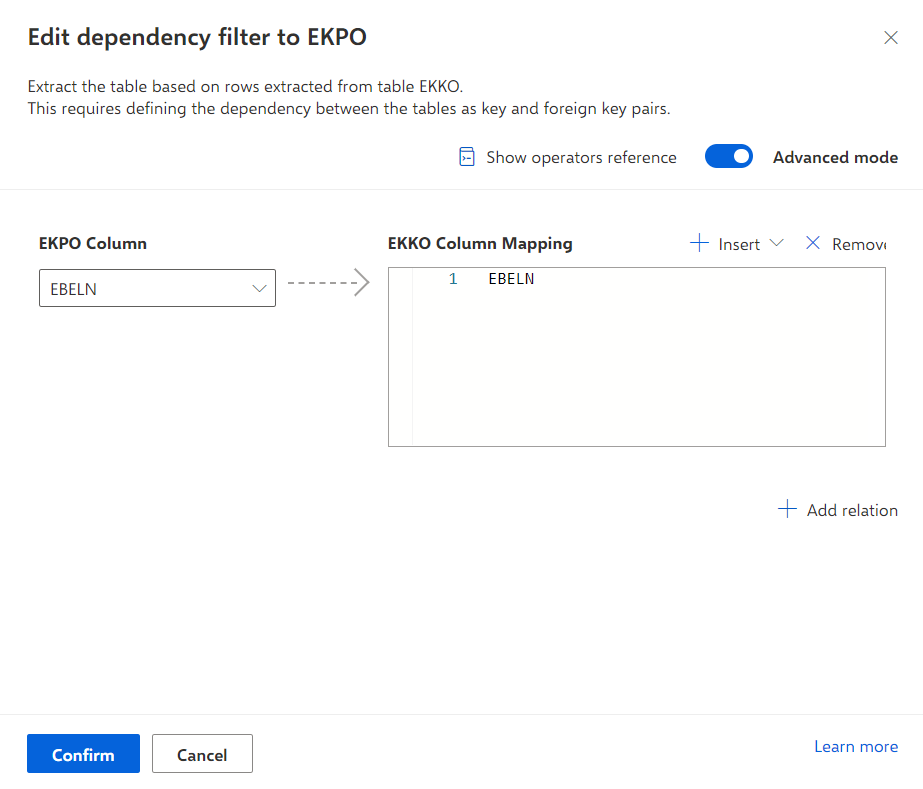
Click Show operator references to show a list with supported SQL operators for defining a dependency filter.
You can select the column to be filtered in the Column drop-down box.
Define a filter using an SQL statement. For details, see the chapter Supported SQL operators.
Enter an SQL operator in the Column mapping field.
Insert the columns you want to filter. You can insert columns using the list that provides the columns you have selected in the table configuration.
Place the mouse pointer on a position in the SQL statement.
Click Insert -> Insert column and select a column.
The selected column is placed at the cursor position in the statement.
To insert a parameter, click Insert > Insert parameter and select a parameter.
The selected parameter is placed at the cursor position in the statement.
To add more column mappings, click Add relation.
Click Confirm to save your settings.
You have defined an advanced filter to filter the mapped columns of the dependency filter.
Tip
You can use the automatic code completion for defining a filter statement in the following ways. The code completion supports the trim, concat, subst, and format function.
Place the mouse pointer on a position in the SQL statement and press the Strg and 'Space' keys. A list with the functions, extraction and data set parameters, and configured columns of the source table is displayed. Select an element from the list. The element is inserted into the statement.
Place the mouse pointer on a position in the SQL statement, insert the first letter of a function, select the function, and press 'Enter'. The function snippet is inserted and a parameter can be selected. You can select a parameter from the list or enter the parameter manually.
Insert a parameter into the SQL statement. Move the mouse pointer between '{' and the first letter of the parameter placeholder. Insert the first letter of a function, followed by the Ctrl + 'Space' keys. The function is suggested. Press 'Enter' to insert the function.