Create a connection to the source system
You must create a connection to any source system from which you want to extract data. The connection is required for each data set that you want to use for analyzing the source data.
You can manage connections in the Connections section of a data set.
Create a new connection to the SAP system with the secret key of the created SAP system integration.
Open the data set that you want to use for analyzing the source data.
Click Connections in the Data set panel. The Connections section opens.
Example
The section looks as follows if no connection has been created yet.
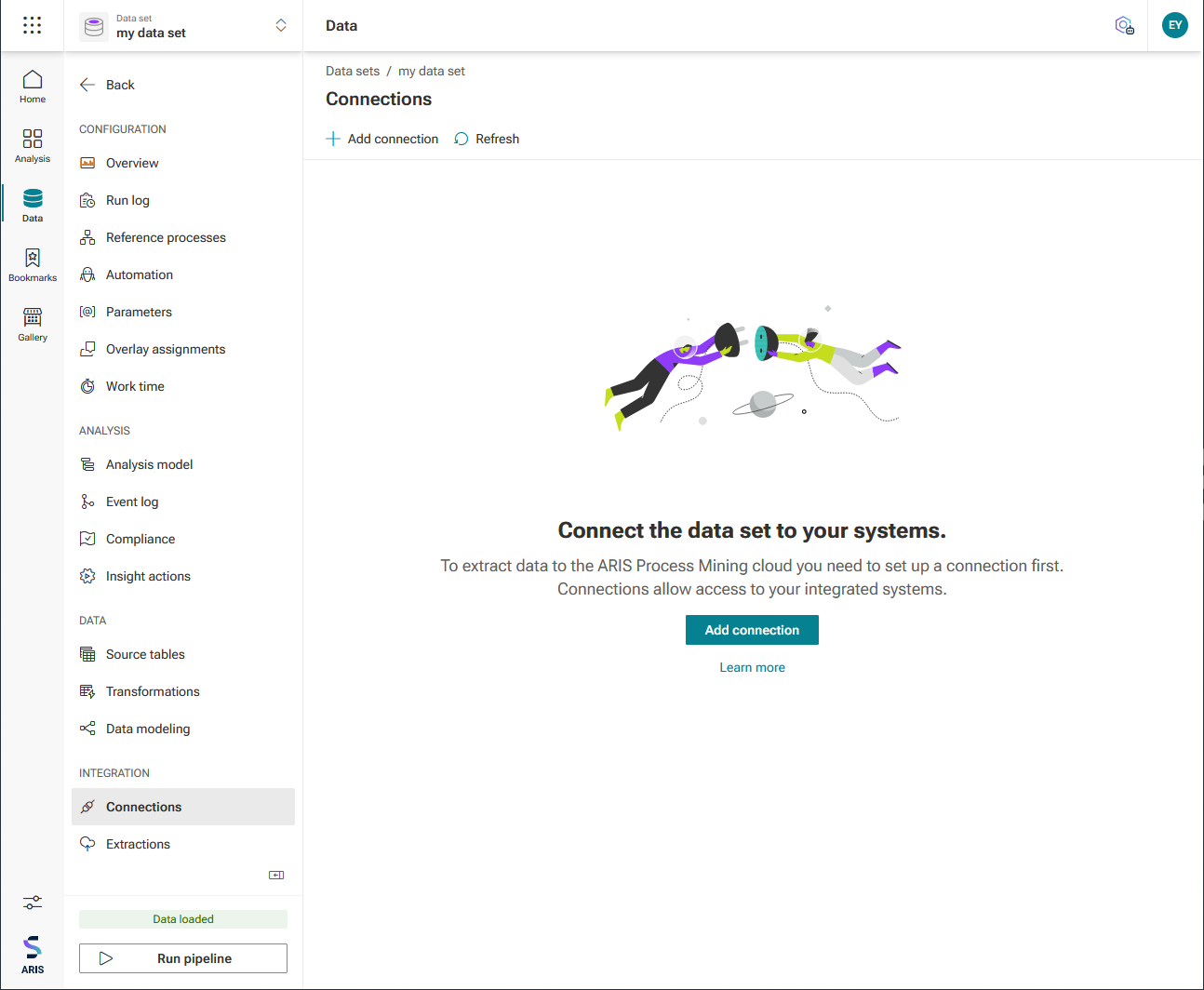
Click Add connection. The Assign ‘Living Process’ license dialog opens if you have not yet assigned a license to the data set.
Select a license in the drop-down menu. You need the ‘Living Process’ license to extract and analyze processes. The number of processes you can extract depends on the selected license.
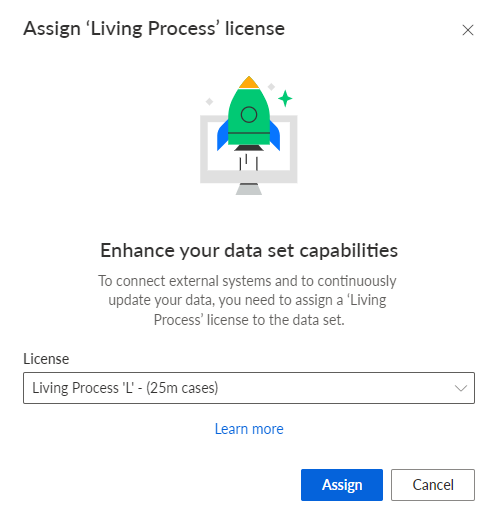
Click Assign. The Add connection dialog opens.
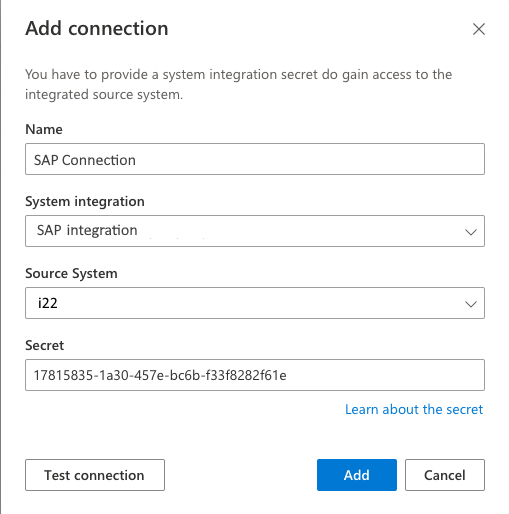
Configure the connection.
Enter a unique name for the connection to the SAP system.
Select the created SAP system integration.
Select the SAP source system in the drop-down menu. The menu contains only source systems provided by the selected system integration.
Enter the secret key of the selected SAP source system.
Click Add.
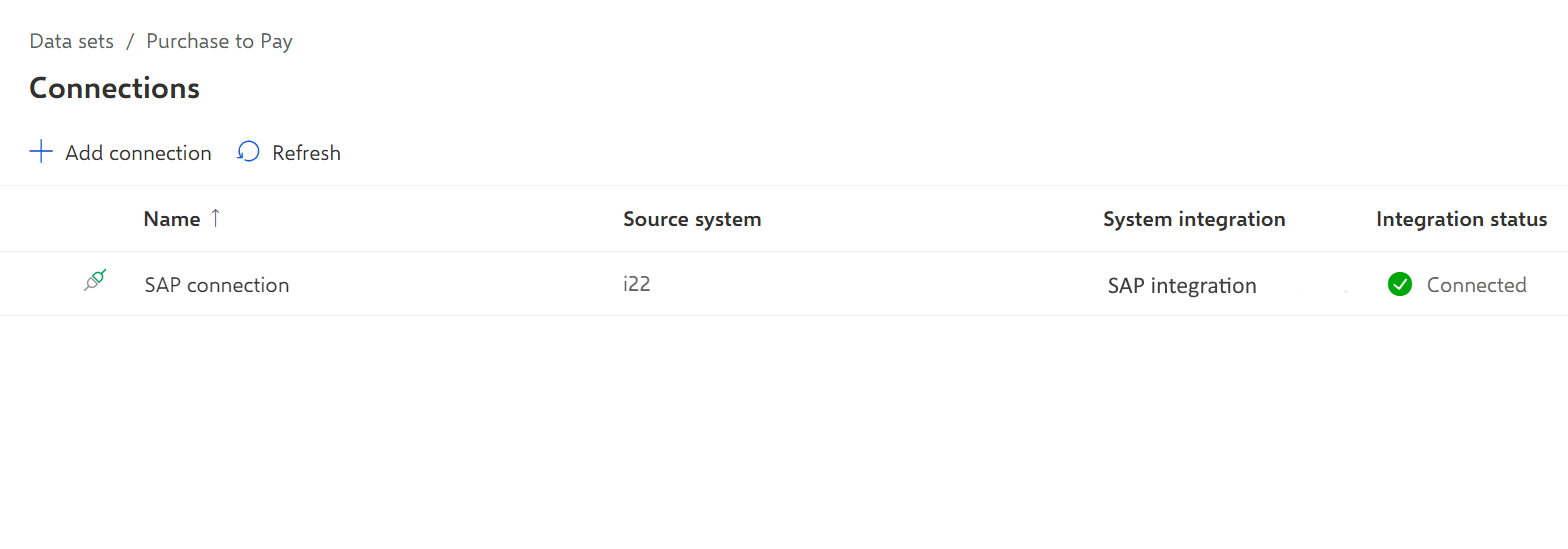
You have created a connection to the SAP source system. The created connection is displayed on the Connections page with the settings you specified.
If a selected source system or system integration is no longer available, the corresponding connection is highlighted in red and marked with an icon ( ). A corresponding tooltip is displayed.