Create an SAP system integration
You must first create an SAP system integration to then connect ARIS Process Mining with an SAP source system.
A dedicated client-credentials key is generated for each system integration. You need this key to configure the ARIS Process Mining connection when you install Process Extractor. For details on how to use the client credentials key, see the chapter Configure the ARIS Process Mining connection in the Process Extractor installation guide.
The client-credentials key consists of two parts, the client key, and the secret key. The keys are connected with a "/".
<client key>/<secret key>
88ef7ca5-3c54-41a9-8b78-e2051dbf4adc/c0bc46e3-048a-467a-ab1c-9e113fa708c0
Note that each Process Extractor installation requires its own credentials key. You must not use the same credentials key for different Process Extractor installations.
Prerequisite
You have installed the ARIS Process Mining Enterprise license.
Click the
 Navigation menu icon >
  Administration in the program header.
Click
 System integration in the Administration panel.
Click
Add system integration. > Process Extractor (SAP/JDBC). The corresponding dialog opens.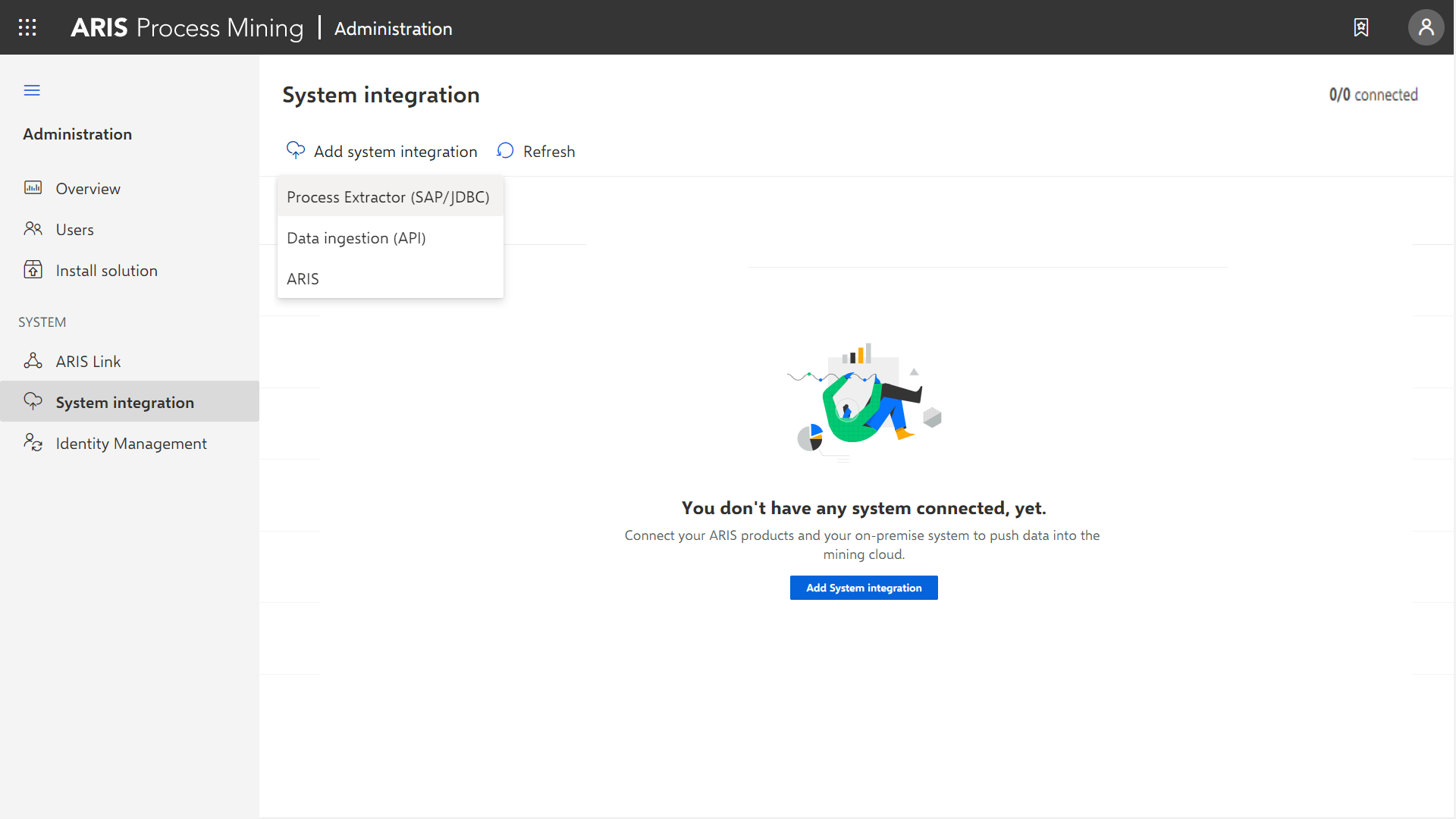
Enter a name, for example, SAP integration, and an optional description.
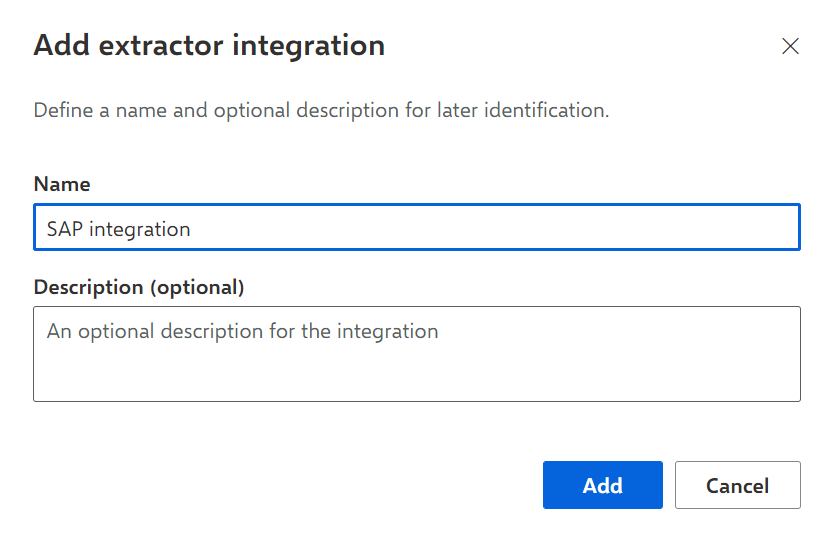
Click Add. The corresponding dialog opens. The dialog provides the client credentials key that is required to configure Process Extractor to communicate with ARIS Process Mining.
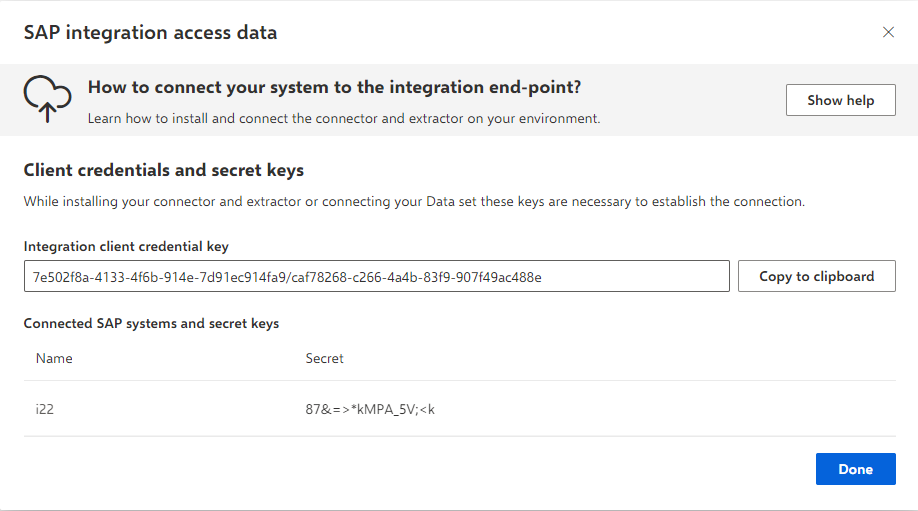
If ARIS Process Mining is connected to Process Extractor, the dialog provides the SAP systems connected to Process Extractor and the associated secret keys. The secret key is required to create a connection to the SAP source system.
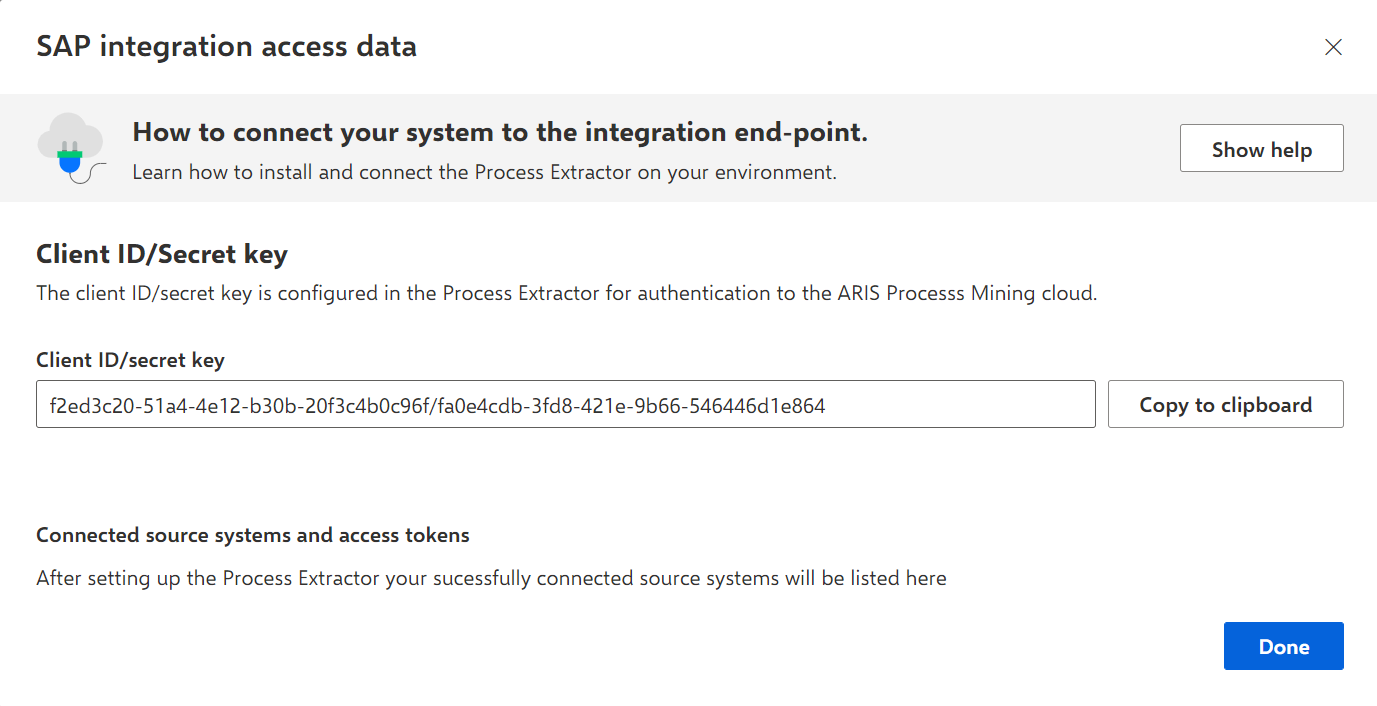
Save the client-credentials key that is provided in the dialog. You need the client-credentials key to configure the connection to Process Extractor. For more details, see the chapter Change the ARIS Process Mining credentials.
Click Copy to clipboard.
Save the key, for example, using a text editor.
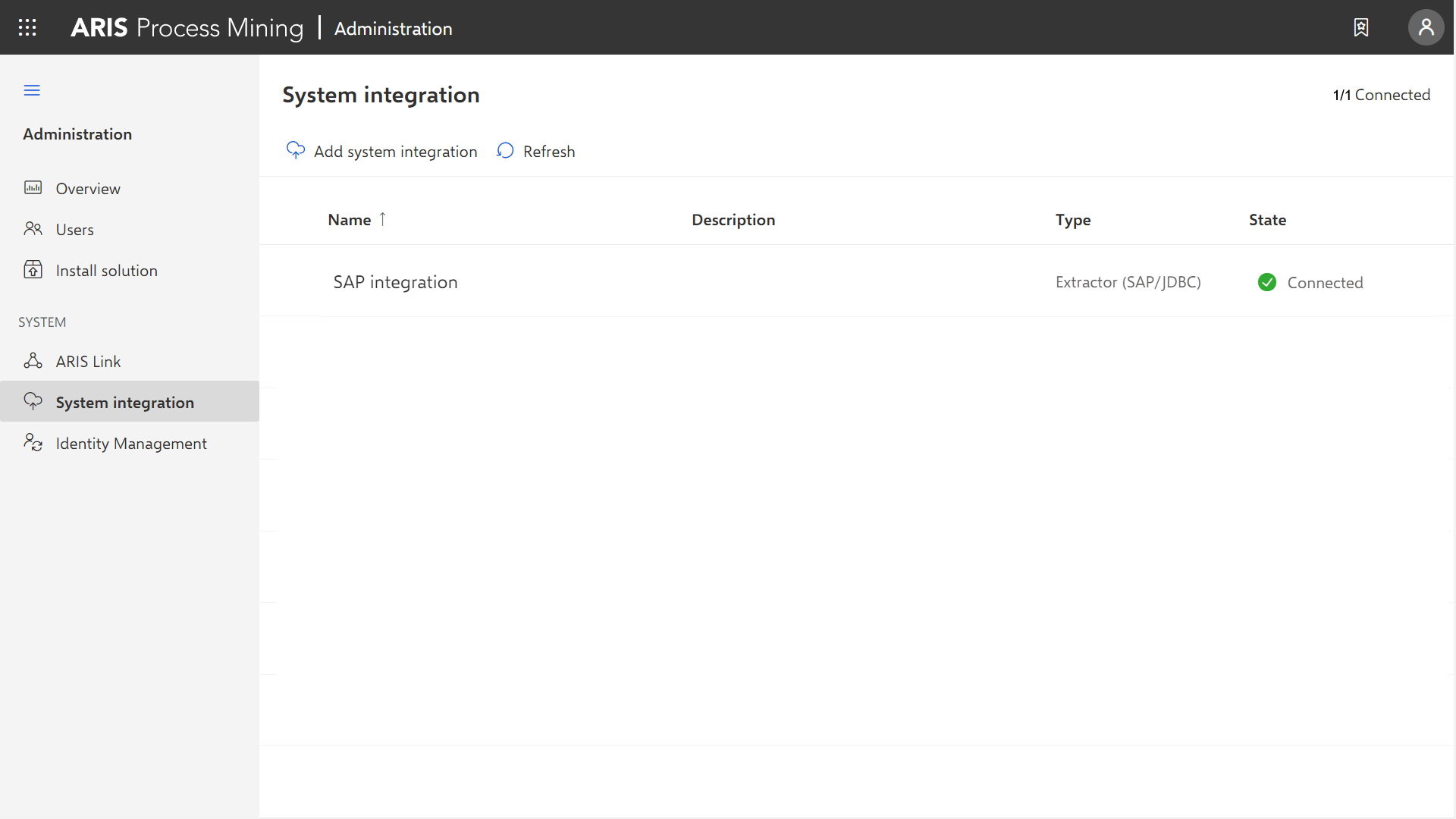
The system integration is created and listed with the name you specified.
Tip
The client credentials key is also saved in the system integration you created. Select the system integration in the list and click  Show system access data. Then you can copy the key to the clipboard and use it when creating a connection.
When Process Extractor is installed and configured, click  Refresh to display the connection status of the system integrations.
Display the available SAP systems of an integration
You can display SAP systems and the corresponding secret keys that are available for a system integration. The secret key is required to create a connection to the SAP source system.
Note that the Process Extractor service must be running to display the connected SAP systems.
Select the system integration in the list and click Show system access data. The Integration access data dialog opens and displays a list of connected SAP systems with the corresponding secret keys. To copy a secret key, move the mouse pointer over an SAP system connection and click the  Copy icon. The secret key is copied to the clipboard.