Export data of an analysis component
You can export data of individual app components in your analysis. This means that you can export the data displayed in a component, considering possible filter settings. The data can be exported to Excel or CSV format. The data export option is available in view and edit mode.
Note that the data export to a CSV file is currently limited to 10.000 rows.
Prerequisite
You have enabled data export for the relevant component.
Select the component, for example, a line chart, whose data you want to export.
Click the ... icon in the upper right corner of the component > Export data. The Export data dialog opens.
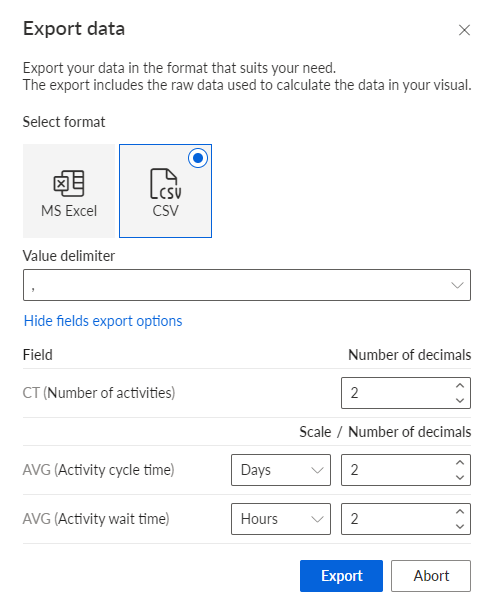
Select the MS Excel or CSV format for the data export.
To specify the options for each field separately, click Show fields export options. The options provided depend on the type of the data assigned to the component and the selected output format. For the CSV format, you can additionally select the value delimiter.
Example
Export data options for the CSV format.
Click Export.
The component data is exported to the selected file format and downloaded in your web browser.
You can open the downloaded export file in the corresponding download folder of your web browser.
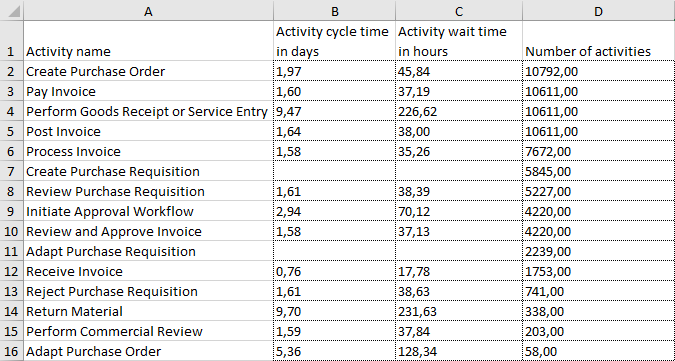
Exported component data in Excel format with the Activity name dimension, the Activity cycle time, Activity wait time, and Number of activities measures.