Save filters as bookmarks
You can save filter settings of an analysis as a bookmark. When you open the saved filter settings, the filters are applied to the currently opened analysis. Saved filters are available for all your projects and analyses.
Note that event logs that you use in your current analysis are also saved as a filter in the bookmark.
Click the
 Personal favorites icon in the analysis header. The Bookmarks panel opens.
Click Create new. The Create bookmark dialog opens.
Enter a title for the bookmark.
Enter an optional description. To edit the text format of the description, click Format and make your settings.
In the Save drop-down menu, disable Current analysis. Only Set filters remain enabled. By default, all settings that can be saved in a bookmark are enabled.
Example
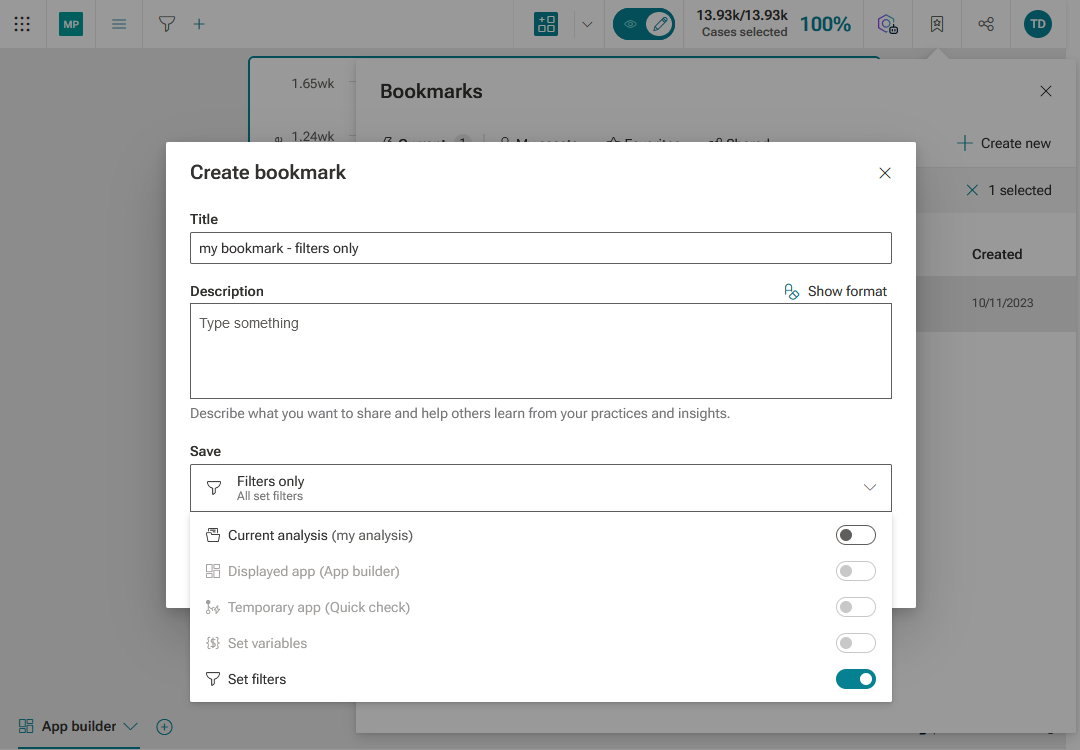
Click Create.
The filter settings are saved as a bookmark and can be displayed on the My assets tab of the Bookmarks panel.