Transfer process variants to ARIS
You can transfer process variants from ARIS Process Mining to ARIS. Based on the transferred process data, ARIS creates a BPMN or an EPC model that you can edit and further analyze in ARIS. In the Process explorer app, you can configure the process data that you want to transfer to ARIS. For example, you can select the process variants to be analyzed and reduce the number of processes by specifying filters.
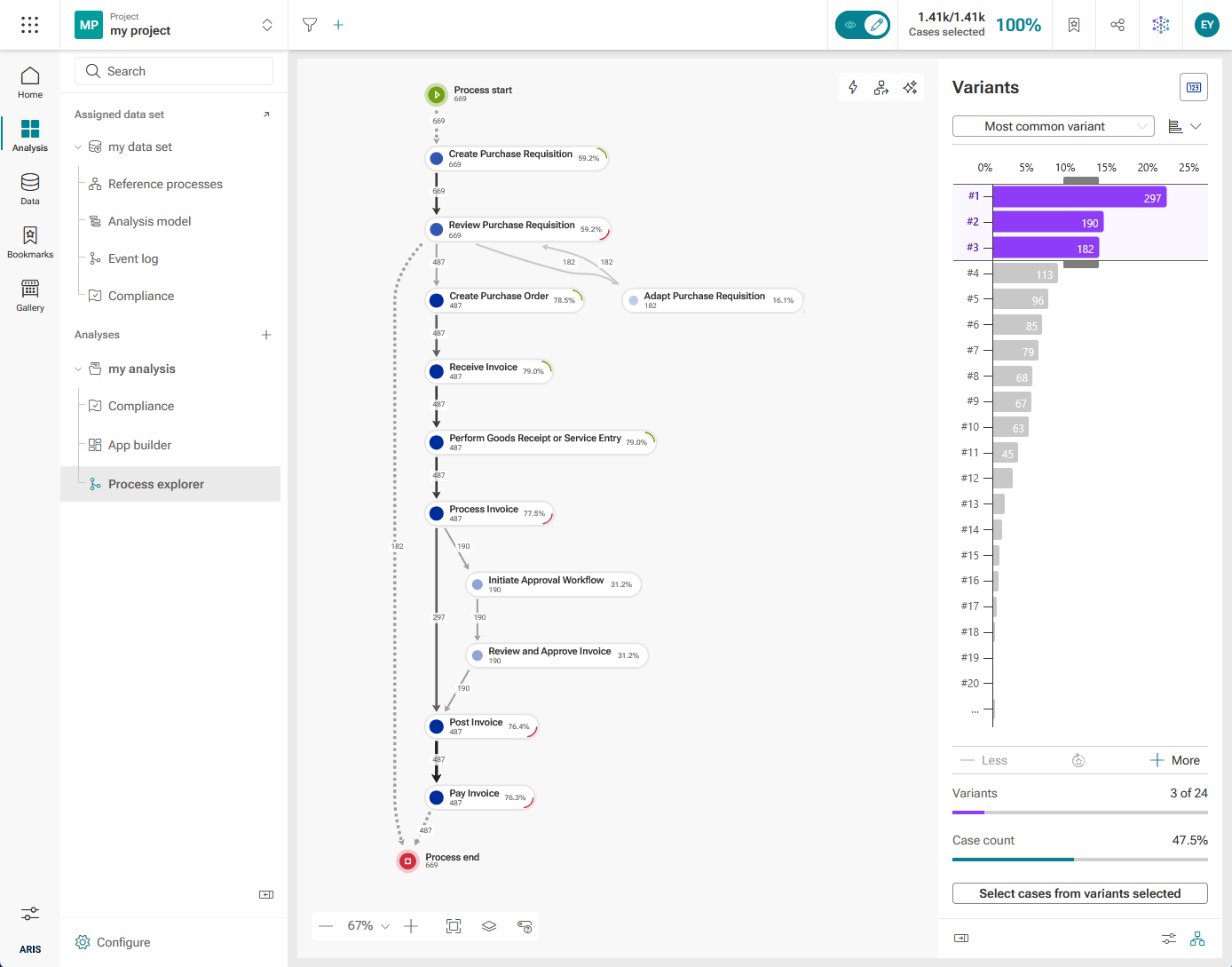
The screenshot shows the Process explorer app with three selected variants of the process displayed.
Prerequisites
You have access privileges to the ARIS database where you want to store the transferred model.
Open the Process explorer app.
Specify your settings.
Click the
 Transfer as a model to ARIS repository button. The Transfer model wizard opens with the How it works dialog. The dialog shows information about the transfer of process data to ARIS.
Click Next. The Bookmark dialog opens.
You can save your current selection and selected variants as favorites. The option is enabled by default. If you do not want to create a bookmark, disable the Bookmark option. In the Name field, you can edit the bookmark name and the directory where the bookmark is saved. The bookmark name is preset in the following form.
<project name>/<data set name>/<analysis name>/<date>/Model export
Example
my_project/my_data set/my_analysis/2021-09-07/Model export
Click Next. The Transfer dialog opens.
If you are already logged in to ARIS, a note is displayed that the model transfer is done.
If you are not logged in to ARIS, the Log in dialog of ARIS opens. Enter a ARIS user name and password. You can configure ARIS Process Mining and ARIS to use ARIS Process Mining credentials to log in to ARIS.
Click Store model. The Save model wizard of ARIS opens.
Example
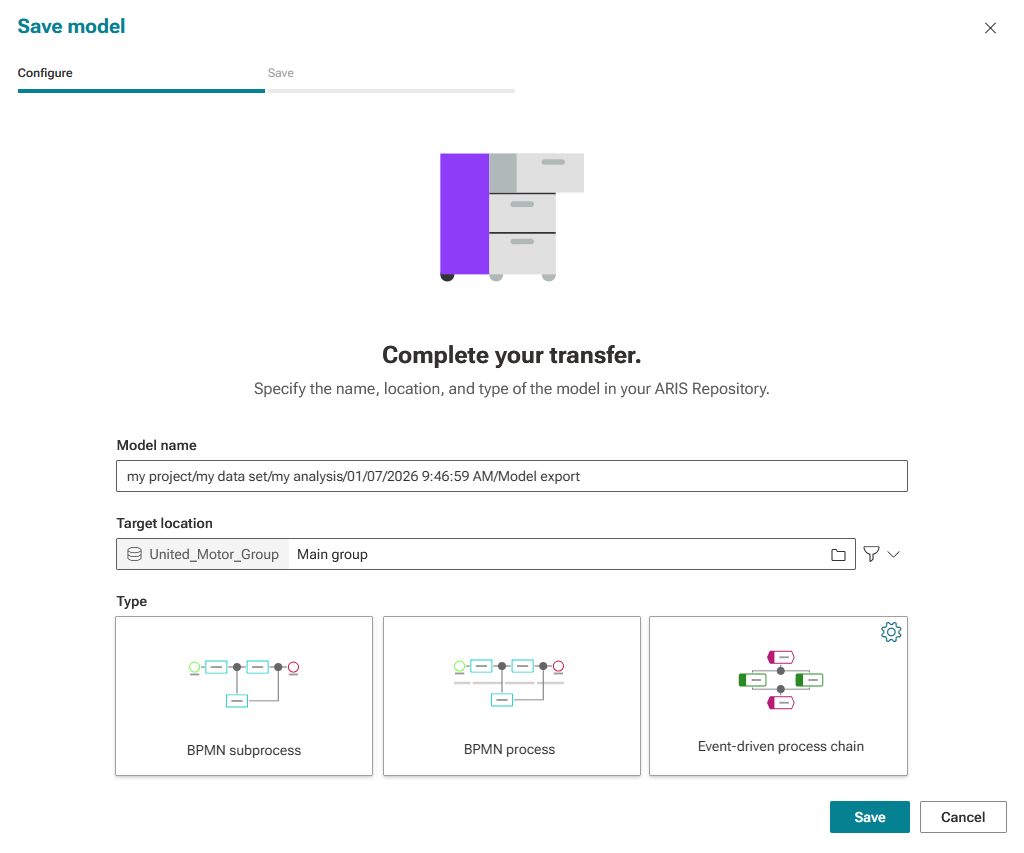
You can change the preset model name. The model name is preset in the following form.
<project name>/<data set name>/<analysis name>/<date>/Model export
Click the
 Browse group button in the Target location box to select the group in which to store the model. The box shows also the currently used database.
Click the
 Select method filter button to select a method to use for saving the model. Method filters are marked with a warning icon (
 ) if saving is not possible for at least one of the provided model types. See also the chapter Method filter requirements for more details.
Select the model type to create the process model. You can save the process data as an Enterprise BPMN process diagram, Enterprise BPMN collaboration diagram, or EPC. The process types that can be selected depend on the selected method filter. If a model type cannot be used due to method filter restrictions, a warning icon (
) is displayed with a note indicating why saving this model type is not supported for the selected method filter. See also the chapter Method filter requirements for more details.For the EPC model type, you can select the symbol types to be used for the objects in the created model.
Select the Event-driven process chain type. Move the mouse pointer over the
 icon to display the sybmol types used in the model.
Click the
icon to select the symbol types. The Select symbols dialog opens with the symbol types available for the selected method filter and EPC model type.Select the symbol types for the objects from the drop-down menus.
Enable the Remember my selection option if you want to reuse the symbol settings in future EPC models that are transferred to the same ARIS database with the current filter. The selected symbols are default symbols.
Click Select. The button is only available if no warnings are displayed for any of the selected icons.
Example
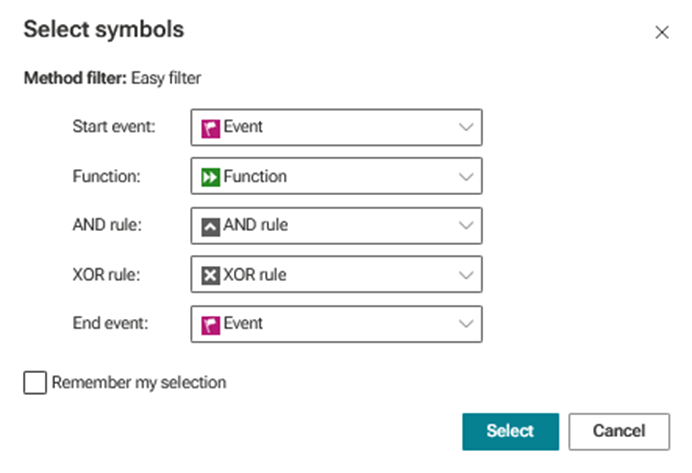
If the method filter does not allow all of the needed symbol connections between the selected symbols, a warning is shown at the entry of the source symbol.
For example, if the connection 'leads to' / CT_LEADS_TO_1 from the 'Function' symbol to the 'AND rule' symbol within an EPC is not permitted by the method filter, a corresponding warning is displayed for the 'Function' entry.
If the symbol combination is invalid, the model type is marked with a red dot and the Save button is disabled until you select a valid symbol combination.
Click Save. The Save model dialog opens.
Click Edit model to open the model in the editor or click Jump to repository to open the selected group containing the model.
The process data is transferred to ARIS and saved in the ARIS repository. Based on the process data and your settings, a BPMN or an EPC model is created.
You can now edit and analyze the created model in ARIS.